![horizontal-black-3.png]](https://knowledge.cheqroom.com/hs-fs/hubfs/horizontal-black-3.png?width=200&height=37&name=horizontal-black-3.png)
Exporting your data from Cheqroom allows you to generate reports, perform audits, or back up your equipment and user records into spreadsheets. You can choose to export an entire category or narrow down your data using custom filters.
What Data Can You Export?
You can export data from almost any module in your Cheqroom workspace, including:
- Equipment & Inventory: Items, Kits
- People: Users
- Transactions & Documents: Reservations, Check-outs, Work Orders
How to Export Your Data
1. Navigate to the Desired Section:
Log into your Cheqroom workspace and select the module you want to export data from (e.g., Items, Reservations, Users, etc.) using the main navigation menu on the left.
2. Select the Data to Export (Optional Filter):
Depending on what you need to export, choose one of the following methods:
-
Export Specific Data (Filtered): Apply a custom filter or search term to isolate the specific records you need (e.g., Items in Location: Studio A or Overdue Check-outs).
-
Export All Data: Select the Select All checkbox near the top of the list to select everything in that category.
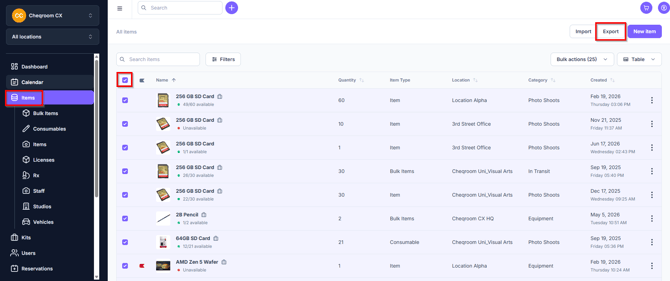
3.Download the Export File:
Click the Export button located in the upper right-hand corner of your screen. You can then choose to export the file in .xls or .csv format and then choose to "include all fields" or "included only current columns".
Your download will begin automatically, and should also be available in your recent download history on your web browser.
💡 Tip: Applying filters before exporting is a great way to generate targeted reports without having to clean up unnecessary rows in your spreadsheet software later.
Note: Currently, Cheqroom does not support exporting item history logs.
Why Can't I See the Export Button?
If you don't see the Export option in your Cheqroom workspace, it is usually due to one of two reasons:
- Role Permissions: Your user profile may not have permission to download or export data from the account.
- Subscription Plan: Export capabilities may not be enabled on your current subscription plan.
How to Get Access
If you need export capabilities added to your account or plan:
- Contact Support: Send a message to support@cheqroom.com, and our team will review your account settings and user role.
- Account Upgrade: If your plan needs to be updated to support data exports, we will connect you directly with your Account Manager to explore available options.