![horizontal-black-3.png]](https://knowledge.cheqroom.com/hs-fs/hubfs/horizontal-black-3.png?width=200&height=37&name=horizontal-black-3.png)
Creating a custom field for Items
-
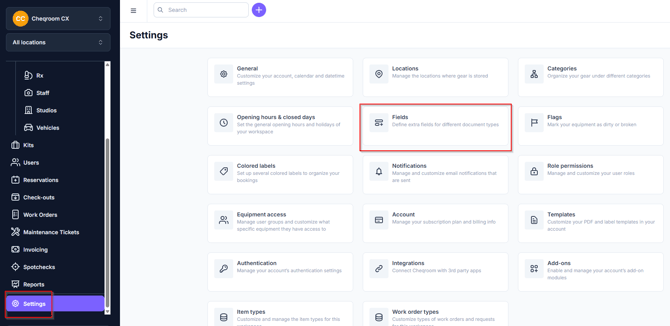
Navigate to Settings in the bottom left corner of your screen and click Fields.
-
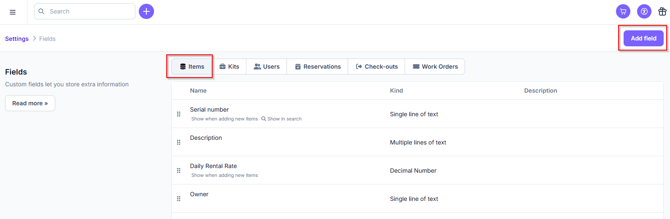
Make sure you selected Items and click Add field.
-
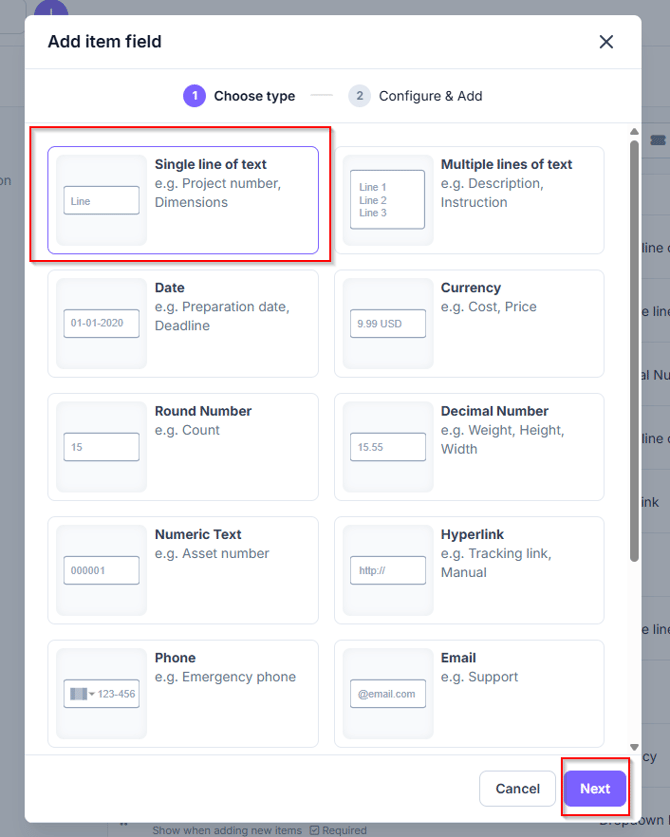
Choose your field type and then click Next.
-
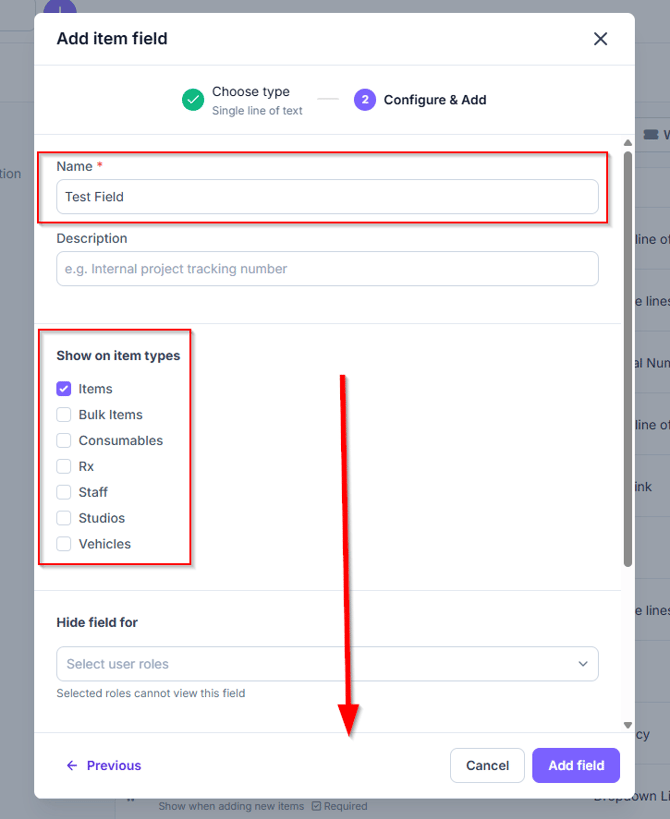
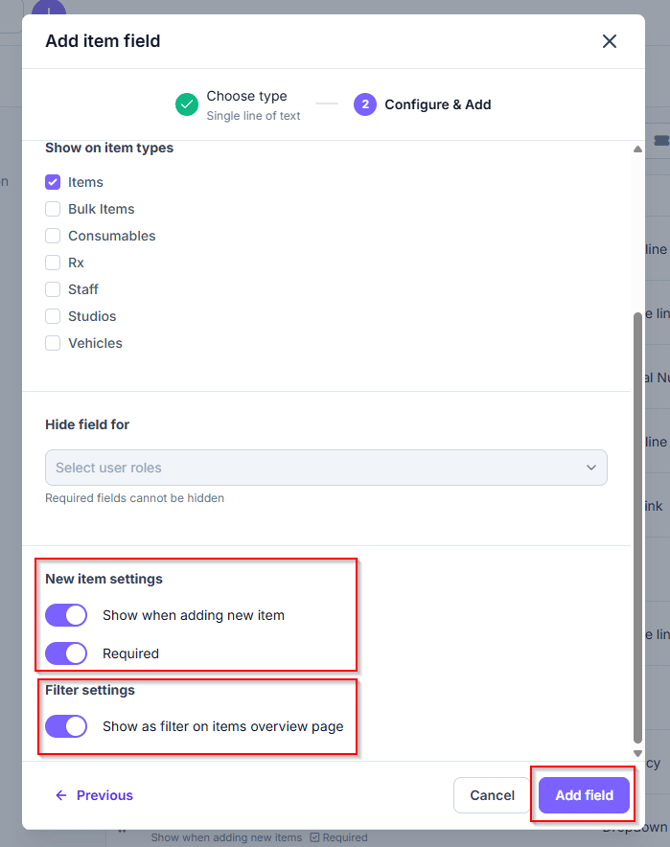
Enter the field Name, the description is optional, however you will need to pick at least one field from Show on item types
-
Under New Item Settings, you can toggle on Show when adding new item and also make it Required.
-
Additionally, you can toggle on the Filter settings to Show as filter on items overview page. Next, click Add field.
-
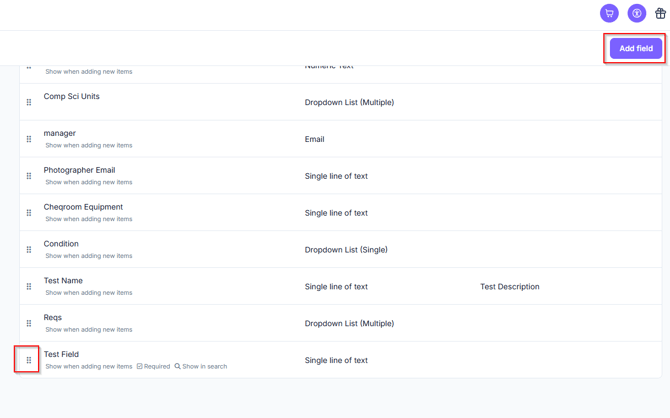
You can change the order of the fields by clicking on the left side of the field name and moving it up or down. Finally click Add field.
Using Item Fields
Filling in custom fields for a new Item
-
Navigate to Items and next click New Item
-
Fill in the required fields (basic and custom fields)
-
Click Add (top of the screen)
Updating custom fields of an existing Item
-
Click Items and select an Item
-
Go to the Info tab
-
Modify one or more fields by clicking on it and typing or clearing its value
-
The Item is automatically saved
Updating custom fields of many Items at once
-
Click Items in the Table view
-
Select multiple Items using the checkboxes
-
Click Bulk actions, next click Edit items
-
Update the values of one or more fields
-
Click Update to save your changes