![horizontal-black-3.png]](https://knowledge.cheqroom.com/hs-fs/hubfs/horizontal-black-3.png?width=200&height=37&name=horizontal-black-3.png)
Sublocation introduces a flexible location hierarchy system that enables you to organize your physical spaces in a way that matches your organization's structure. Here are some tips, tricks, and guidance for making the most of this feature.
Setup Guide
Initial Configuration
-
Access Location Settings: Navigate to Settings → Locations from your admin dashboard.
-
Review Existing Locations: Before creating a hierarchy, review your current location list and plan how you want to structure them.
-
Create Parent Locations: If necessary, start by creating your top-level locations (e.g., headquarters, regional offices, warehouses).
-
Add Child Locations: Under each parent location, create sublocations as needed (e.g., floors, storage rooms, shelves, bins).
Best Practices for Structure
-
Keep it simple: Don't create more hierarchy levels than necessary.
-
Use consistent naming: Establish a naming convention for locations (e.g., "Building A, Floor 2, Room 201") and stick to it across your organization.
-
Plan for scalability: Consider future growth when designing your location structure.
-
Regular audits: Schedule periodic reviews of your location structure to ensure it still meets your needs.
Migrating Existing Data
-
Create your new hierarchical structure in Settings → Locations
-
When you’re ready to assign sublocations, you have two options:
-
Move items individually, from their Item Details page: Location field
-
Bulk edit items to change many Locations at once
-
How to Edit Bulk
-
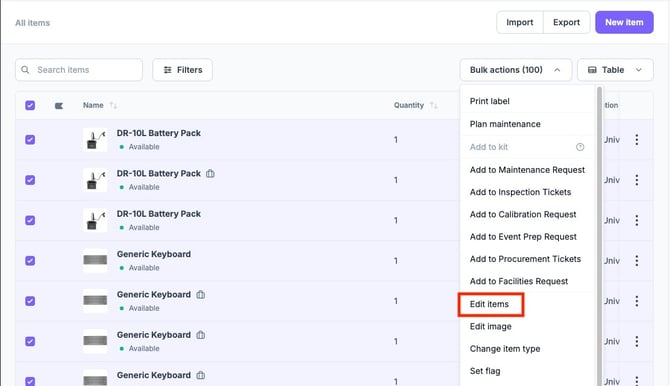
Open items overview, and select items you'd like to edit
- You can select up to 1,000 items at one time
-
Open bulk action menu to select "Edit Items"
-
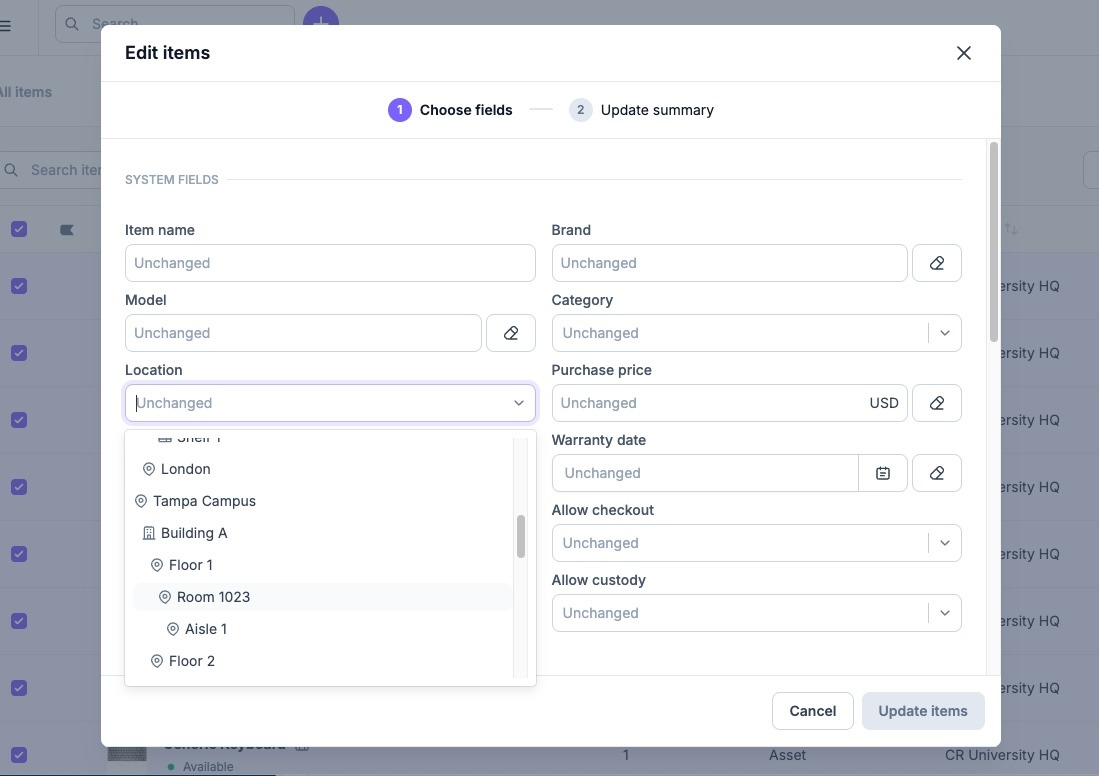
Select new location from location drop down menu
- For considerations on moving bulk items, see: https://knowledge.cheqroom.com/helpcenter/best-practices-for-managing-bulk-items-in-kits
- For considerations on moving bulk items, see: https://knowledge.cheqroom.com/helpcenter/best-practices-for-managing-bulk-items-in-kits
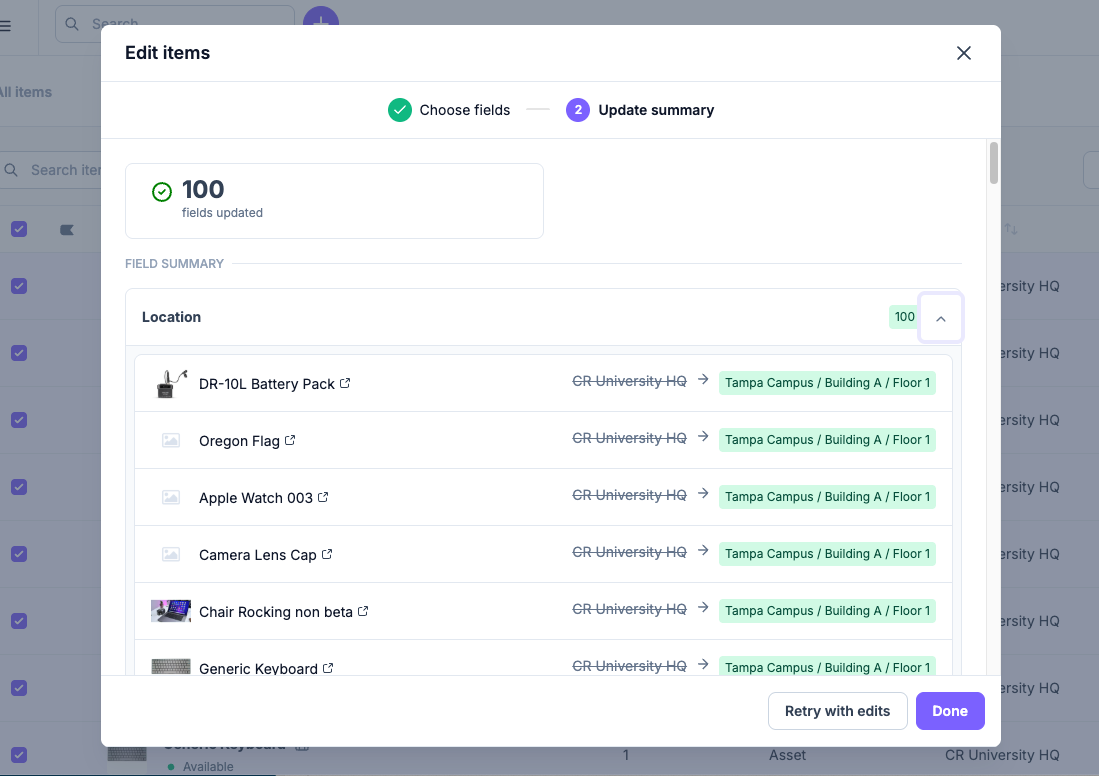
- Review confirmation message
If you need help planning your migration, reach out to support@cheqroom.com for help!
Frequently Asked Questions
-
How many levels of hierarchy can I create?
The system supports up to 5 levels of location hierarchy.
Top Level / Sublocation 1 / Sublocation 2 / Sublocation 3 / Sublocation 4 -
Can I move equipment between locations in bulk?
Yes. You can move items in bulk either through import and export, or using the bulk edit tool.
To bulk change sublocations, you can export your items list to xlsx or csv and update your location field with a location path delimited with forward slashes (/) to separate your location and sublocation levels.
Example: Cheqroom HQ / Building A / Floor 2 / Shelf 3 / Bin A -
What happens to equipment if I delete a location?
Before deleting a location, you must first reassign or remove all equipment from that location. The system will prevent deletion of locations that still contain equipment to protect your data.
-
Can I have the same location name under different parent locations?
Yes, location names only need to be unique within their parent level. For example, you can have "Storage Room 1" under both "Building A" and "Building B".
-
How do permissions work with location hierarchy?
Permissions are set at the top level (Level 1) of a Location
-
Can I change the parent location after creating a child location?
No, once a sublocation has been made, it is attached to that parent location. If a change need to be made, you should create a new sublocation under the correct parent location.
-
Is this feature available on all plans?
Location Details is available for Business and Enterprise plans
Troubleshooting
Common Issues and Solutions
-
Issue: I can't delete a location
Solution: Ensure there is no equipment assigned to this location. Check both active and archived items. You must reassign or remove all equipment before deleting a location.
Getting Help
If you encounter issues not covered in this guide, reach out to support@cheqroom.com or your Customer Success Manager for assistance!