![horizontal-black-3.png]](https://knowledge.cheqroom.com/hs-fs/hubfs/horizontal-black-3.png?width=200&height=37&name=horizontal-black-3.png)
Cheqroom supports a variety of printing setups so you can generate barcodes and QR codes for your assets. Follow the breakdown below to determine the best printing approach for your team.
Choose Your Hardware Approach
Select the printer setup that best fits your workflow, budget, and customization needs:
Option A: Direct Integration via Dymo (Recommended)
Dymo is Cheqroom’s preferred and fully supported label printer.
- Integration: Connects directly with your Cheqroom account.
- Customization: Allows you to design, customize, and import label formats directly from the official Dymo software.
Option B: Thermal / Dedicated Label Printers (Zebra, Brother, etc.)
You can use third-party label printers such as Zebra or Brother to print asset labels.
- Functionality: Prints scannable barcodes or QR codes to attach to your items for reservations, check-ins, check-outs, etc.
- Note: These printers operate independently and are not directly linked or connected to your Cheqroom software account.
Note: Label customization is unavailable with Option B. Cheqroom generates auto-assigned barcodes and QR codes for your assets, which are then printed using your third-party printer software.
Option C: Standard Office Printer (Cost-Effective Alternative)
If you want a budget-friendly option or want to test label sizes before purchasing a dedicated thermal printer, you can use a regular office printer with pre-cut sticker paper or label stock (such as Avery labels).
Access & Use Built-in Label Sheet Templates
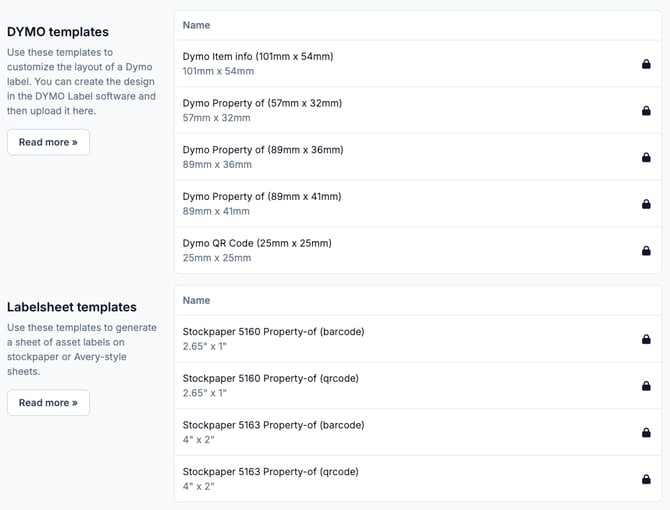
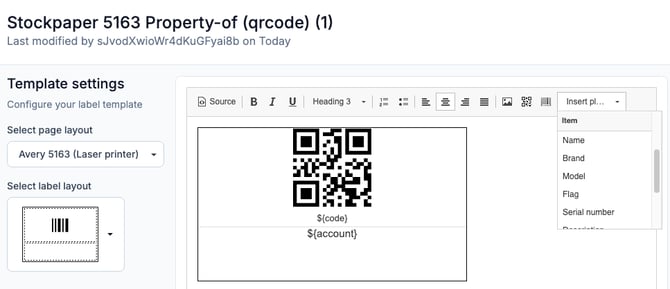
If you are using a standard office printer with pre-cut label sheets, Cheqroom provides pre-formatted templates to ensure proper alignment:
- In your Cheqroom account, navigate to Settings > Templates.
- Select one of the supported label sheet layout templates:
- Template 5160: 2.65" x 1" (Standard address size)
- Template 5163: 4" x 2" (Large asset size)
- Generate and print your labels on either barcode or QR code configurations.
Understand Scanner Behavior with Third-Party QR Codes
If you are using existing assets tagged with QR codes generated outside of Cheqroom:
- Scanning Behavior: Third-party QR codes may display as traditional barcode text when scanned into the Cheqroom system.
- Compatibility: Despite the visual difference, the system will still scan and identify your items without issue.
Need a Seamless Solution? Order Pre-Printed Asset Labels Directly
If you want to skip the hassle of printing altogether, you can purchase durable, professionally printed asset labels and asset tags directly from us! We offer several specialized types that are designed to withstand daily field use.
Ordering is fast and easy:
- In-App: Click your Profile icon in the lower-left corner of your Cheqroom account and select Buy asset labels.
- Direct Web: Visit our store directly at store.cheqroom.com