![horizontal-black-3.png]](https://knowledge.cheqroom.com/hs-fs/hubfs/horizontal-black-3.png?width=200&height=37&name=horizontal-black-3.png)
PDF Templates can be created for:
-
Reservations which are booked
-
Check-outs which are booked or completed
-
Contacts
-
Shipments
How do I create a PDF template?
-
Click Settings in the bottom left corner of your screen
-
Click Templates
-
Click New template...
-
Pick the kind of template you want to make
-
Use the WYSIWYG editor to make changes in the content
-
Update the template name to something more descriptive
-
Click Preview & save... to see what a PDF document would look like
-
Click Update to save the template
-
Use the toggle button to activate the template
How do I require an electronic signature on a PDF template?
You can require an electronic signature each time the PDF is generated. To enable this, open the template you want to configure and follow these steps:
- Locate the Require electronic signature option within the template settings.
- Enable the toggle to activate the electronic signature requirement.
- Click Update to save your changes.
This is useful when a team member must formally acknowledge accountability for equipment in their care.
How do I insert dynamic data using merge fields?
-
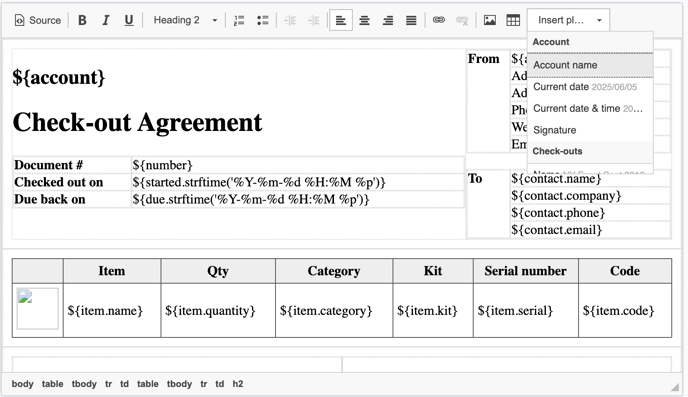
Click Insert placeholder in the top-right corner of the template
-
Insert any of the merge fields from the list, it will insert a
${placeholder}where the field will be.
How do I use advanced placeholders and repeaters in source mode?
Switch to source mode to write raw HTML, use custom-field placeholders, and build repeating item lists. Click Source in the template editor to access the HTML view.
Click Source to view the HTML for your template.
Use the same
${placeholder}merge field syntax directly in the HTML source editor.For custom fields, use
${item.fields.Field_name}— replaceField_namewith your exact field name (case-sensitive; spaces become_characters). Example:${item.fields.Serial_number}.Use
<div data-for="item in items"></div>to build repeating sections — for example, to list every item on a reservation. Place the content you want repeated inside thediv.