![horizontal-black-3.png]](https://knowledge.cheqroom.com/hs-fs/hubfs/horizontal-black-3.png?width=200&height=37&name=horizontal-black-3.png)
Cheqroom's Reports feature lets you analyze your account data and generate insights across items, kits, reservations, and check-outs — so you can make smarter decisions about your equipment.
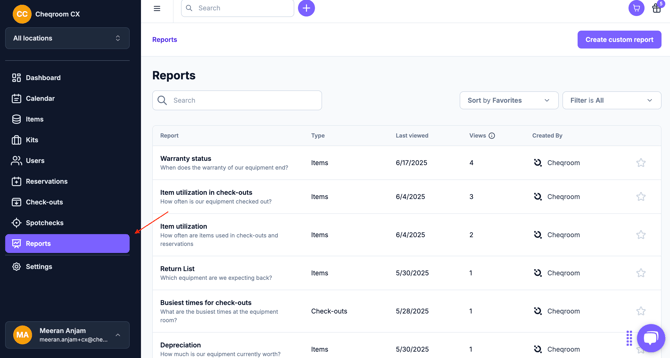
Once you are logged in to Cheqroom, go to the ‘Reports’ tab on the left side of your screen.
Our Default Reports
To keep things quick and easy, we created several default reports for you. Here is a list of them based on their category:
Items
-
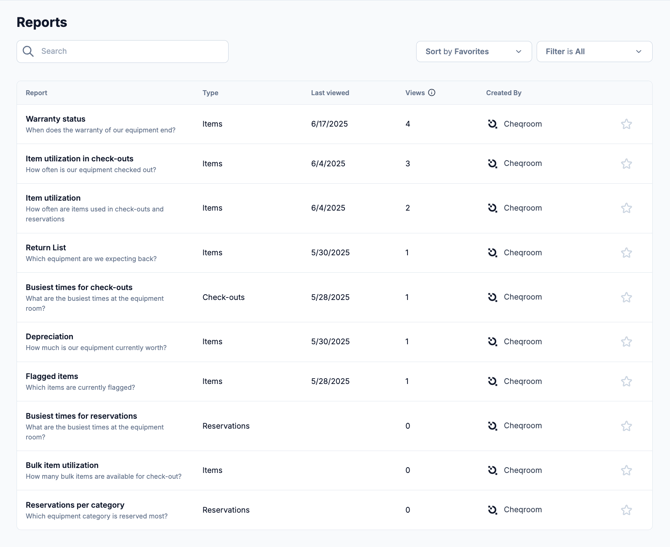
Depreciation: How much is our equipment currently worth?
-
Flagged items: Which items are currently flagged?
-
History of equipment custody: Which item has been in custody during a certain period of time?
-
History of equipment issues: How often did items get flagged during a certain period of time?
-
Items check-outs over time: What are the busy times during the year?
-
Items location overview: What's the current location of our equipment?
-
Items utilization: How often was your equipment booked?
-
Items utilization in check-outs: How often was your equipment checked out?
-
Items utilization in reservations: How often was your equipment reserved?
-
Items current state: What items are in custody, flagged, checked out, in maintenance, or simply unavailable?
-
Items in custody: Who has long-term custody of which equipment?
-
Items per category: How many items do you have in each category?
-
Return list: Which equipment are you expecting back?
-
Warranty status: When does your gear go out of warranty?
Kits
-
Kit utilization in check-outs: How often were your kits checked out?
-
Kit utilization in reservation: How often were your kits reserved?

Reservations
-
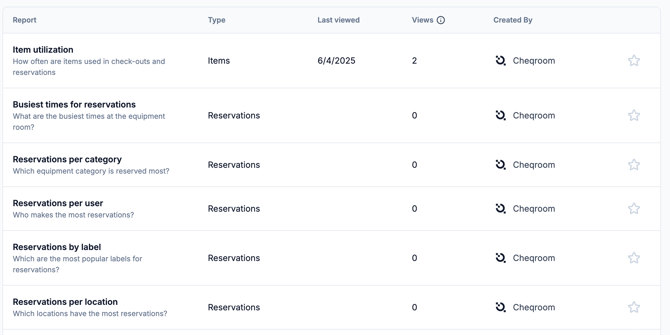
Busiest times for reservations: What are the busiest times in the equipment room?
-
Reservations by label: Which are the most popular labels for reservations?
-
Reservations per category: Which equipment category has been reserved most?
-
Reservations per contact: Who has the most reservations?
-
Reservations per location: Which locations had the most reservations?
Check-outs
-
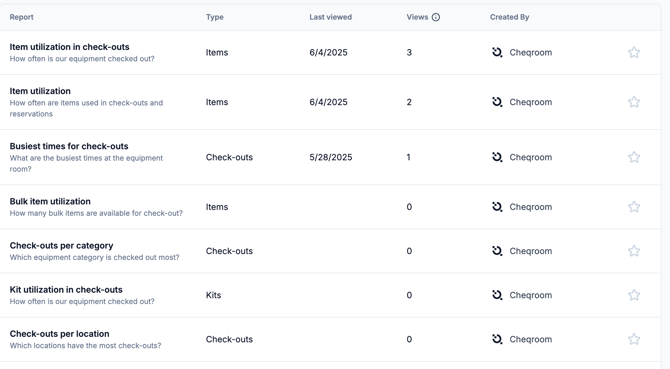
Busiest times for check-outs: What are the busiest times in the equipment room?
-
Check-outs by label: Which are the most popular labels for check-outs?
-
Check-outs per category: Which equipment category is checked out most?
-
Check-outs per contact: Who has the most check-outs and brings back equipment on time?
-
Check-outs per location: Which locations had the most check-outs?
💡 Extra Tips
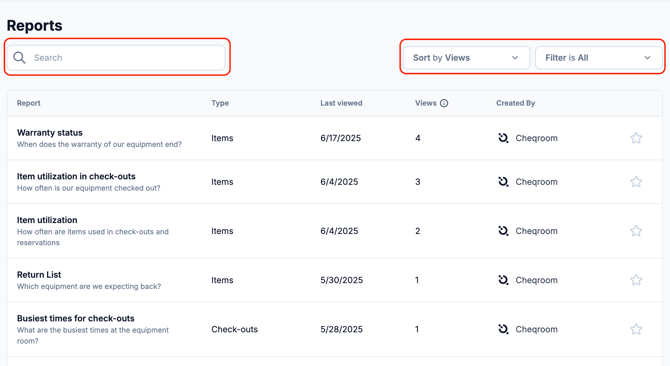
To find reports, you can use either the advanced search icon at the top-left corner, sort the reports, or even filter them.
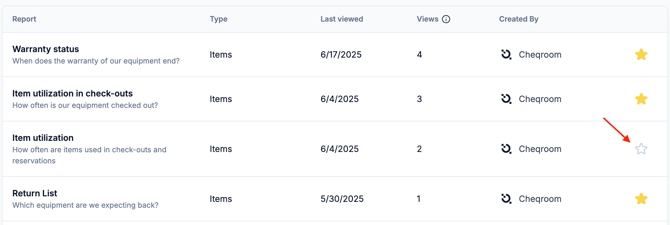
To save a report as a favorite, click the star icon on the report. Favorites appear at the top of your Reports page for quick access.
Create Custom Report
If you haven’t found the report you're looking for, you can create a custom one based on your custom fields:
-
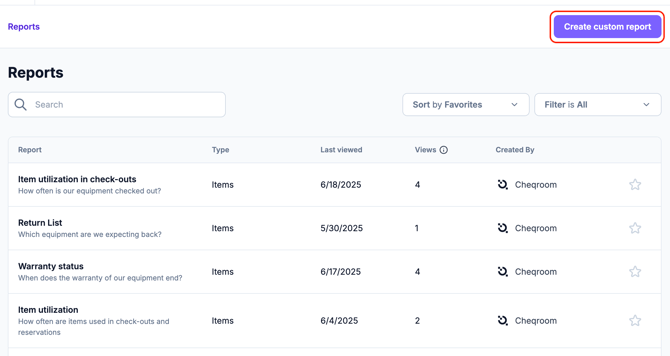
On the report page, click on “Create Custom Report”
-
Choose the report category you want to create between:
-
Items
-
Reservations
-
Checkouts
-
-
Select the field on which you want to group your report, and click on create.
-
Now that your report is created, you can edit the filters, or change the timeframe.
-
And finally: if you like your report, don't forget to save it.
Export your reports
Now that you have your report, what about sharing it? You can export your report into an Excel or CSV file:
-
Go to the report you want to export.
-
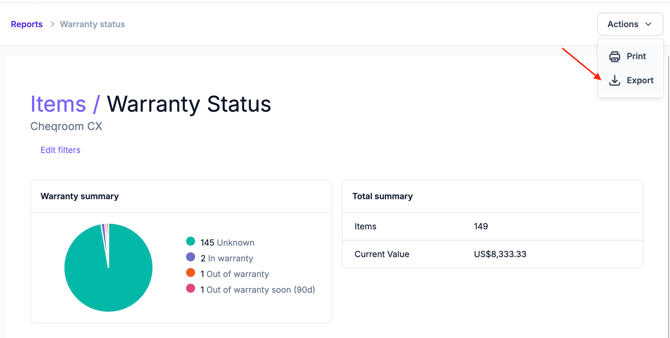
Click on ‘Actions’ and select “Export”.
-
There, you can select the type of the file (Microsoft Excel or CSV)
-
Depending on the type of report you are using, you will also be able to choose if you want to export all the fields or only the one you selected
-
Once the file is downloaded, you are ready to share.
Reports and permissions
If you don't want all users to access reports, you can manage this through role permissions. Update a user's role to control which of the following they can do:
-
Permissions to view reports
-
Permissions to save custom reports
-
Permissions to delete custom reports
To update your custom roles, have a look at our article here.