![horizontal-black-3.png]](https://knowledge.cheqroom.com/hs-fs/hubfs/horizontal-black-3.png?width=200&height=37&name=horizontal-black-3.png)
In Cheqroom, you can add your Items' images when uploading them manually or by import.
Add images when uploading a new Item
-
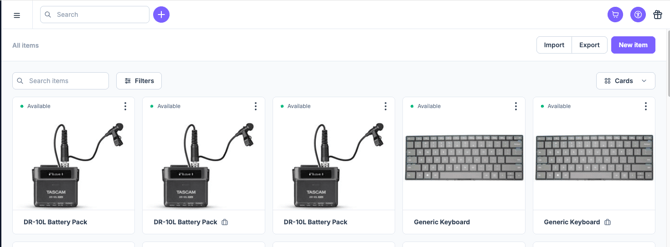
Go to your Items
-
Click New item
-
Fill in the necessary Item information
-
Add your own image or pick on from the web
-
Click Add when everything is ready
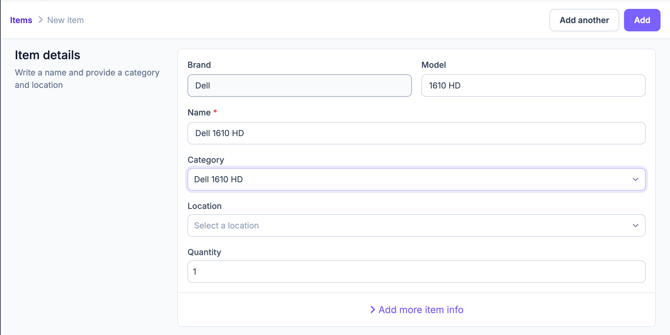
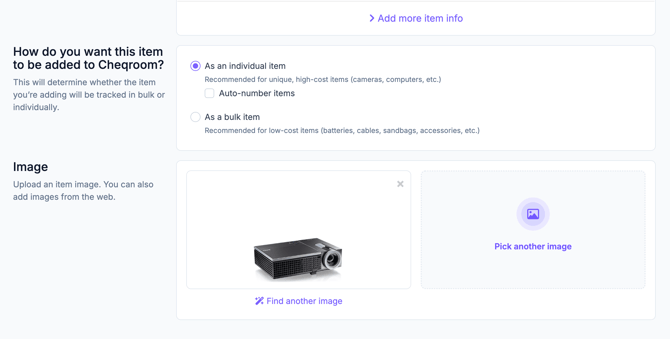
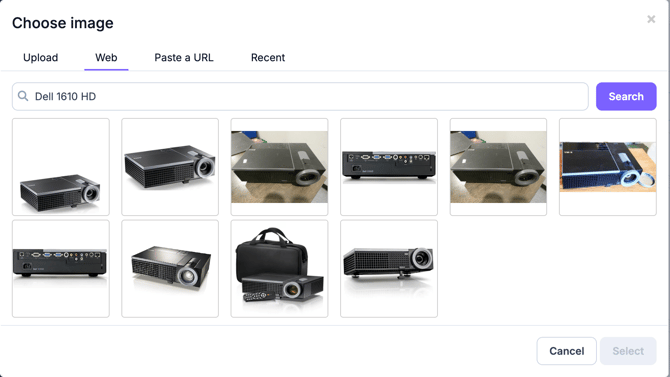
*Note: when you add a well-known brand and model, Cheqroom will automatically take a picture from the web as a suggestion. You can then choose to use that one or then pick another image.
Picking another image will give you the option to upload an image, pick another one from the web, paste a URL, or select an image from your recent uploads.
Upload an image after having added your items
You can also choose to add and/or change Items' images after uploading them.
-
Go to your Items
-
Click on the Item you want to edit
-
Click on the Image section next to the Item name
-
Click the Pencil icon
-
Choose to Upload a file, paste a URL or pick an image from the web
-
Click Select

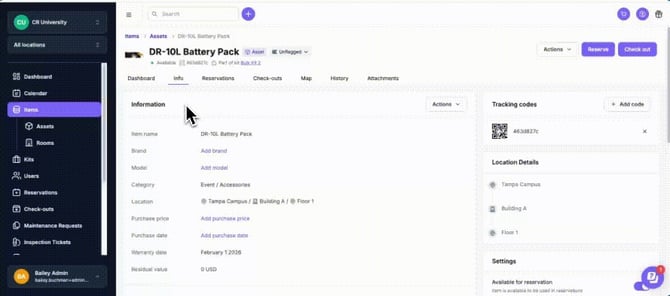
You can find your Item's images in the Attachment tab and add other images from there as well:
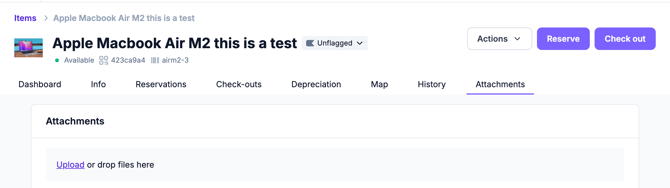
Add images as an attachment
Alternatively, you can add images directly through the Attachments tab. All image type files (jpg, jpeg, png, webp) will appear in the item’s image carousel.
- Open an item
- Navigate to attachments tab
- Select image from your computer
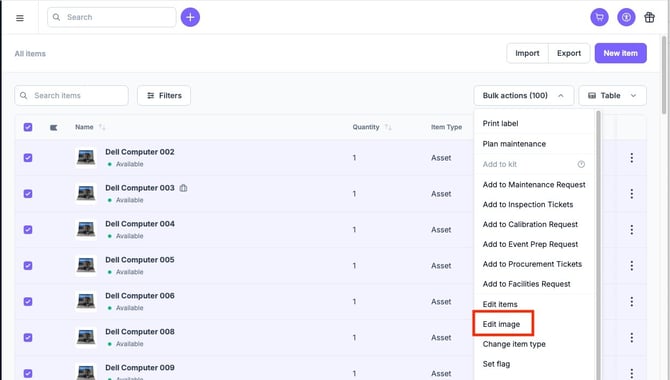
Adding images by Bulk Action
You can add an image to multiple items at once by using the bulk action.
- Select items you’d like to update
- Open bulk action menu
- Select “Edit image”
- Select item from the web or upload from your computer
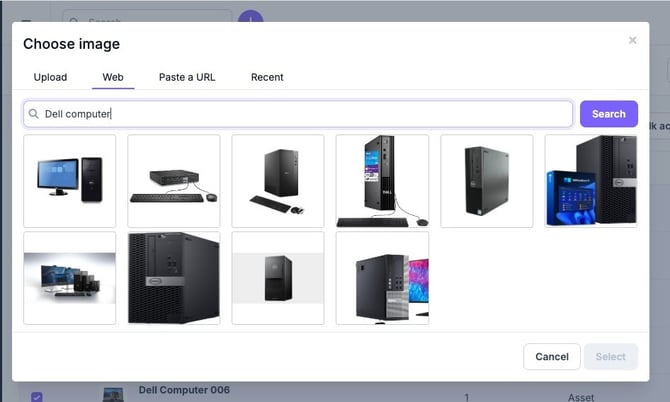
Note that the most recently uploaded photo becomes the cover photo by default. To change the cover photo, see below section.
Adding images to Items by import
- Prepare your CSV file for import using a publicly accessible image URL
- Add an extra column called 'Attachments”
- Add your images URL in the column
- This must be a publicly available image
- When importing, match your 'Images' column with the Attachments field
Note: Please use a direct, publicly accessible image URL when importing photos. Standard Google Drive sharing links will not work for image imports.
Additionally, when importing images, the primary image will be replaced by the import.
Changing Primary Image:
- Navigate to the Attachments tab
- Locate the image
- Open the three dot menu and select "Make cover"
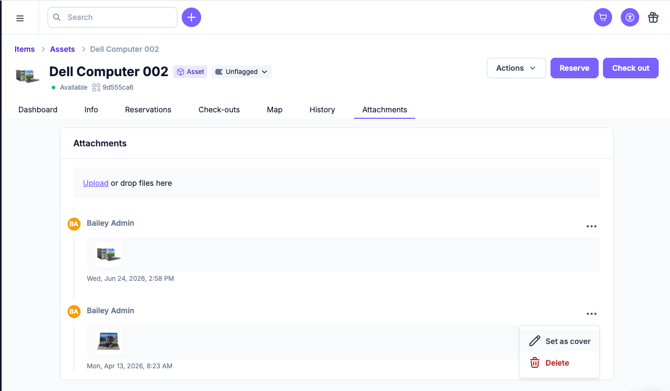
You can also view all images from the item card view. Click on an image to tab through all photos.
Note: Images added as part of a flag will not be visible in image carousel. These can be viewed from the history tab.
FAQ:
Q: Where can I add images to an item?
Open the item detail page, scroll to the photo section, and upload one or more images. Items support multiple photos displayed as a carousel, so you can add different angles (front, back, serial number plate, accessories).
Q: How many images can I add to an item?
You can add multiple photos per item. There's no single-image limit — upload as many angles as are useful for identification during checkouts, check-ins, and spotchecks.
Q: What image formats are supported?
Cheqroom accepts JPG, PNG, and WebP files.
Q: My item photos are stored in our private server. What do you recommend to import them in mass to Cheqroom?
Q: Can I add images from my phone?
Yes. On the mobile app, you can either take a photo directly with your device camera or upload from your photo library. Photos taken during a flag are automatically attached to that record, but not visible in item carousel.
Q: Will broken images of an item added as part of a flag display in the carousel?
No. These images are visible in item history, but will not be visible in item carousels.
Q: Who can add or change item images?
Image management on items can be performed by anyone with the ability to add attachments to items.. This includes account owners, workspace admin, equipment admin, and front desk agents.
Q: My images aren't loading after an item import — what's wrong?
Image URLs in your import CSV must be publicly accessible. Cheqroom fetches images directly, so links behind a login, internal Google Drive, or private server will not work.
Q: Where should I host images for a CSV import?
We recommend hosting images on your organization's public website or a public file-sharing service that provides a direct, unauthenticated image URL.
Q: What if I can't host images publicly?
You have two alternatives:
- Use the bulk edit tool to add images to multiple items at once after the import completes.
- Upload photos individually from your computer on each item's detail page.