![horizontal-black-3.png]](https://knowledge.cheqroom.com/hs-fs/hubfs/horizontal-black-3.png?width=200&height=37&name=horizontal-black-3.png)
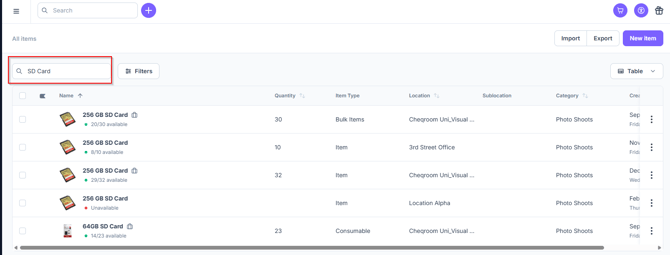
Basic elements of searching in list screens
-
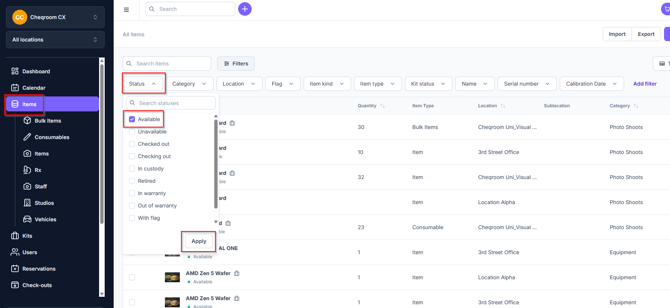
Click on Items on the left hand menu and then click Status (choose the status(es) you'd like to filter for and click Apply.
-
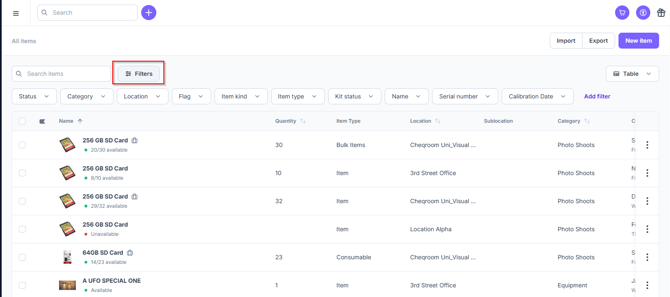
Toggle the visibility of the Advanced search panel
-
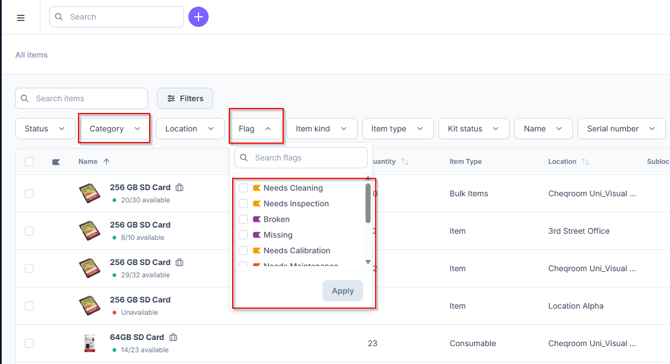
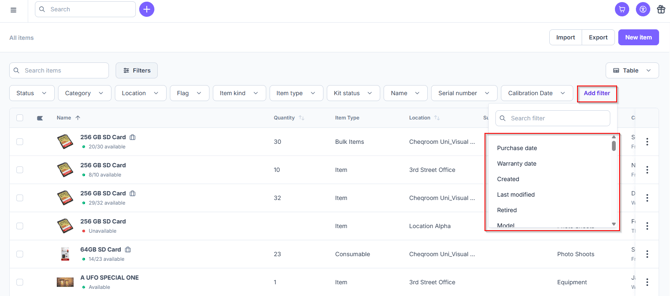
Selecting categories / flags, and whether or not the Item should be part of a Kit + create your own filter by clicking on +Add filter
-
Add filters
-
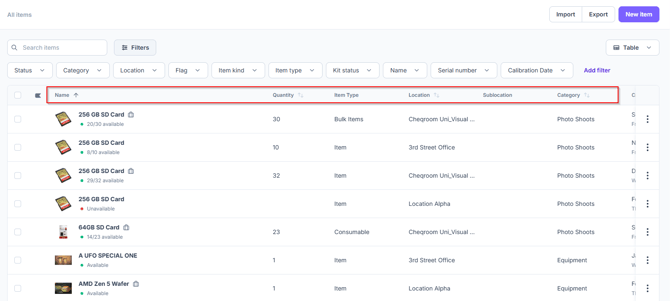
Sorting on columns and custom fields
-
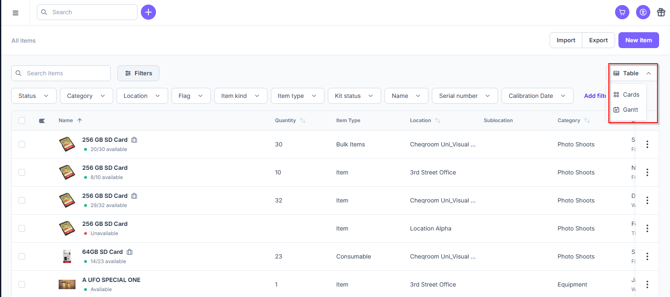
Selecting a view (e.g.
Table view)
💡Did you know you can have certain custom fields automatically shown as a filter option for all users? When creating a custom field, make sure to select 'show in search'.
Add your own touch to our table view
If you want different information to be listed when you go to your Items, Kits, Users, Reservation or Check-out overview, this is how:
-
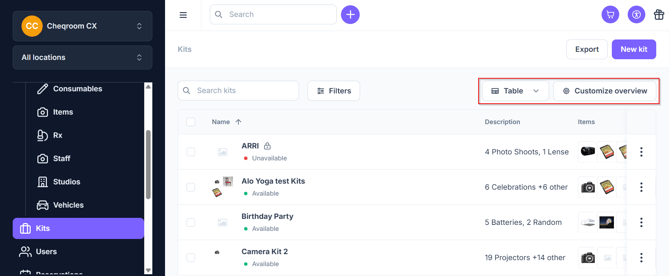
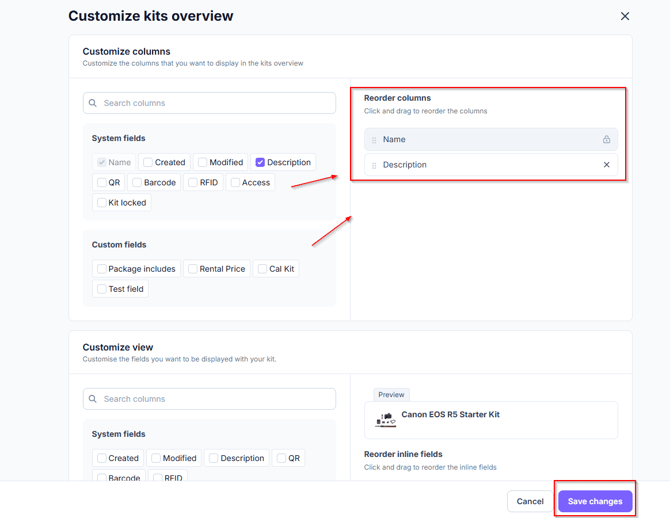
Make sure you are in the Table view and then click Customize overview.
-
Select the fields you want to see in your list, and adjust the order by dragging and dropping them from the left side onto the right side. Additionally, you can Reorder the columns. Once completed, click Save changes.
💡Did you know you can create a Reservation or Plan maintenance by just selecting the days of your choosing?