![horizontal-black-3.png]](https://knowledge.cheqroom.com/hs-fs/hubfs/horizontal-black-3.png?width=200&height=37&name=horizontal-black-3.png)
In Summary:
- Categories: Permanent hierarchical groupings for similar items. Can be nested up to 5 levels deep. Items can only belong to one category.
- Labels: Tags for reservations or check-outs to track purposes, projects, or departments. Labels are specific to either reservations or check-outs and don't transfer between them. Only one label can be applied at a time.
- Flags: Temporary visual indicators for asset status (e.g., maintenance needed). Only one flag can be applied to an asset at a time. Can affect item availability.
- Custom Fields: Additional data fields for tracking specific information like specifications, purchase details, or compliance data. Can be required or optional and support various data types.
Categories
Categories are used to group similar items together. They help organize your inventory and make it easier to find specific types of equipment. Categories can be used to:
- Create a hierarchical structure for your assets (e.g., Cameras > DSLR > Canon)
- Filter and search for items more efficiently
- Generate reports based on equipment types
- Set specific permissions and rules for different types of equipment
You can create as many categories as needed and nest them up to 5 levels deep. Each item can belong to only one category.
Adding categories
To add a new category in your Cheqroom:
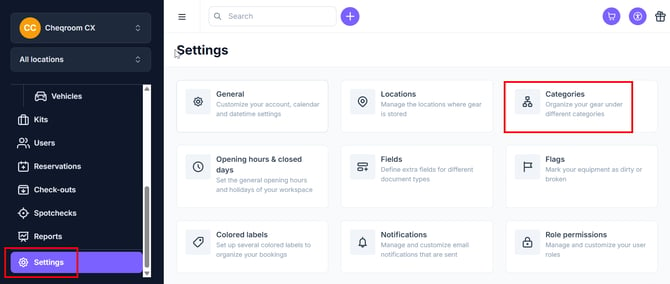
- Navigate to Settings and click Categories.
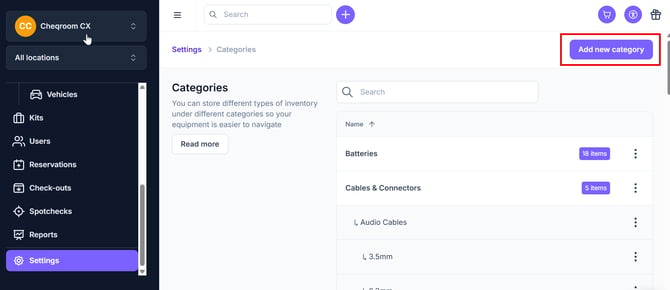
- Next, click Add new category.
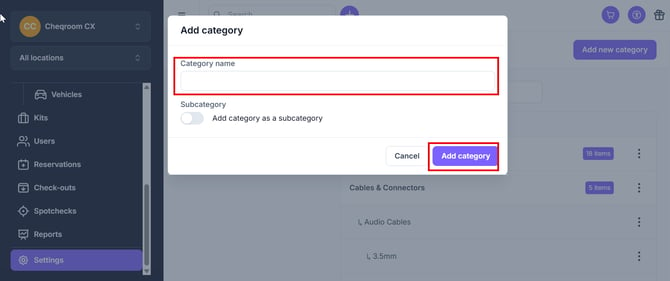
- Add the Category name and then click Add category. If you would like this category to be a subcategory for another category, you can click the add category as a subcategory toggle switch.
-
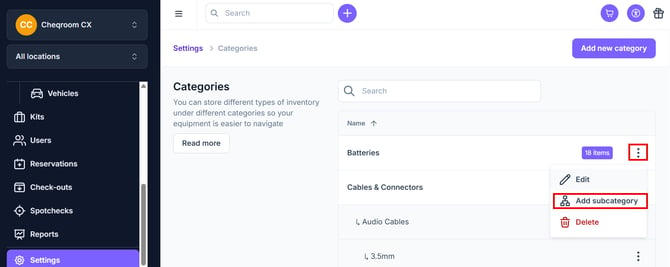
You can also add subcategories by clicking the 3 dot menu button next to an existing category and then clicking Add subcategory. Remember that categories can be nested up to 5 levels deep to create a detailed organizational structure.
Assigning categories to assets
Categories can be assigned to assets in several ways:
- When creating a new asset: Select the appropriate category from the dropdown menu in the asset creation form
- For existing assets: Edit the asset and change its category in the item details
- Bulk category assignment: Select multiple assets and use the bulk edit feature to assign them to a category
Once assigned, the category will appear in the asset's details and can be used for filtering and reporting purposes
Labels
Labels are text tags that can be applied to reservations or check-outs to provide additional context and organization. They help track:
- The purpose of equipment usage (e.g., "Client Project", "Internal Training")
- Project or event names associated with the reservation
- Department or team responsible for the equipment
- Billing or cost center information
Labels 101:
- Labels are flexible in that they can be applied and removed, but only a single label can be applied to a reservation or check out.
- Labels are useful for filtering reservations and check outs based on different criteria. Labels are created specifically for either reservations or check-outs and are not shared.
- There may be scenarios where both reservations and check-outs should have the same label (example, Rooms), and in this scenarios two labels with the same name should be created in the respective workflows. Labels do not transfer between reservations and check out, and need to be applied to both workflows
Adding Labels
To create labels in Cheqroom:
- Navigate to Settings and click Colored labels
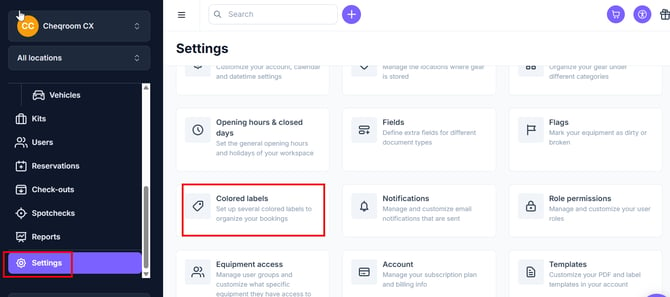
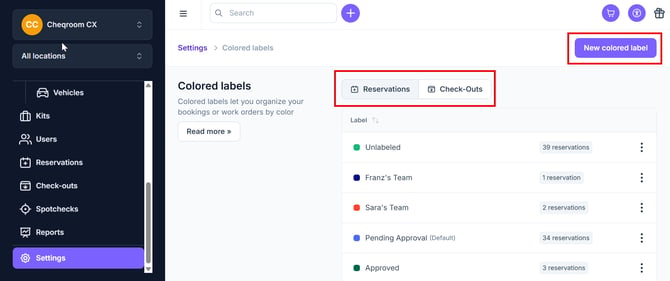
- Select either “Reservations” or “Check-outs” depending on which status you want to make a label for. If you'd like to create a new label, click New colored label.
- Enter a Name for your label and choose a Color to help visually identify the label within your Cheqroom account. If you want all new check outs or reservations to have this label, mark the label as Use as default (optional) and then click Add.
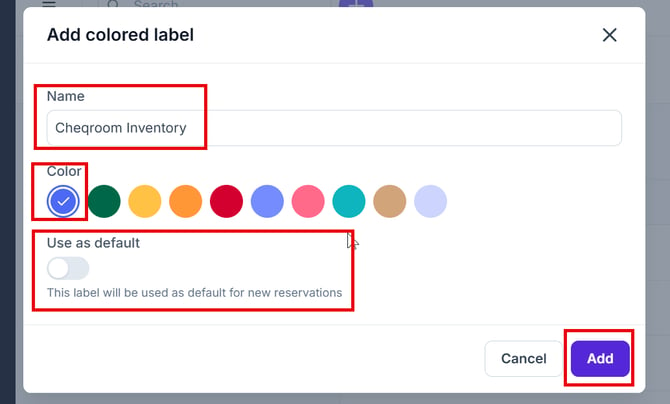
Labels can be managed and edited from the Settings menu at any time.
Adding labels to reservation or check out
To add labels to a reservation:
- Open or create a reservation by navigating to Reservations and clicking New reservation.
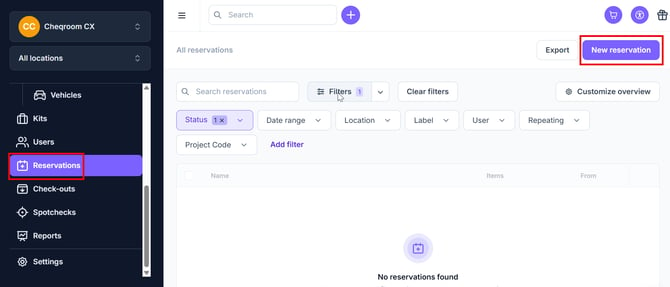
- Make sure to look for the labels field next to the reservation or check out name, and select the desired label when completing the registration.
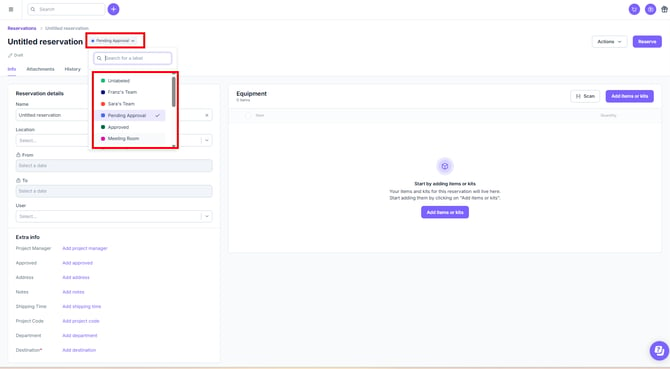
Labels can be used to generate reports and track equipment usage patterns across different projects or departments.
Flags
Flags are visual indicators that can be added to assets to highlight important information or status. They are useful for:
- Marking items that need maintenance or repair
- Identifying equipment with special handling requirements
- Highlighting assets that are reserved for specific projects or teams
- Indicating items that require attention or follow-up
Flags are customizable and can be color-coded to create an easy-to-understand visual system. Unlike categories, flags are temporal and can change over time. For example, a camera will always have the category “DLSR” but can have a flag for “Needs maintenance” for a short period of time before entering circulation again.
Creating and managing flags
To set up flags in Cheqroom:
- Navigate to Settings and click Flags
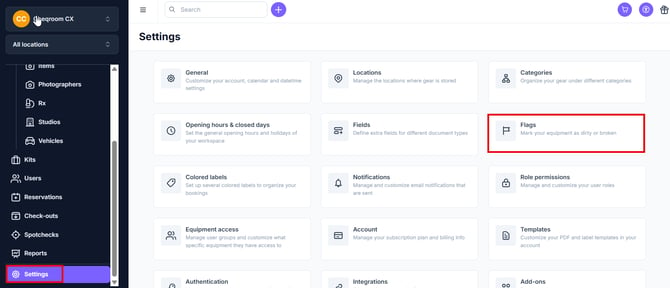
- Click Add flag and then create a Name and Description for your flag. Next, choose the Color of the flag, if the flagged item should still be Available and then click Add. Example: an item flagged as "Broken" can be made unavailable until that flag is removed.
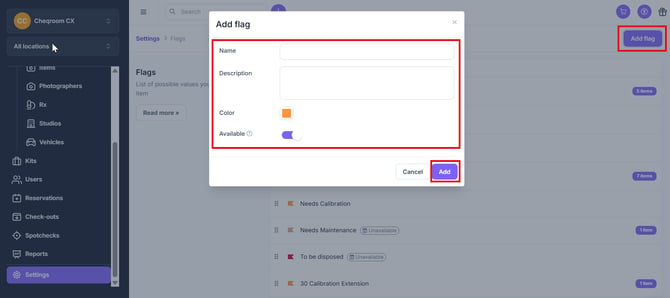
Flags can be added or removed from assets at any time, making them a flexible tool for dynamic asset management. Only one flag can be applied to an asset at any time.
Custom fields
Custom fields allow you to add specific, additional information to your assets beyond the standard fields. They are useful for tracking:
- Technical specifications (e.g., sensor size, focal length)
- Purchase information (e.g., warranty details, vendor)
- Internal tracking data (e.g., department ownership, cost center)
- Compliance information (e.g., safety check dates, certifications)
Custom fields are highly flexible and can be configured in different formats including text, numbers, dates, and dropdown selections. They can be made required or optional when creating or editing assets.
Creating custom fields
To add custom fields in Cheqroom:
- Navigate to Settings and click Fields
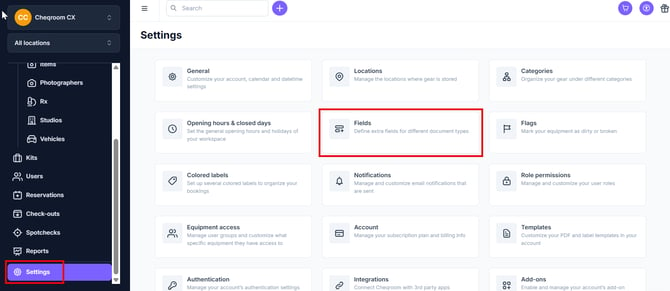
- Next, click Add field
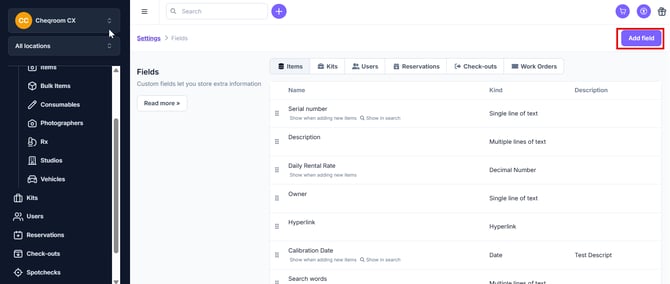
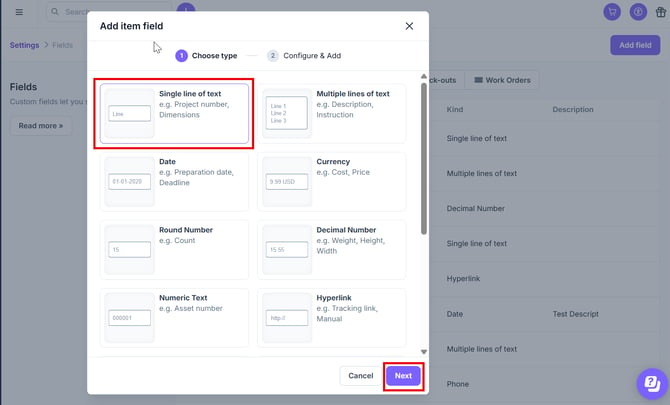
- From here, you can choose Add item field and add the type of fields you'd like to have (text, date, number, etc.). Once you've chosen the field you'd like to add, click Next.
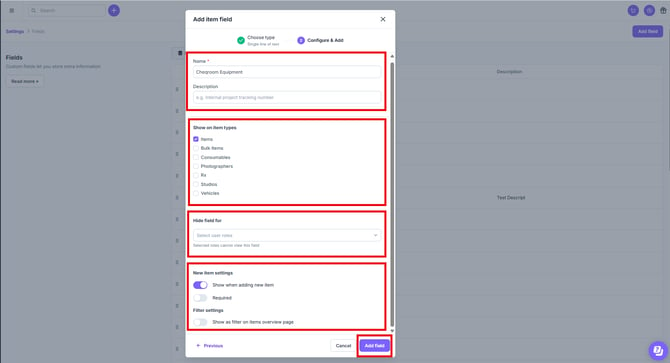
- On the Add item field screen add the Name and Description. You can also choose to Show on item types for which items you'd like the field to apply to.
- The Hide field for is used for selected roles that cannot view this field.
- New item settings will allow you to choose this field when adding a new item, and you can determine if you'd like to make this field Required or not.
- The Filter setting will allow you to show this as a filter on the items overview page.
- Once you're finished, click Add field.
Custom fields can be added to items, kits, users, reservations or check outs
Custom fields will appear on their respective pages and can be used for searching, filtering and reporting.
Using custom fields
Once created, custom fields can be populated:
- When creating new assets: Fill in the custom fields in the asset creation form
- For existing assets: Edit the asset and update the custom field values
- Through bulk editing: Update custom fields for multiple assets simultaneously
Custom fields can also be included in reports and exports to provide detailed asset information for analysis and documentation purposes.
Should I use a category, flag, label or custom field?
Use this decision tree to determine which organizational tool best fits your needs:
Quick reference guide:
- Categories: Use for permanent, hierarchical classification where items belong to one group only
- Labels: Use for tracking reservation/checkout purposes and project association
- Flags: Use for temporary status indicators that affect item availability
- Custom Fields: Use for additional permanent information or when items need multiple values for the same type of information