![horizontal-black-3.png]](https://knowledge.cheqroom.com/hs-fs/hubfs/horizontal-black-3.png?width=200&height=37&name=horizontal-black-3.png)
*Note: PDF templates are available exclusively on our Business and Enterprise plans (not included on the Core plan). QR codes are available in all plans.
In Cheqroom, you can generate PDF documents that can be used for, for example, reservation checklists or for employee agreements or third-party agreements.
These PDF documents are customizable and allow you to add specific information, and even your company logo, in just a few quick steps:
Adding your company logo
-
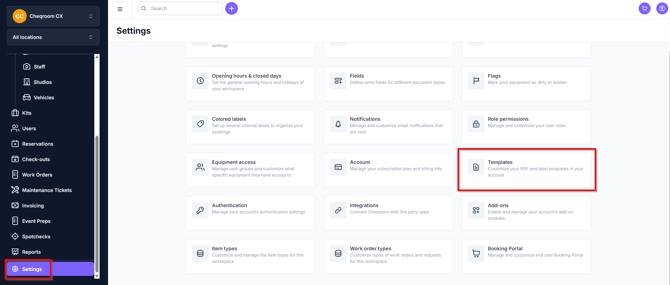
Navigate to Settings in the lower left-hand corner and click on Templates
-
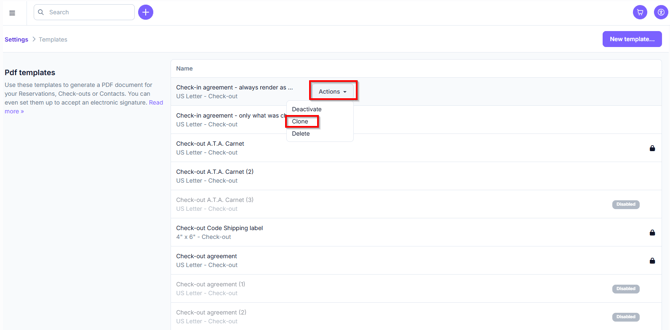
Find the template you'd like to edit and click Actions>Clone
-
Click on the area underneath the template title
-
Drag and drop your company logo
-
Click Preview and Save when everything looks good
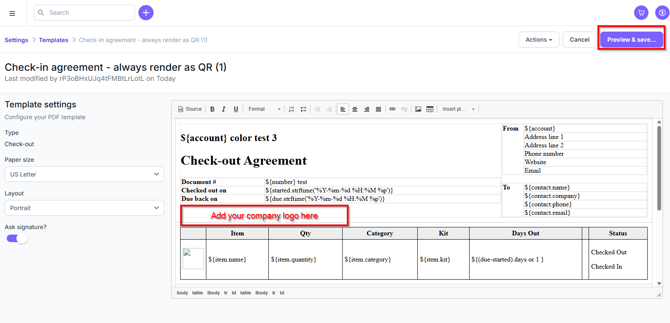
Note: Try to resize your image to max 300px wide and 100px height to get optimal results. If the image width/height is too large, you will need to resize it in the template and it may look blurry.
Adding a custom field
Once you have added custom fields to either Items, Contacts, Reservations or Check-outs, you can add this information to your PDF template:
-
Navigate to Settings in the lower left-hand corner and click on Templates
-
Find the template you'd like to edit and click Actions>Clone
-
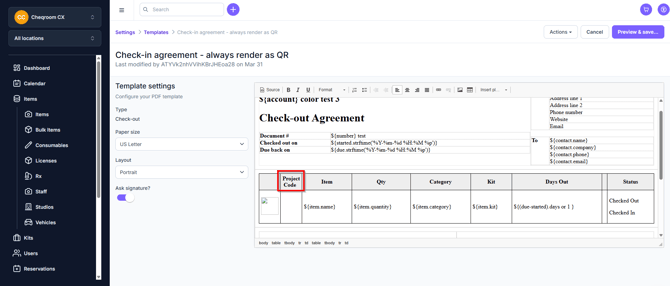
Decide where your extra field should be and add a row or column by selecting the row above or column next to it and right click
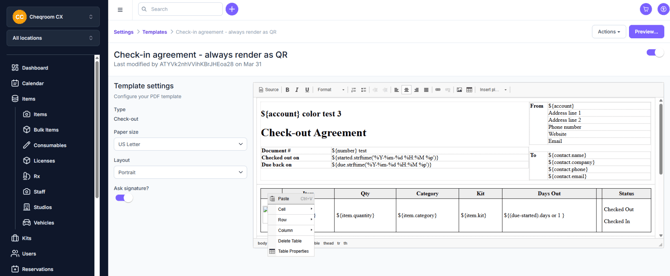
Once the new row or column have been added:
-
Choose a title
-
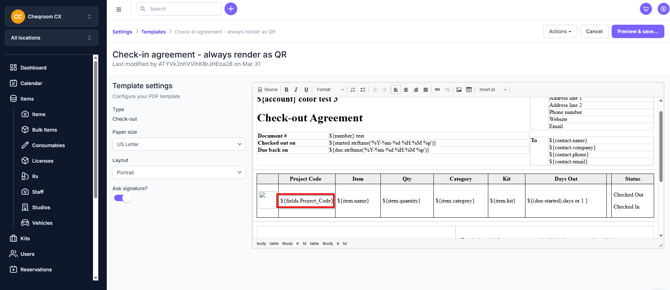
Place your mouse in the field where the information will be added
-
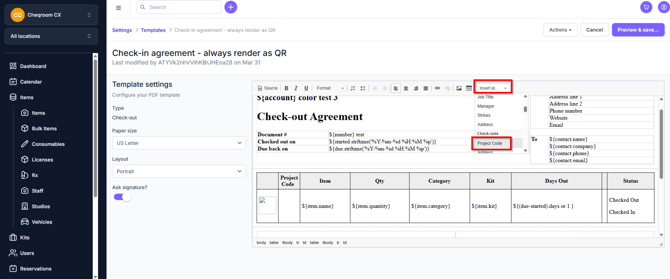
Click on the dropdown list in the top-right corner called 'Insert Placeholder'
-
Choose the field you'd like to add
-
Click Preview and Save when everything is good to go
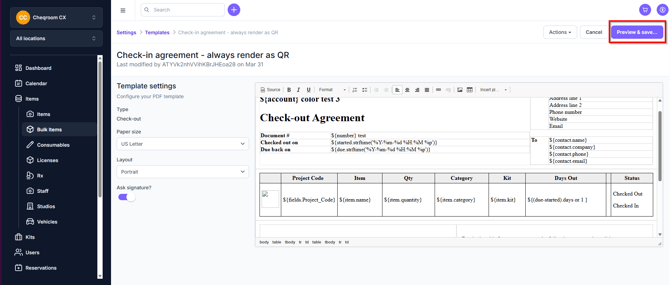
Tip: Hover over the icons at the top to know their function