![horizontal-black-3.png]](https://knowledge.cheqroom.com/hs-fs/hubfs/horizontal-black-3.png?width=200&height=37&name=horizontal-black-3.png)
Step-by-step guide
- Open the active booking: Navigate to the check-out you need to edit.
- Click Edit: Look for the Edit button on the booking details page.
- Make your changes: Add or remove items, update the assignee, or modify custom fields and notes as needed.
- Enable Past Dates: Select the lock on your From date. When prompted, select "Allow Past Dates." This will let you keep your original booking dates when you update your booking.
- Alternatively, you can select ‘Enable Past Dates’ in the Actions menu.
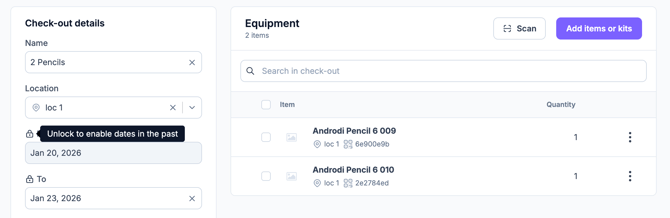
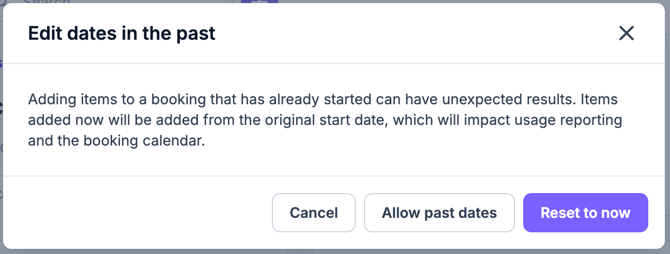
- Alternatively, you can select ‘Enable Past Dates’ in the Actions menu.
- Save your changes: Click Save to apply your edits. The original check-out and check-in dates remain intact, and inventory availability stays locked.
- Review the change history: All modifications are logged in the booking history, showing who made the change, when, and what was modified.
Important notes
- Permissions required: Only users with the appropriate role (admin/owner by default, or custom roles with this permission) can edit live bookings.
- You can't remove all items: If you need to clear a booking completely, cancel the reservation instead.
- Desktop only: Live booking edits are currently available on the desktop app and web version only.
What you can edit
- Items: Add or remove items from the booking
- Assignee: Change who the booking is assigned to
- Custom fields and notes: Update any custom information or internal notes