![horizontal-black-3.png]](https://knowledge.cheqroom.com/hs-fs/hubfs/horizontal-black-3.png?width=200&height=37&name=horizontal-black-3.png)
Want maintenance to happen on a set schedule instead of chasing it down every time? You can set up a recurring reservation for an item and link it to a Maintenance Work Order. This means the same maintenance task repeats automatically, on your schedule, without extra setup each time.
How It Works:
Recurring maintenance is built on reservations, not on the Work Order itself. Create a reservation for your item and its maintenance window, then use repeat reservations to set the schedule. For Maintenance Work Orders, link the relevant reservation to the Work Order so the maintenance task has the right asset and schedule context.
How this is Different from Standard Recurring Reservations
Recurring reservations get you the schedule. Linking to a Work Order gets you the record.
- You can report on the maintenance itself. Reservations just tell you an item is booked. A linked Work Order lets you view at a glance the priority, what's completed, and what's missing an assignee (aka Operator), so you can actually track maintenance performance instead of just checking a calendar.
- You get the full story of what happened, not just when. A reservation has little room for detail. The Work Order does: notes, checklists, parts used, time spent, who did it. So when someone asks "what was actually done to this asset," you have an answer instead of just a booking slot.
Before You Start:
- Decide your first timeframe. Whatever day you kick off from sets the pattern going forward.
- Know how long the maintenance typically takes. The duration you set carries over to every future occurrence, an hour, a day, whatever the job needs.
- Know what needs to be done. Build out your maintenance steps to capture what needs to be complete and so that you can configure PDF templates for compliance documents for full accountability.
- Know who you're assigning it to. Whoever's on the original reservation stays on each occurrence going forward.
Note: You can always update any of these fields, such as Operator/Assignee, on an individual reservation later.
Here's the Flow:
1. Create the Reservation
Navigate to Reservations and add basic details: location, the date/time the first maintenance task should occur, the date/time it should be completed (an hour, three days, whatever fits), and who should be Operating the task. These details become the template for every future maintenance reservation that follows.
New to reservations? Start here.
2. Add the Item That Needs Maintenance
Add the item to the reservation as you normally would.
Note: If the item is already reserved for something else during that window, you'll get a conflict error when you try to set up the recurrence. There's currently no way to override this for maintenance — so it's worth checking the item's schedule first.
3. Hit Reserve
Hitting reserve will give you the options to proceed with steps 4 (adding a recurrence) and step 5 (adding to a Work Order). After the reservation is created/reserved, open the reservation’s Actions menu
4. Set the Recurrence
Take steps from your Action menu to repeat the reservation and choose how often it should repeat (weekly, monthly, etc.) and how long the recurrence should run.
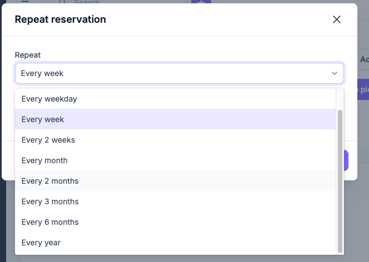
Once set, every recurring reservation keeps:
- The same frequency
- The same duration, if the original reservation is three days, every occurrence is three days
- The same Operator/Assignee — whoever's on the original reservation stays on each occurrence going forward
Need to make an exception? You can edit any single reservation (change the assignee, adjust the time, whatever's needed) without affecting the rest of the series.
5. Add the Reservation to a Maintenance Work Order
From the reservation's Actions menu, select Add to Maintenance Work Order. From here you can:
- Add it to an existing open Work Order, or
- Create a new Maintenance Work Order on the spot

6. Perform Maintenance Work
In the Work Order, record what needs to be done. You can add rich descriptions, priorities, and a checklist of items to be completed. Customize fields on your maintenance work order to capture the steps needed to perform preventive maintenance.

7. Report and Summarize
Customize your Maintenance Work Order dashboard to add columns and sort by created date, assignee, priority, or any other custom field. Go to Reports to understand trends of Work Orders by time horizon, type, assignee and much more.

Where to Find Your Recurring Reservations:
- All upcoming occurrences show up in your Reservations list, just like any other reservation.
- On the Work Order itself, you'll see the specific reservation you linked to it
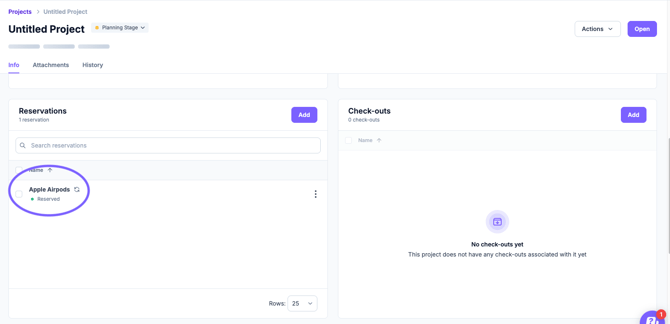
Tip: Utilize labels or a custom field for “maintenance type” to quickly sort Work Orders into categories for preventative maintenance.
Overview:
|
What |
Behavior |
|---|---|
|
Frequency |
Set once, applies to every occurrence |
|
Duration |
Same length as the original reservation |
|
Assignee |
Same as the original — editable per occurrence |
|
Editing one occurrence |
Doesn't affect the others |
|
Where it appears |
Full series in Reservations; single linked reservation on the Work Order |
|
Conflicts |
Item already reserved during that window will block recurrence setup |