![horizontal-black-3.png]](https://knowledge.cheqroom.com/hs-fs/hubfs/horizontal-black-3.png?width=200&height=37&name=horizontal-black-3.png)
How Locked Kits Work
- For admins: Full flexibility to manage and adjust locked kits
- For non-admin users: Can reserve partially available kits, but cannot check out incomplete kits
Enabling Locked Kits
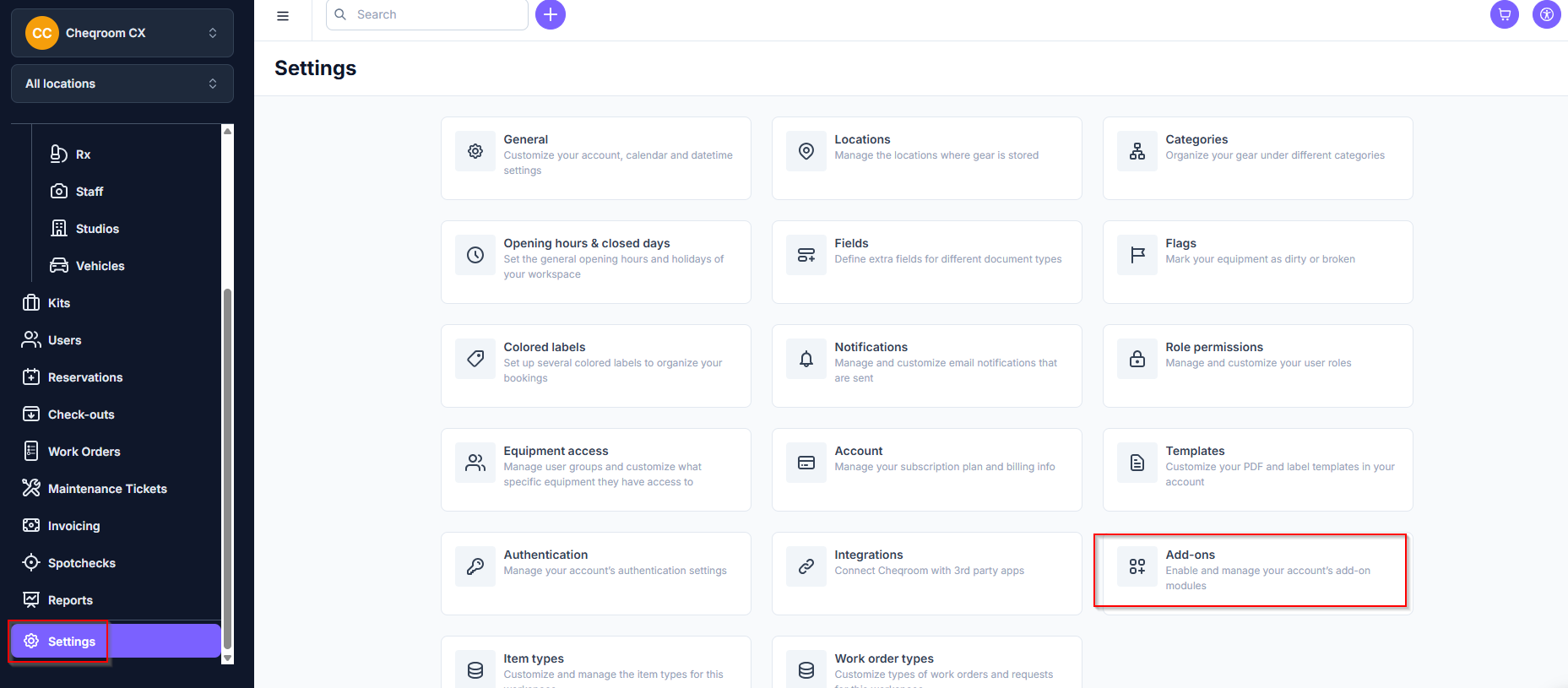
- Navigate to Settings in the bottom left corner of your screen and click Add-ons.
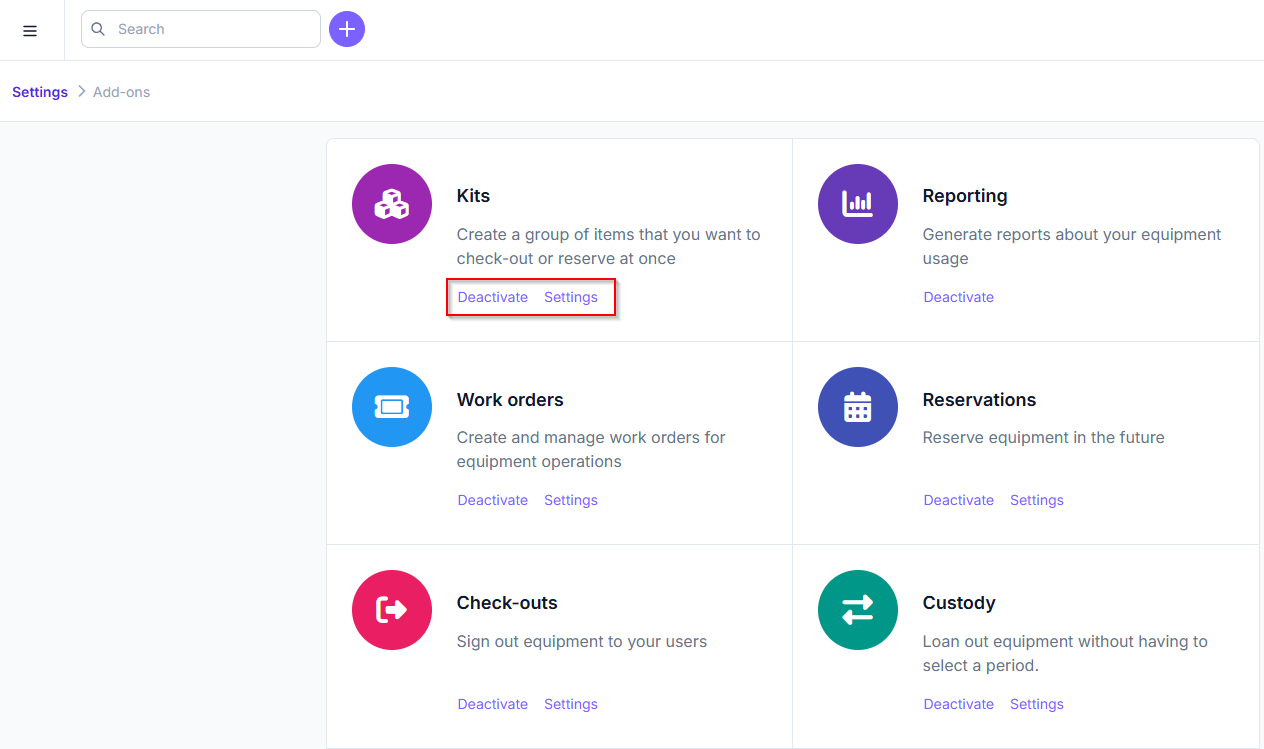
- Make sure Kits is showing as Active and then click Settings.
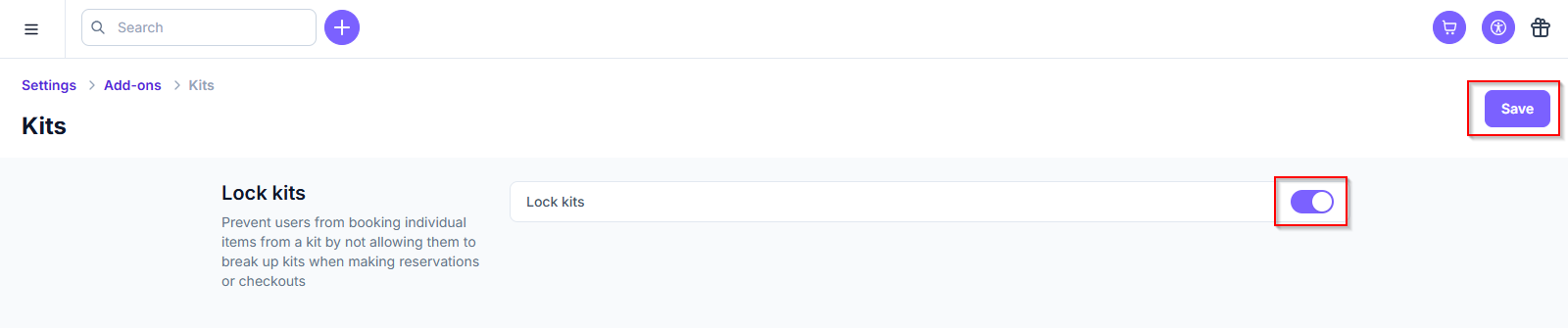
- Toggle Lock kits to on and then click Save.
To unlock a kit later, return to the kit details page, go to the Info tab, and toggle the lock 'off'.
Reconciling Kit Changes
When you modify a locked kit's contents (add, remove, or replace items), you'll be prompted to reconcile:
- Choose to reconcile: Open and draft reservations automatically update with current kit contents
- Skip reconciliation: Users will encounter conflicts at checkout and need to reconcile manually
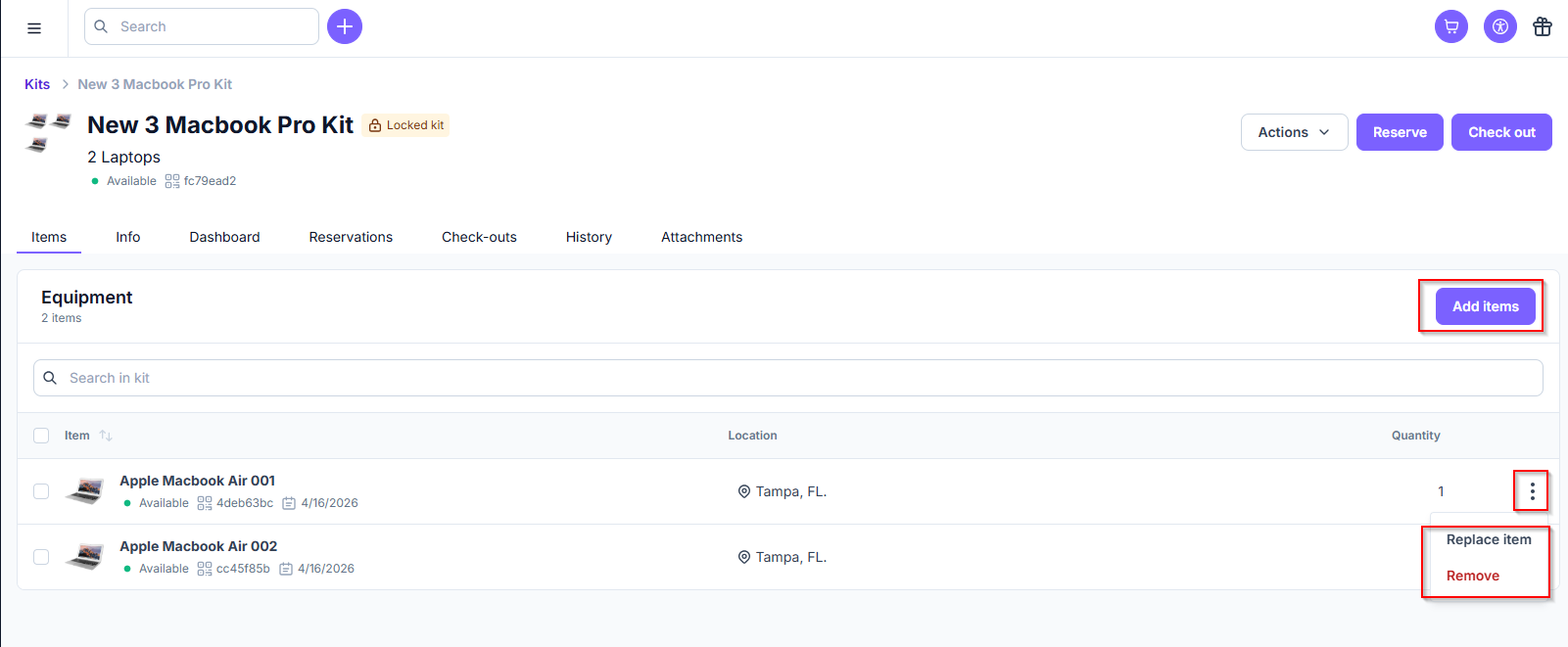
💡 Quick tip: Admins can quickly reconcile by selecting 'sync' from the Actions menu on the kit
Common Issues
- Multi-location kits: Items at different locations will create soft conflicts, preventing non-admin checkout
- Retired items: Always remove retired items from kits and reconcile future reservations
- Items in custody: Remove items from kits when they move into someone’s custody and reconcile to prevent checkout issues
Best Practices
- Always reconcile when prompted after making kit changes
- Keep kit items at the same location when possible
- Remove unavailable items immediately and reconcile reservations when prompted
- Use a mix of locked and unlocked kits based on your workflow needs
For more guidance on how to make the most of your locked kits, see Best Practices for Managing Locked Kits.