![horizontal-black-3.png]](https://knowledge.cheqroom.com/hs-fs/hubfs/horizontal-black-3.png?width=200&height=37&name=horizontal-black-3.png)
Assigning and Releasing Custody
Assigning Custody
-
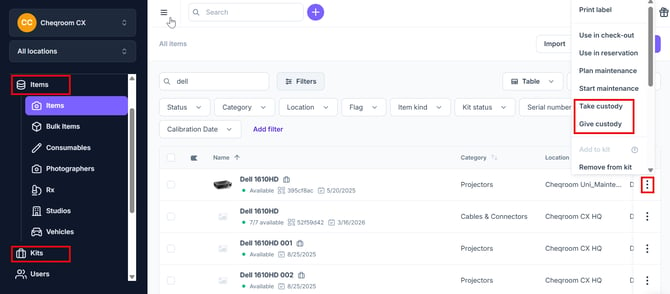
Navigate to Items (or Kits) in the main menu.
-
Click the 3 dot menu next to the item (or Kits) and choose to Take Custody or Give Custody.
Releasing Custody of an Item
-
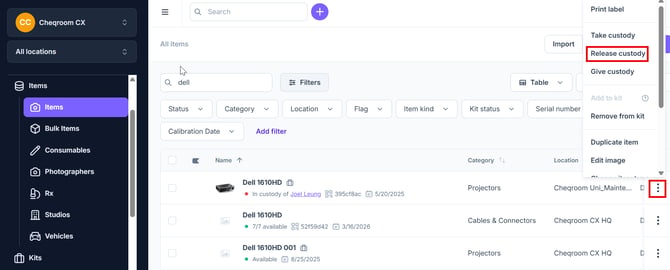
Find the Item you wish to release from Custody.
-
Click the 3 dot menu next to the item (or Kits) and choose to Release Custody.
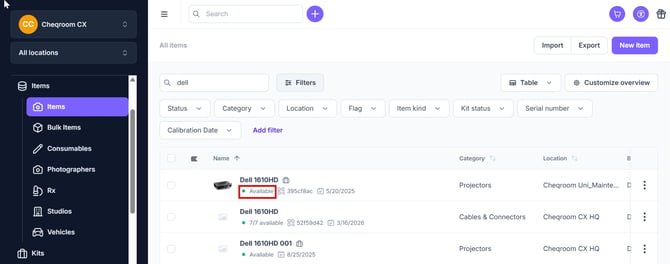
- Once you release custody, the item will become available again for reservation and check out.
Releasing Custody at a Different Location
This capability must be manually enabled. You can do so by following these steps:
-
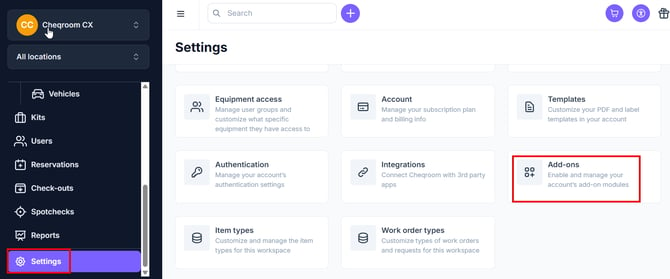
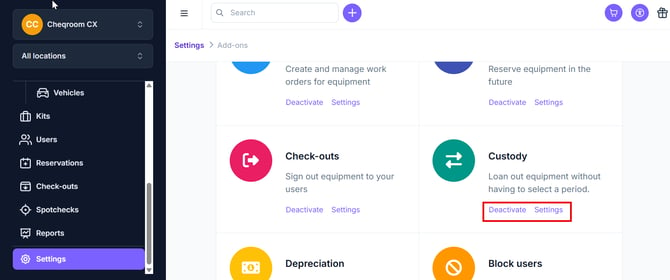
From the left hand menu, click on Settings and then click on Add-Ons.
-
Make sure that Custody is set to Active and then click on Settings.
-
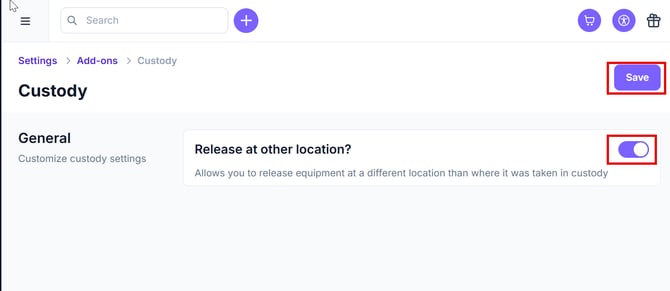
Enable release at other location and then click Save.
Locating Items in Custody
-
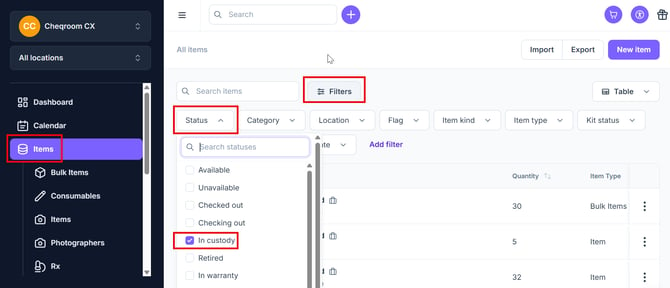
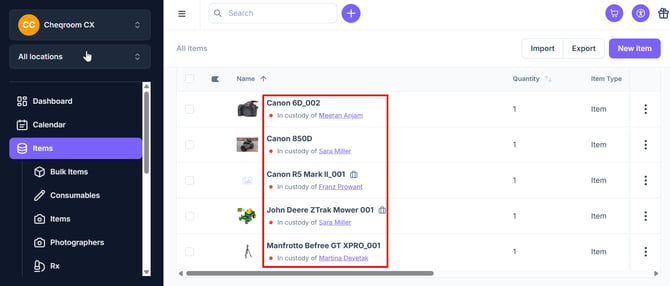
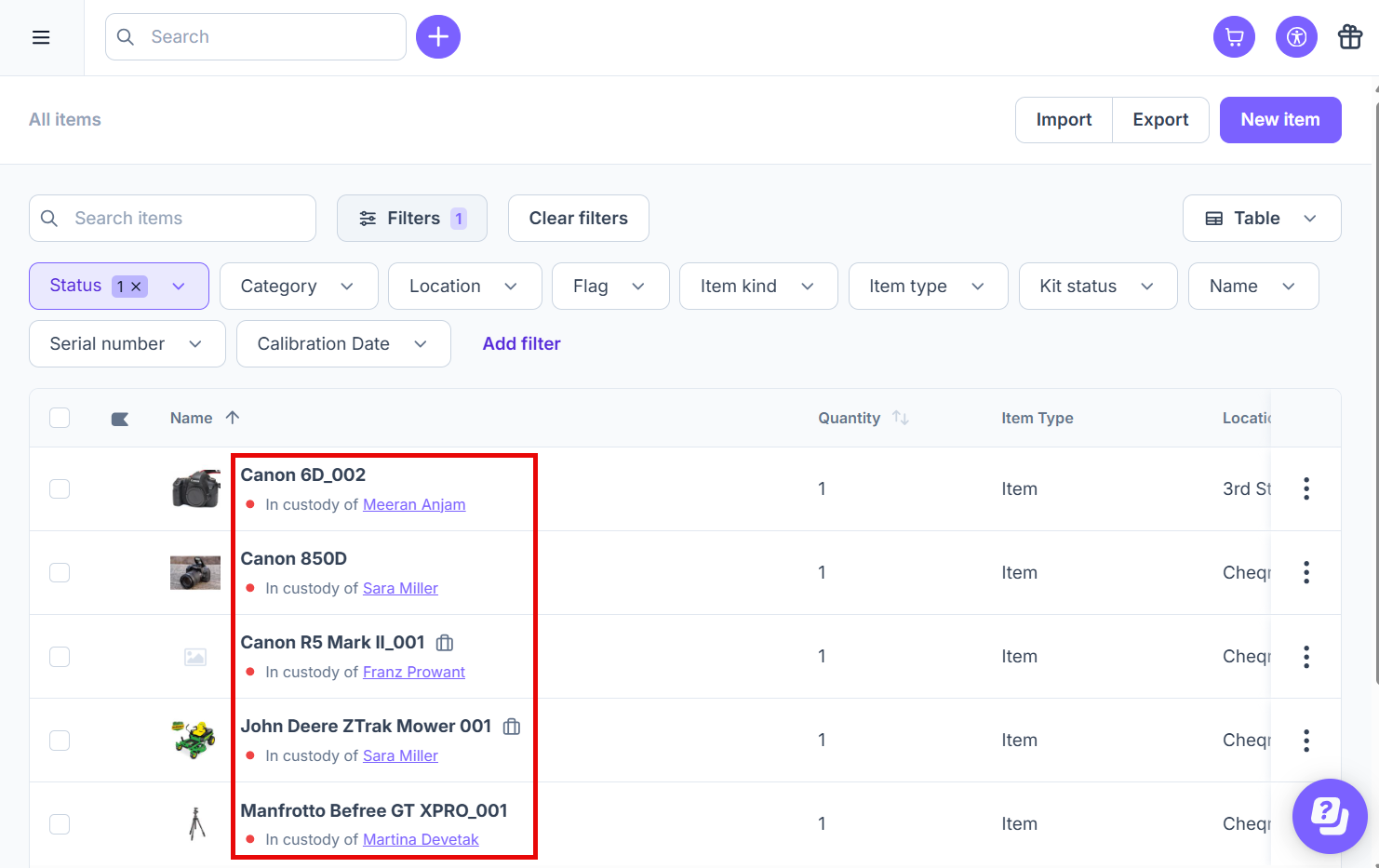
Navigate to Items (or Kits) and click Filters>Status>In Custody.
- Next, click Apply.
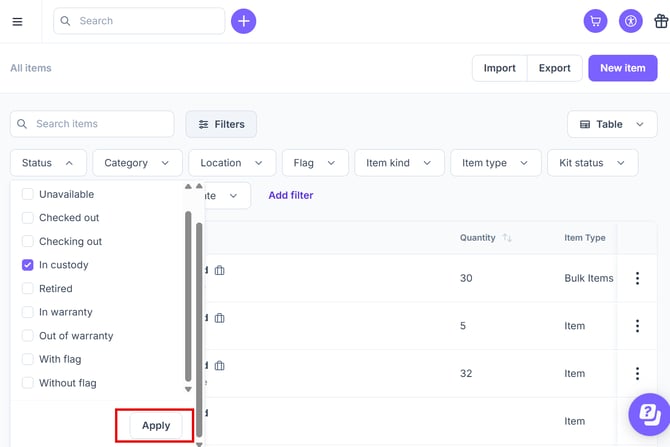
- From here, you can review all items that are in custody and who has custody of each item.
Finding All Items in Custody of a User
See items held by a specific contact:
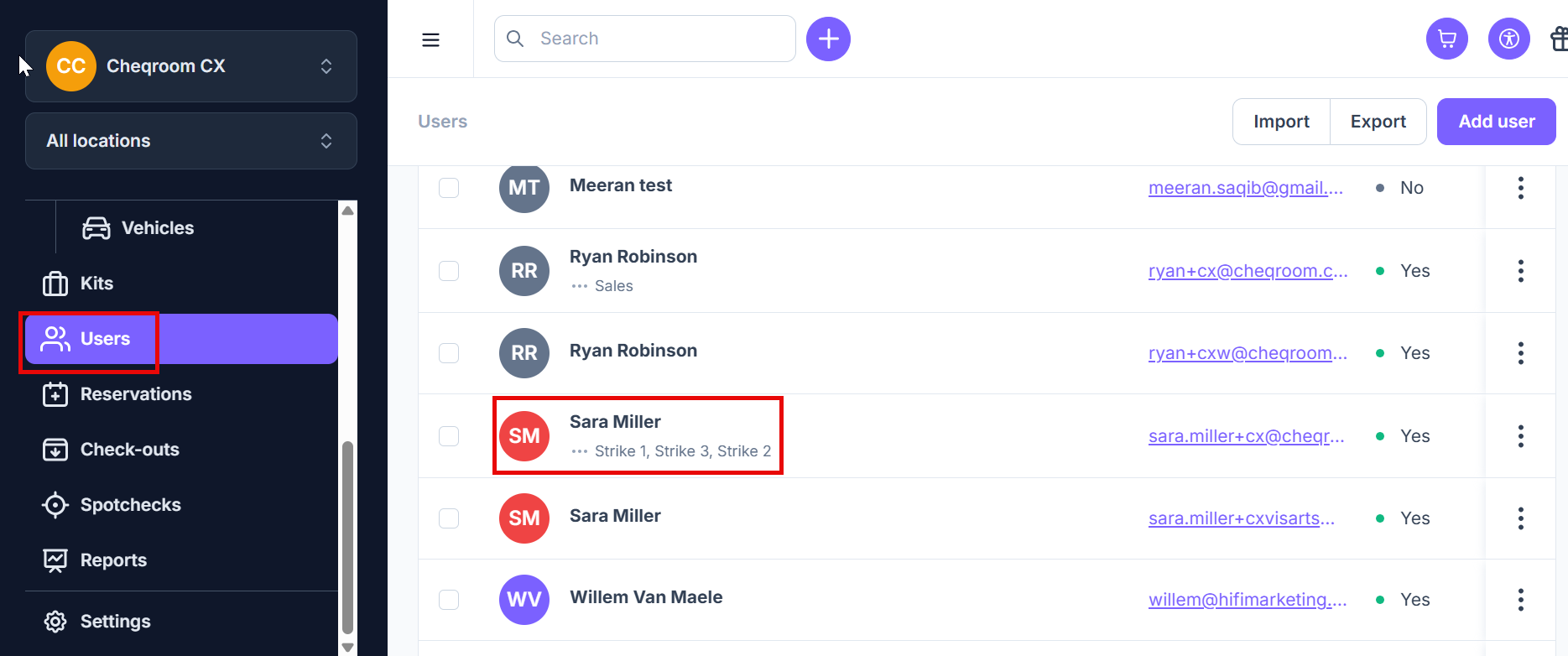
- Click the Users tab from the left hand menu, find the user you'd like to view for all items and custody and click on their name.
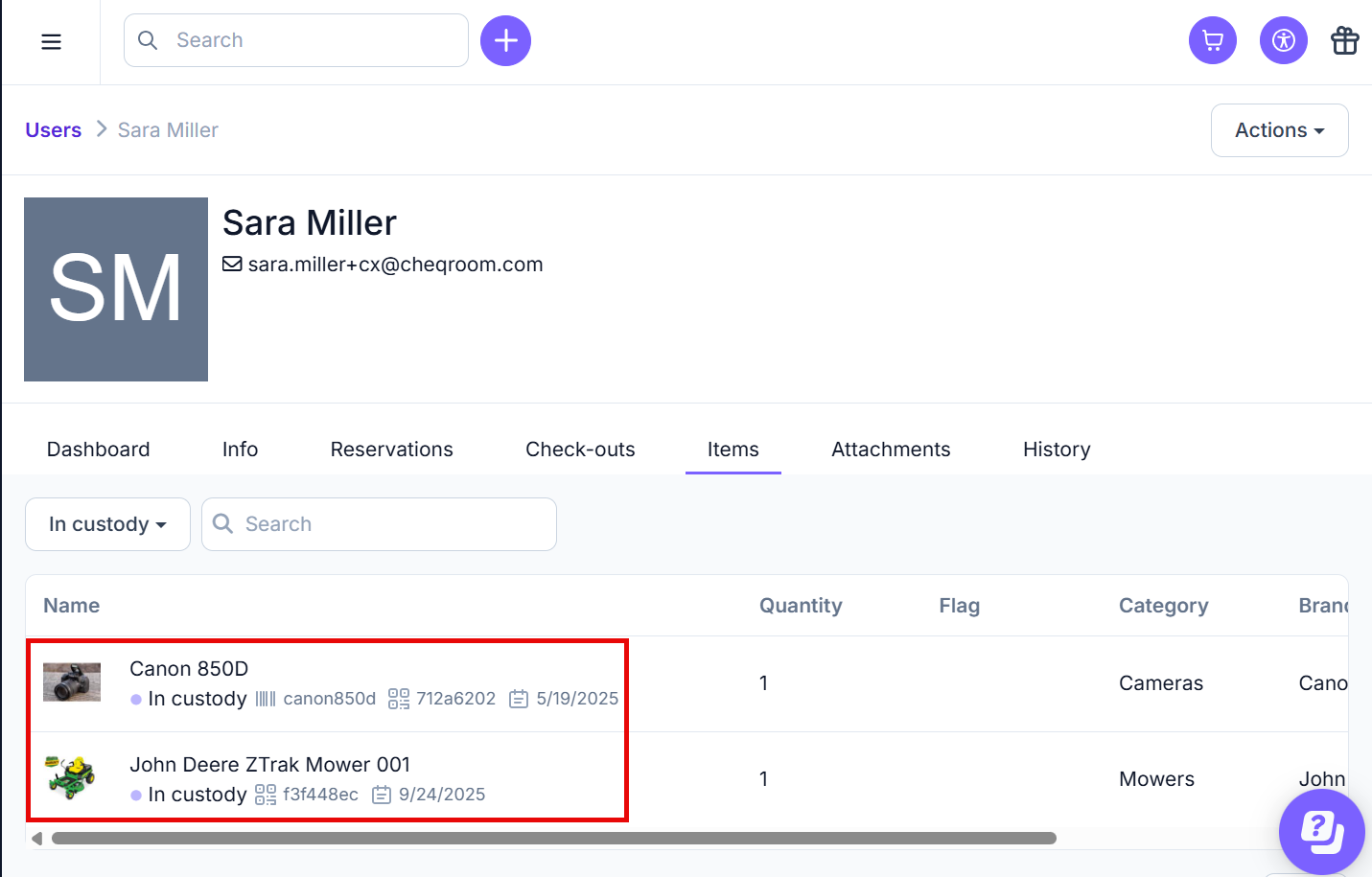
- From here, you can see how many items a user has in custody.
Finding All Items in Your Custody
Check items currently in your Custody:
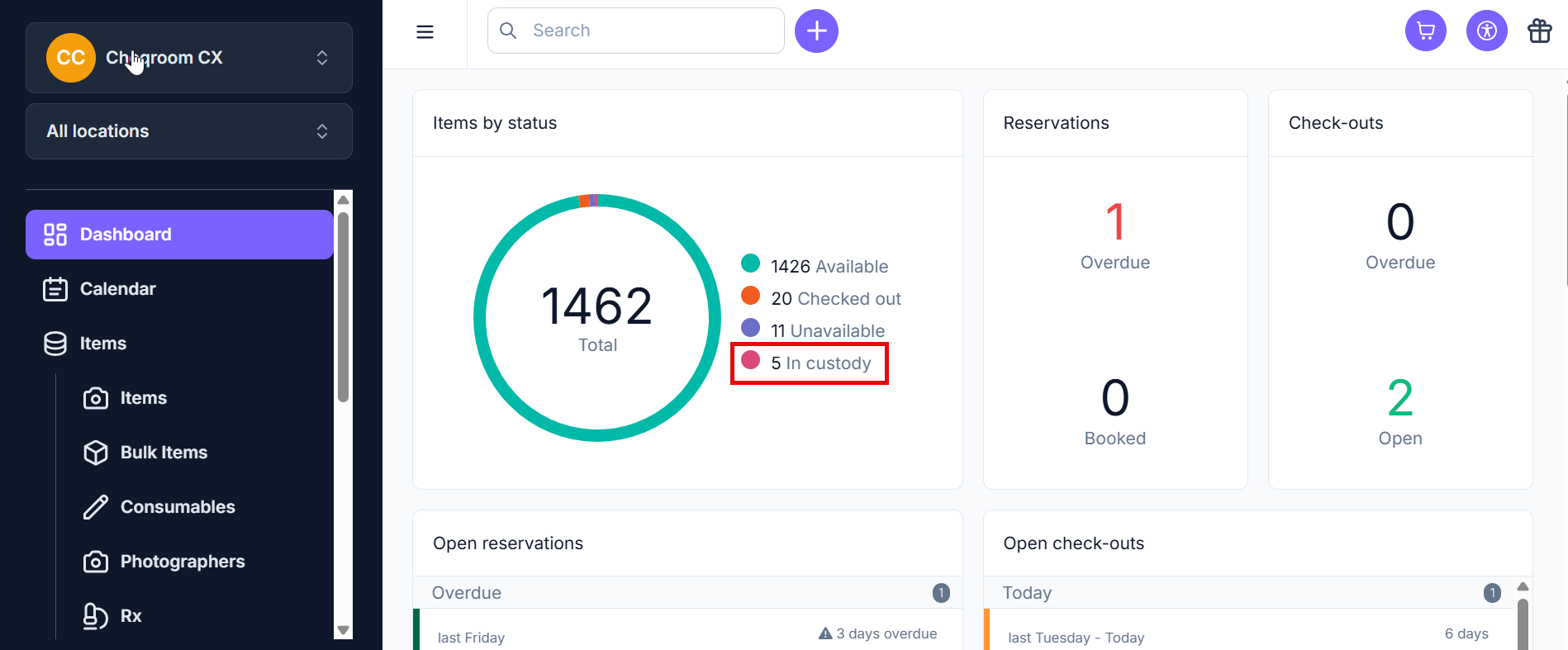
- From your Dashboard, you can click on in Custody in the Items by status to review all the items that are currently in custody of other users.
NOTE: Make sure that users have appropriate Permissions to manage Custody. You can read more on our How to Manage User Roles and Permissions guide.