![horizontal-black-3.png]](https://knowledge.cheqroom.com/hs-fs/hubfs/horizontal-black-3.png?width=200&height=37&name=horizontal-black-3.png)
You can set up different colored labels to group bookings together based on a team, department, project, and more.
Setting up colored labels
Creating colored labels for Reservations (same goes for Check-outs)
-
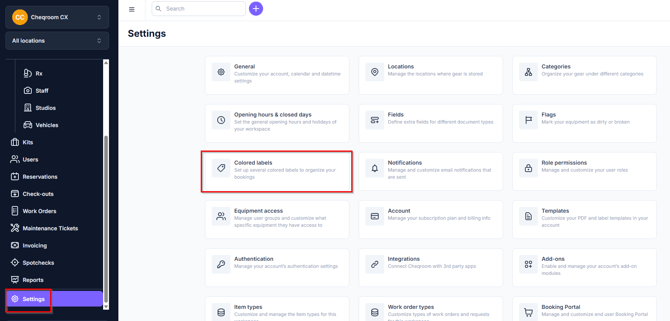
Navigate to your Settings in the bottom left corner of your screen and click Colored labels.
-
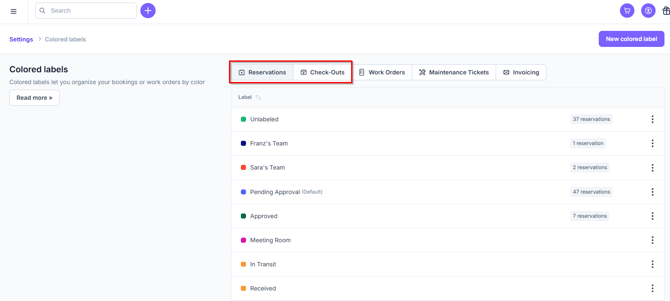
Choose to make labels for Reservations or Check-outs.
-
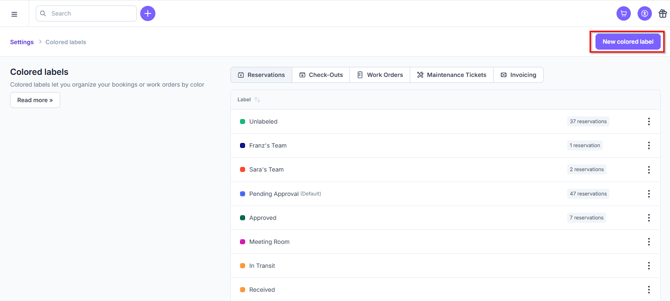
Click on New colored label.
-
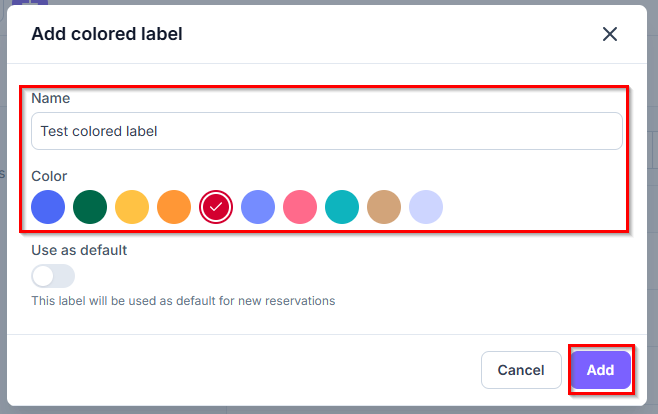
Create a Name for your new colored label, choose the color, select if you want to use as the default, and then click Add.
-
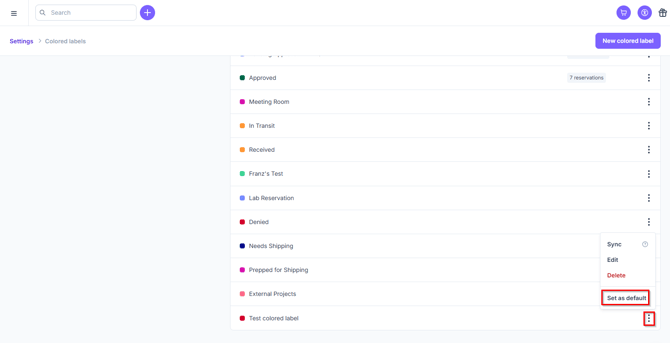
To set a label as the default, find the label, click the 3 dot menu icon and click Set as default.
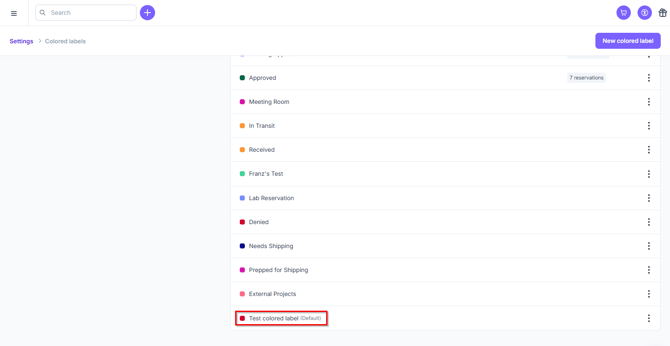
- Now you'll see the label marked as Default.
💡Quick Tip
If you create exactly the same labels on a Reservation and a Check-out, any value that was entered in the Reservation will automatically be copied to the Check-out when you convert it.
Labeling your bookings
-
Go to the Reservation or Check-out you want to label
-
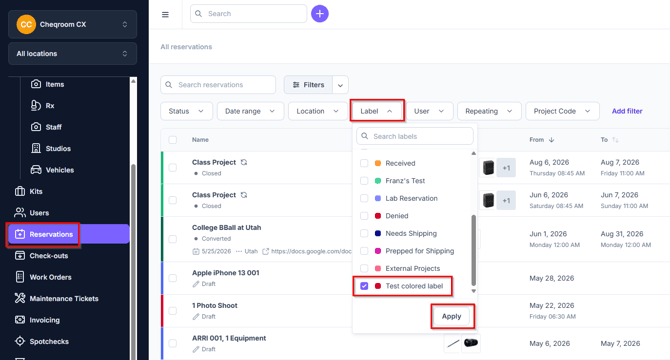
Click the Label drop down box, select the label and click Apply.
Benefits of the colored labels
Calendar view
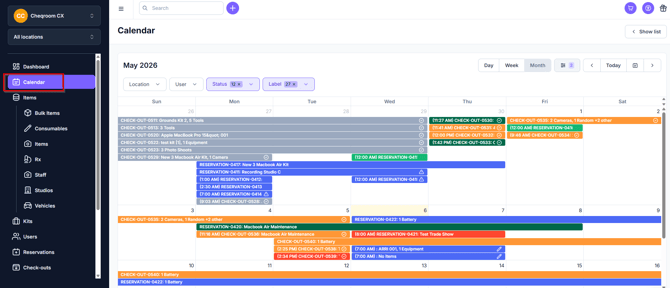
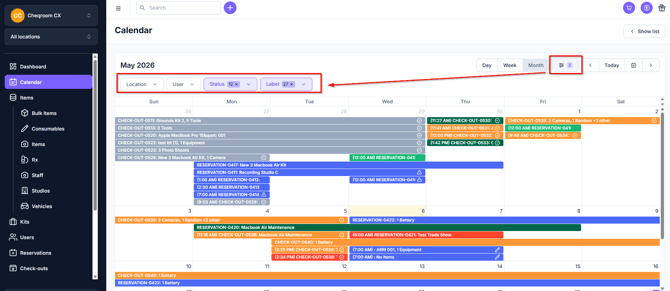
Once you have labeled a few bookings, your calendar view will start to look colorful and organized.
-
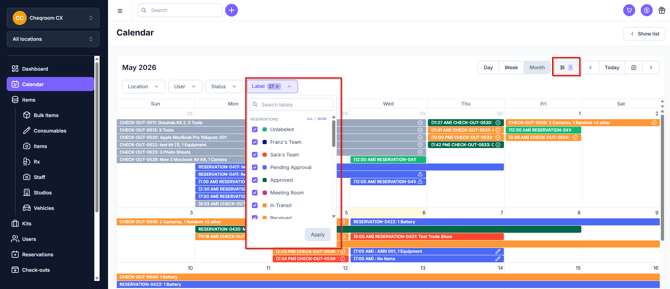
Don't need to see certain colored bookings? Click on the filter icon in the top-right corner and customize your calendar view by Location, User, Status & Label.
Filtering your Reservations or Check-outs
-
Go to your Reservations or Check-outs
-
Click on the advanced search icon on the right side of the search field
-
Choose the label you'd like to filter by
Controlling who's allowed to set, update or clear labels
Permissions for using labels
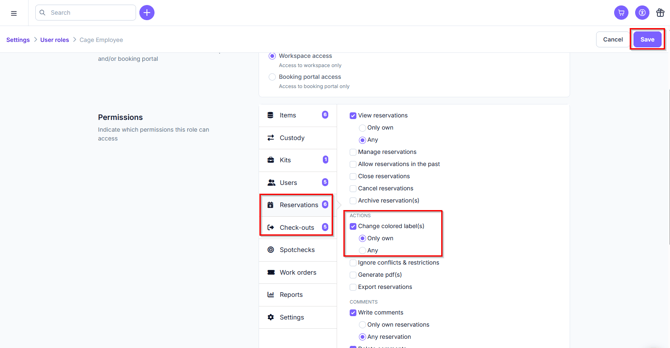
Only users who are allowed to change colored labels on reservations and/or check-outs (either for their own bookings or any booking) can update or clear labels.
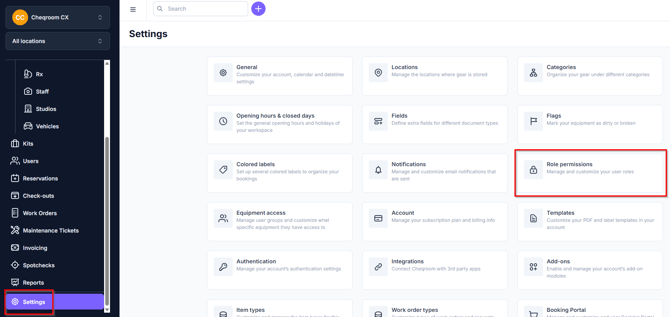
- Navigate to your Settings in the bottom left corner of your screen and click Role permissions.
-
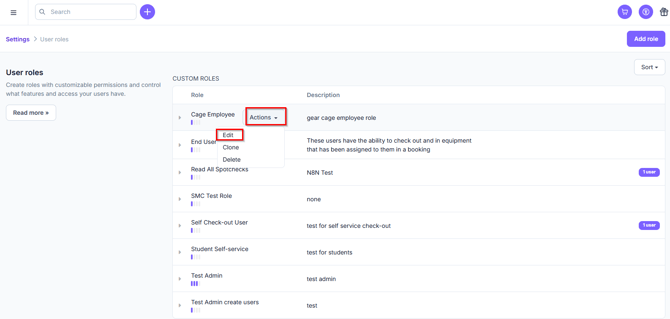
Select an existing role to edit or create a new custom role. To edit a role, click Actions>Edit.
-
Under Reservations and Check-outs, find the colored label(s) section.
-
Select whether this user role should be allowed to change the colored label(s) of either any booking or only the user's own bookings.
-
Click Save and you're done.
Important
Calendars synced via iCal often override with their own color settings