![horizontal-black-3.png]](https://knowledge.cheqroom.com/hs-fs/hubfs/horizontal-black-3.png?width=200&height=37&name=horizontal-black-3.png)
1. Creating a New User Group
User groups help you organize users in Cheqroom according to their common attributes- allowing you to go beyond roles and permissions.
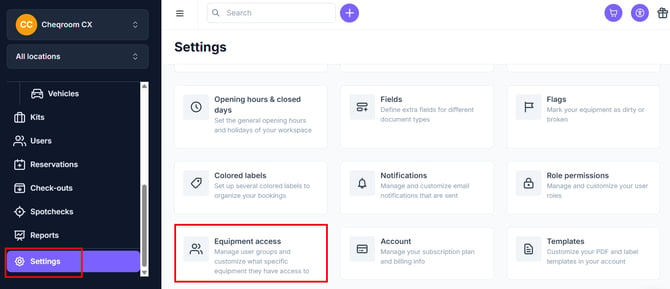
- Navigate to Settings and click Equipment access
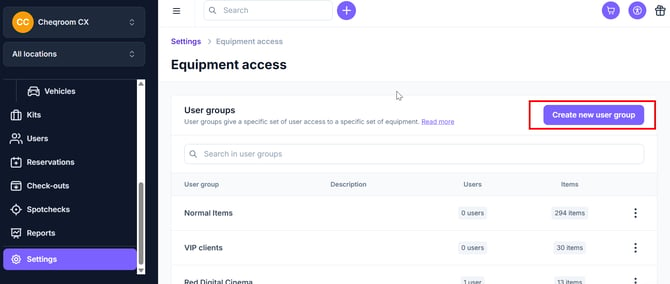
- Click Create new user group
-
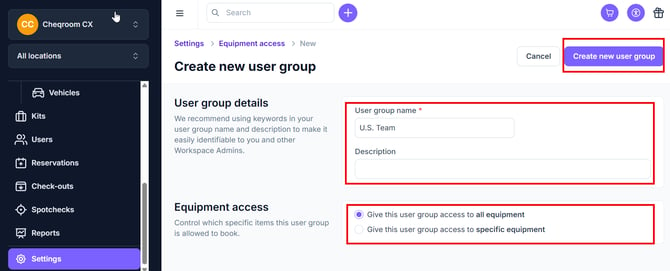
Name Your Group: Enter a clear, identifiable name for the user group. You may also add a Description to define the specific roles or characteristics of the members within this group.
-
Define Equipment Access: Determine the scope of permissions for the group. You can grant access to all equipment or restrict it to specific equipment categories or items.
-
Finalize: Once you have configured the settings, click Create new user group to save your changes.
2. Assigning users to a User Group
Organizing users into groups allows you to manage permissions and equipment access more efficiently. You can add users individually or in bulk by following the steps below.
Adding an Individual User
If you need to add a single person to a group, follow these steps:
-
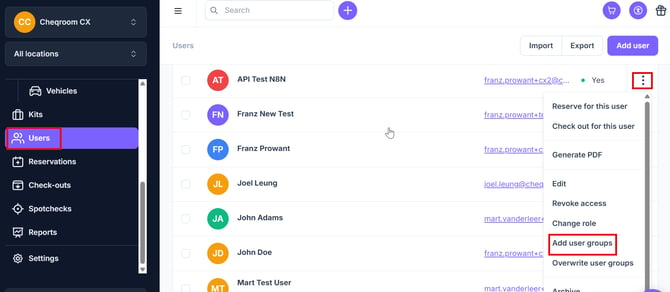
Locate the User: Navigate to the Users section in the main menu and find the specific person you wish to update.
-
Open Actions Menu: Click the three dots (⋮) on the far right side of the user's name to open the sub-menu.
-
Select User Groups: Choose Add to User Groups from the list of options.
-
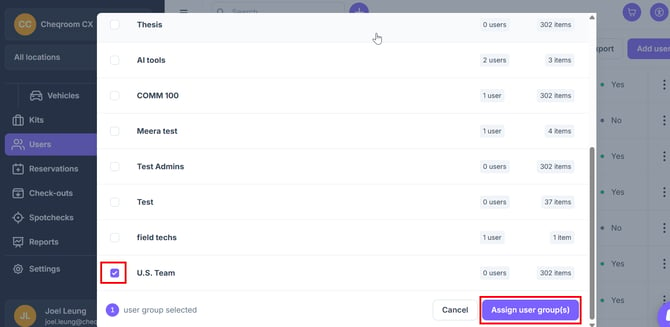
Assign and Save: Select the desired group(s) from the dropdown menu and click Assign user group(s) to finalize the change.
Adding bulk users to groups
-
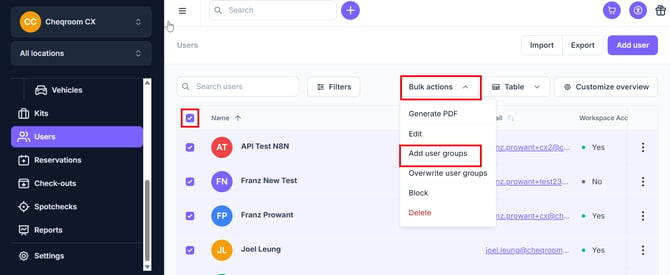
Select Your Users: In the Users section, click the checkbox next to the Name header to select all users on the page or check the boxes next to specific individual names.
-
Access Bulk Actions: Once your selection is made, click the Bulk actions button that appears at the top of the list.
-
Assign Group: Select Add user groups from the dropdown menu.
-
Confirm Assignment: Choose the group(s) you want these users to join and click to apply the changes to the entire selection.
3. Managing Equipment Access with Item Groups
Item Groups allow you to segment your inventory dynamically using filters based on item details, including your own custom fields. Follow these steps to create a specific Item Group for your User Group:
-
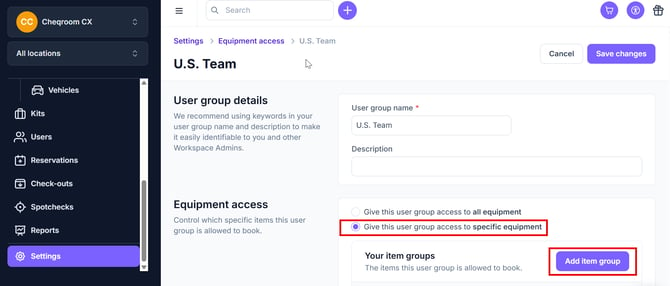
Define Access Level: Within the User Group settings, select the option Give this user group access to specific equipment.
-
Initialize the Group: Click Add item group to begin creating a new segment of equipment.
-
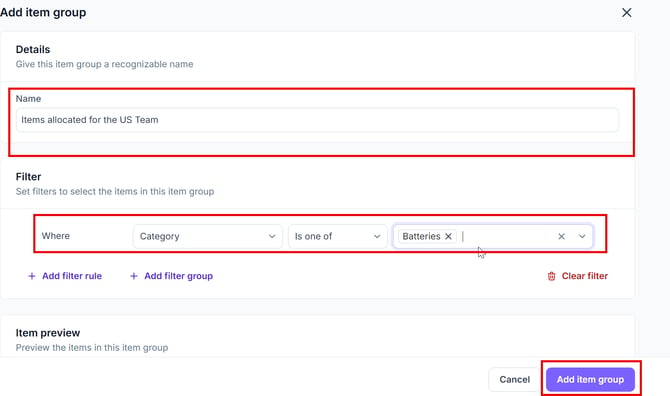
Name the Group: Enter a clear, descriptive Item Group Name that reflects the equipment included (e.g., "High-End Cameras" or "New York Office Fleet").
-
Set Your Filters: Define the criteria for which items should belong to this group.
-
Refine with Logic: Use filter rules or filter groups to create more complex segments.
-
Save and Sync: Once your filters are set, click Add item group to finalize the segment and grant access to the User Group.
-
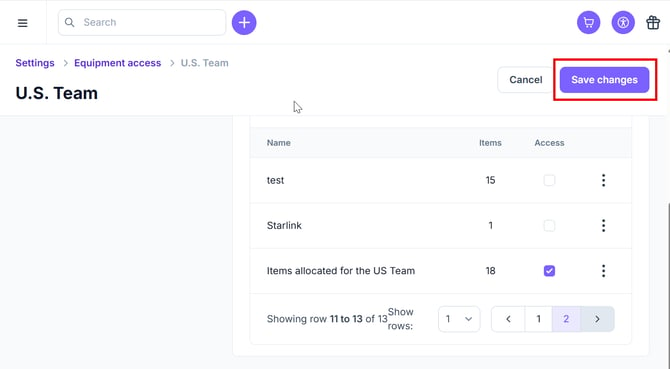
You will then be redirected to the User group page. Don't forget to click Save changes once finished.
🚨 Notes:
-
Your item group has been automatically assigned to the user group you are creating.
-
You can assign multiple item groups to a single user group