![horizontal-black-3.png]](https://knowledge.cheqroom.com/hs-fs/hubfs/horizontal-black-3.png?width=200&height=37&name=horizontal-black-3.png)
Item Custody works like an infinite Check-out. It lets you track loaned equipment and who has it — without needing to set a return date or location. It’s ideal for both short-term loans and long-term equipment assignments.
Enabling the Custody add-on
-
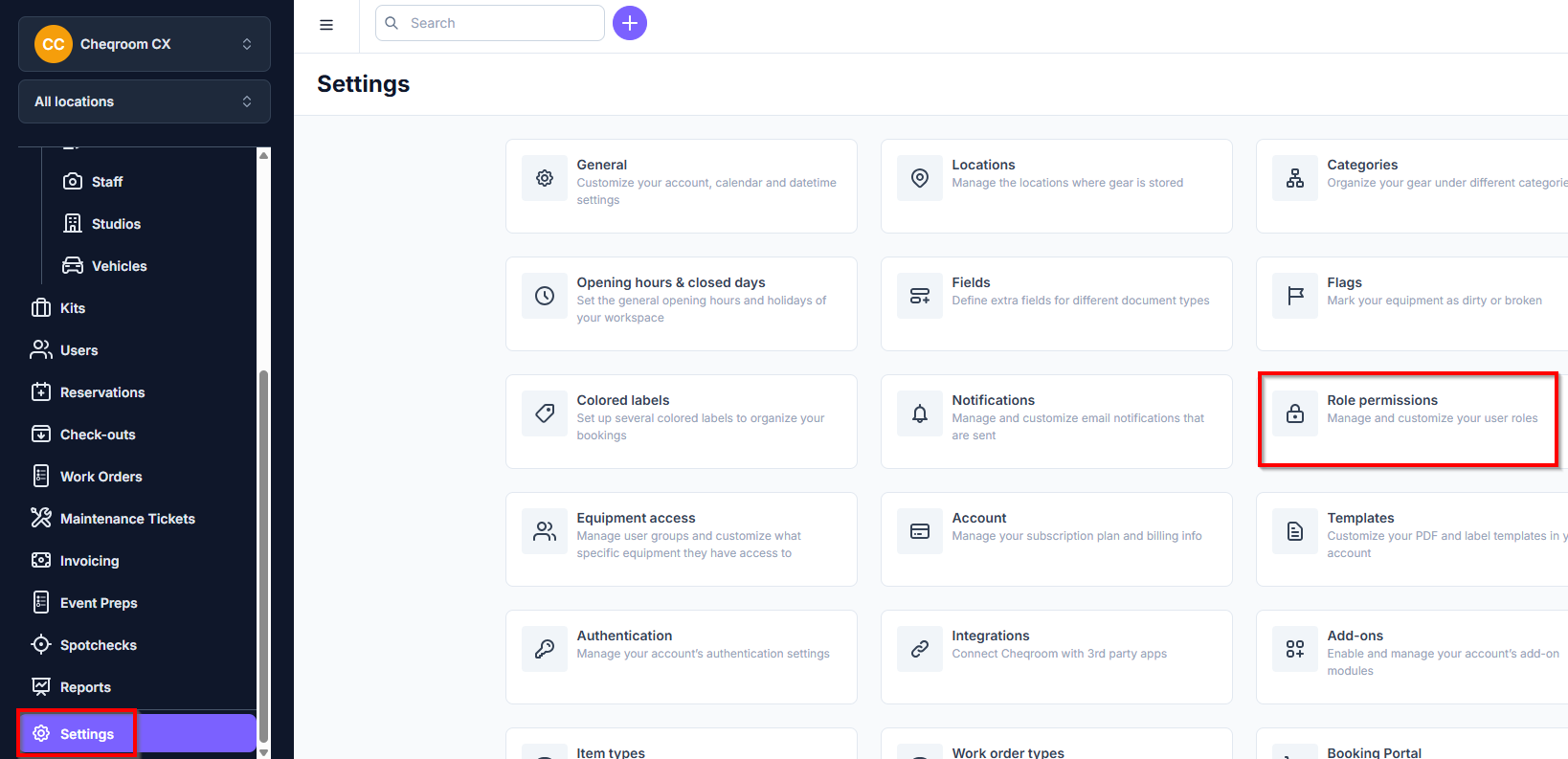
Click Settings in the bottom left corner of your screen
-
Click Add-ons
-
Scroll down to Custody
-
Make sure it's activated
Using Custody
Assigning Custody of a single Item (or Kit)
-
Go to your Items (or Kits), hover over an item or click an Item
-
Click Actions, then click Give or Take custody
Finding all Items in custody
-
Click Items (or Kits)
-
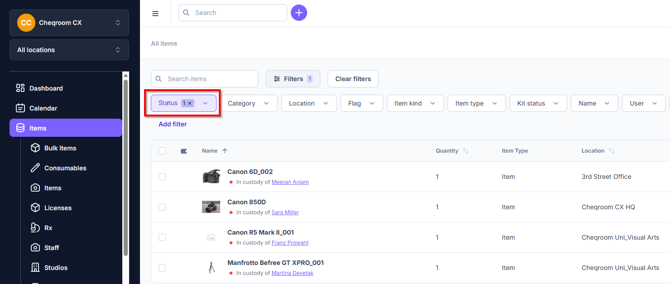
On the left side of the Search field, choose 'In custody':
Finding all Items in custody of a Contact
-
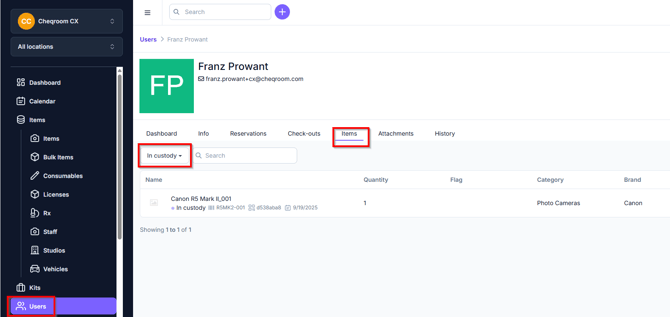
Click Contacts, then click a Contact
-
On the Items tab, you can see the list of the Items which are in custody by selecting "in custody":
Finding all Items in your custody
-
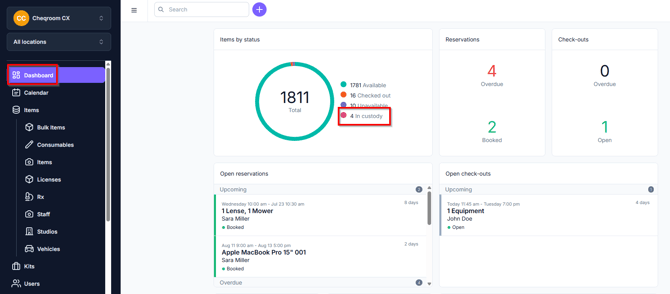
Navigate to your Dashboard, find the widget "Items by status" and click "in custody" to view all of the items in custody.
Releasing Custody of an Item
If you brought the item back to the equipment room and want to make it available again, you can release Custody.
-
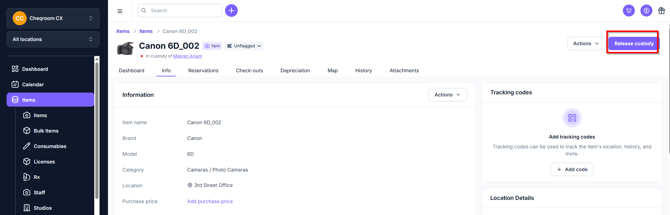
Go to the item you want to release custody of
-
Click 'Release custody' in the top right corner:
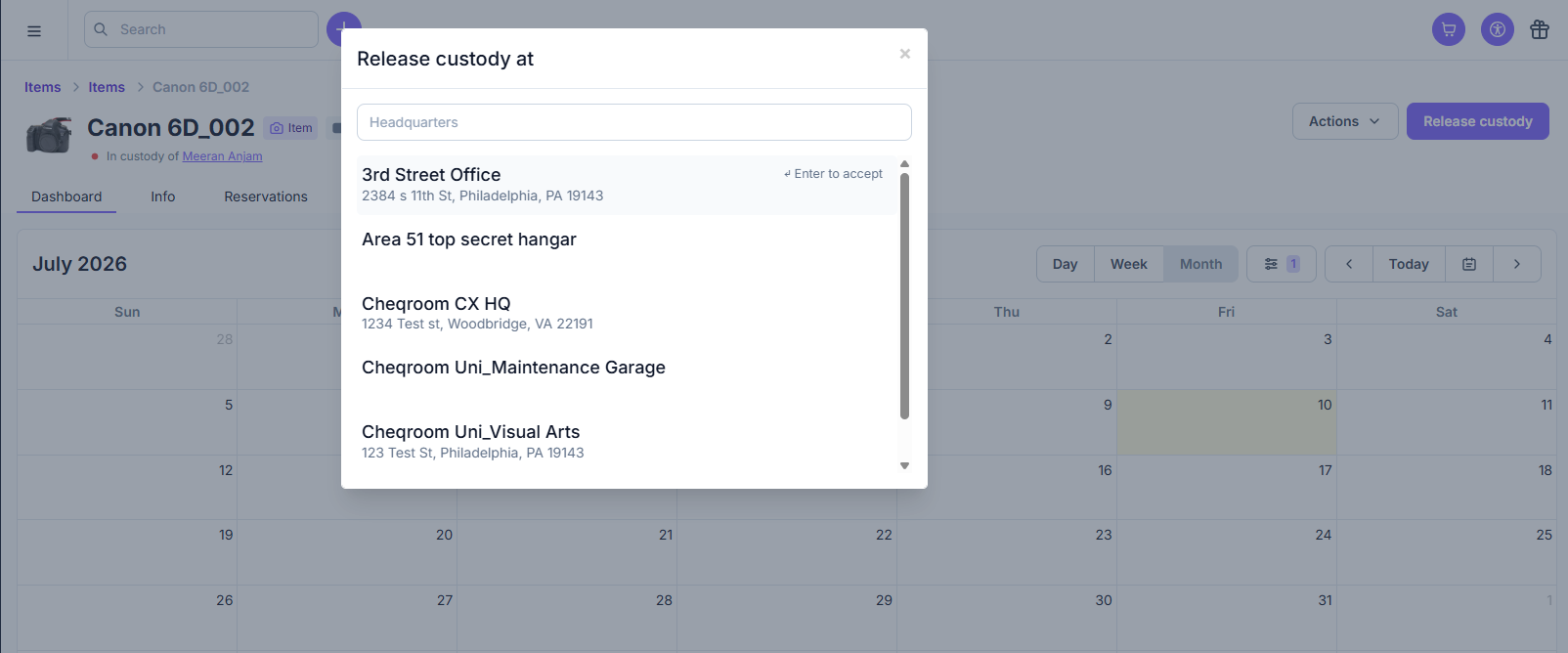
If you have multiple locations set up, you can choose to always have the item returned to the same location when released out of Custody (standard setting), or you can change the Custody settings to have the option to release it at a different location.
Blue circle: Once released, the item will be fully available for bookings.
Half-blue circle: Once released, the item will be partially available for bookings. Learn more about partial availability. You can read more here.
Important
Only users that have the right custody permissions are allowed to give and/or take custody.
Go to the Roles & Permissions section to review and manage which users can give, take, or transfer custody.