![horizontal-black-3.png]](https://knowledge.cheqroom.com/hs-fs/hubfs/horizontal-black-3.png?width=200&height=37&name=horizontal-black-3.png)
When you grant workspace access to team members or colleagues, you can control who sees what by assigning them a user role.
When you grant workspace access to team members or colleagues, you can control who sees what by assigning them a user role.
💡 Please note that not all plans include custom roles.
In the Roles permissions section, you can see the user roles that define the account's access level.
-
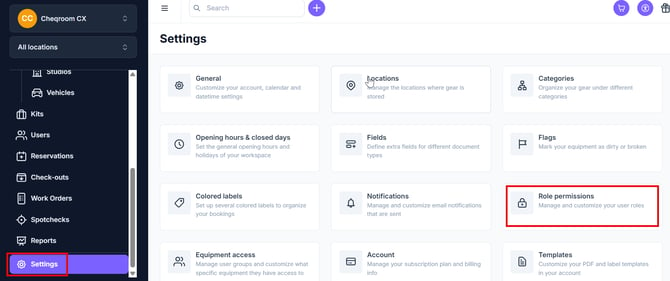
Click on Settings and then click on Role permissions.
-
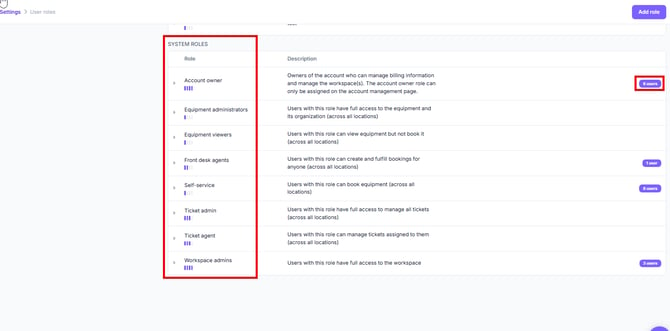
From here you can review all of the SYSTEM ROLES in your account and a description for each role. Additionally, you can click the purple Users button on the right to view all members currently assigned to that role.
Definitions of System Roles
- Account Owner: The Account Owner can fully access the account and can upgrade/cancel the account. In Premium and Master accounts, the account owner is the only role that can add or remove workspaces within the organization.
- Equipment administrators: Users with the Equipment Admin role have full access to the equipment (at all or some locations, depending on whether they have been restricted to certain locations).
-
Managing equipment: The Equipment Admin can create / update / expire equipment. They can also change item flags or locations and give and take items in custody.
-
Managing users: Equipment Admins can update / archive users to whom equipment can be booked or checked out, but they cannot create users.
-
Cannot create or manage reservations and check-outs: The Equipment Admin is solely responsible for the equipment and cannot create any reservations or check-outs.
-
Cannot manage settings or users: The Equipment Admin cannot change Account Settings nor invite or update other account users.
-
- Equipment viewers: Users with the Equipment Viewer role can view equipment but cannot book anything. This role is ideal for e.g., freelancers needing to see the inventory.
-
Have an overview of equipment: The Equipment Viewer can see the equipment but cannot create / update / expire equipment. They are also not allowed to flag and unflag items, change locations, or give and take custody.
-
Cannot manage users: The Equipment Viewer can only see his own user page.
-
Cannot create reservations and check-outs: The Equipment Viewer can only browse the equipment but is not allowed to make any bookings.
-
Cannot manage settings or users: The Equipment Viewer cannot change Account Settings nor invite or update other account users.
-
- Front desk agents: Users with the Front Desk Agent role can create and fulfill bookings for anyone (at all or some locations, depending on whether they have been restricted to certain locations).
-
Have an overview of equipment: The Front Desk Agent can see the equipment but cannot create / update / expire equipment. They are allowed to flag and unflag items and to give and take custody but are not allowed to change locations.
-
Managing users: Front Desk Agents can update / archive users to whom equipment can be booked or checked out, but they cannot create users.
-
Managing reservations and check-outs: The Front Desk Agent can create / update / fulfill reservations and check-outs, even those created by other software users. They can also clear booking Labels, but they cannot ignore conflicts.
-
Cannot manage settings or users: The Front Desk Agent cannot change Account Settings nor invite or update other account users.
-
- Self-service: Self-service users can book equipment (at all or some locations, depending on whether they have been restricted to certain locations).
-
Have an overview of equipment: The self-service user can see the equipment but cannot create / update / expire equipment. They are also not allowed to flag and unflag items, change locations, or give and take custody.
-
Cannot manage users: The self-service user can only see his own user page.
-
Creating reservations for themselves: The self-service users can make a booking for themselves but cannot convert the reservation to a check-out nor create a check-out from scratch. Someone else will have to process the check-out and check-in for them.
-
Cannot manage settings or users: The equipment viewer cannot change Account Settings nor invite or update other account users.
-
- Workspace admins: Users with Workspace admin roles have full access to their workspace across all locations, but unlike the account owner they can not manage billing or add or remove workspaces.
-
Managing equipment: The Workspace Admin can create / update / expire equipment. They can also change item flags or locations and give and take items in custody.
-
Managing users: The Workspace Admin can invite other users to the account and edit the role of other users.
-
Managing reservations and check-outs: The Workspace Admin can create / update / fulfill reservations and check-outs, even those created by other software users. They can also clear booking Labels and ignore booking conflicts.
-
Managing settings: The Workspace Admin has full access to the settings of the account.
-
- Booking Portal User*: These users will always be directed to the portal when they log in. They cannot access the main Cheqroom workspace.
-
Have an overview of equipment: The Booking Portal user can see the equipment but cannot create / update / expire equipment. They are also not allowed to flag and unflag items, change locations, or give and take custody.
-
Cannot manage users: The Booking Portal user cannot see any user page, even their own.
-
Creating reservations for themselves: Booking Portal users can make a booking for themselves but cannot convert the reservation to a check-out nor create a check-out from scratch. Someone else will have to process the check-out and check-in for them.
-
Cannot manage settings or users: Booking Portal users cannot change Account Settings nor invite or update other account users.
-
- Work Order Admin*: These users are responsible for creating, assigning and setting for work orders. They can manage items, booking and users in addition to work orders
-
Managing equipment: The Work Order Admin can create / update / expire equipment. They can also change item flags or locations and give and take items in custody.
-
Managing users: The Work Order Admin can invite other users to the account and edit the role of other users.
-
Managing reservations and check-outs: The Work Order Admin can create / update / fulfill reservations and check-outs, even those created by other software users. They can also clear booking Labels and ignore booking conflicts.
-
Managing settings: The Work Order Admin has full access to the settings of the account.
- Managing templates:The Work Order Admin can create / update work order templates and settings associated with them
-
- Work Order Agent*: These users execute the individual requests created by members of your Workspace. They have full permissions within Work Orders but cannot edit Templates and Settings
-
Have an overview of equipment: The Work Order Agent can see the equipment but cannot create / update / expire equipment. They are allowed to flag and unflag items and to give and take custody but are not allowed to change locations.
-
Managing users: Work Order Agents can add / update / archive users to whom equipment can be booked or checked out.
-
Managing reservations and check-outs: The Work Order Agent can create / update / fulfill reservations and check-outs, even those created by other users. They can also clear booking Labels, but they cannot ignore conflicts.
-
Cannot manage settings: The Work Order Agent cannot change Account Settings.
- Managing operations and maintenance requests: The Work Order Agent can create / update / assign / execute requests
-
Custom role:
You can create custom roles on Business, Enterprise, and E.L.A plans to match your individual needs.
Site Access
For workspaces with Booking Portal enabled, this table maps site access for individual system roles. See User Access to the Booking Portal for more information.
|
Role |
Access |
|---|---|
|
Account Owner |
Workspace + Booking Portal |
|
Workspace Admin |
Workspace + Booking Portal |
|
Front Desk Agent |
Workspace + Booking Portal |
|
Self-Service User |
Workspace + Booking Portal |
|
Work Order Admin |
Workspace + Booking Portal (if using Operations Management) |
|
Work Order Agent |
Workspace + Booking Portal (if using Operations Management) |
|
Equipment Admin |
Workspace only |
|
Equipment Viewer |
Workspace only |
|
Booking Portal User |
Booking Portal only (new role) |