![horizontal-black-3.png]](https://knowledge.cheqroom.com/hs-fs/hubfs/horizontal-black-3.png?width=200&height=37&name=horizontal-black-3.png)
Buffer Time lets workspace admins automatically add a protected window after every booking. During that window, the equipment is unavailable for new bookings—giving your team time to clean, inspect, recharge, or transport items before the next user picks them up.
Note: Buffer time is only available on plans that have booking restrictions enabled. Set up a time to meet with us if you want to learn more.
What is Buffer Time?
When Buffer Time is enabled, a set amount of time is reserved after every booking ends. This protected window is not available for other users to book, even if the underlying item would otherwise be free.
For example: if a camera kit is booked until 3:00 PM and a 30-minute buffer is set, the next available start time for that item is 3:30 PM—not 3:00 PM.
Tip: Buffer Time applies after a booking ends. It does not add time before a booking begins.
Configuring Buffer Time
Workspace-Level Configuration
To set a default Buffer Time that applies across your entire workspace:
- Go to Settings
- Click General
- Under How would you like to schedule bookings?, find the Buffer Time setting
- Enter your desired buffer duration and save
Location-Level Configuration
If your workspace has multiple locations, you can set a different Buffer Time for each one. Location-level settings override the workspace default for items at that location.
- Go to Settings
- Click Locations
- Find the location you want to configure and select Edit from the … menu
- Under Booking Restrictions, configure the Buffer Time for that location
- Repeat for any additional locations
Important: Buffer Time is configured at the workspace or location level, rather than at the individual item level.
How Buffer Time Affects Bookings
Soft conflicts
When a user tries to create a booking that overlaps with an active buffer window, they will see a soft conflict labeled “Buffer Time” (indicated by a clock icon ⏰). This is a warning, not a hard block.

Users who have permission to override booking conflicts can proceed past this warning. Users without that permission will not be able to confirm the booking until the conflict is resolved by choosing a later start time.
Calendar views
Buffer Time is visually represented on the Cheqroom calendar so users always know when an item is in a protected window:
- Day and Week (Gantt) views: The buffer appears as a separate time block directly after the booking, clearly showing the protected window on the timeline.

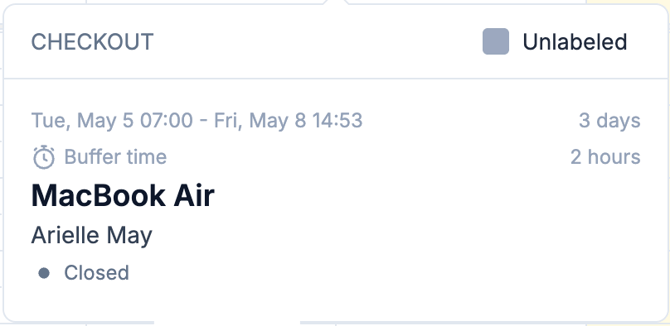
- Month and Year (Gantt) views: Space is more limited, so the buffer shows as a clock icon (⏰) on the booking. Hover over the booking to see the specific buffer duration.

- All views: Hovering over a booking will display the event information, including its buffer time
Permissions
Buffer Time conflicts are soft conflicts—they can be overridden by users who have the appropriate permissions in your workspace.
To review or adjust who can override booking conflicts, go to Settings > Roles & Permissions and review the booking conflict override setting for each role.
Related articles