![horizontal-black-3.png]](https://knowledge.cheqroom.com/hs-fs/hubfs/horizontal-black-3.png?width=200&height=37&name=horizontal-black-3.png)
Once your Booking Portal is configured, the next step is getting people to use it. Whether you manage equipment for a university department, a corporate team, or an enterprise organization, adoption depends on making the portal easy to find and easy to understand. This article covers practical strategies to promote your Booking Portal and reduce friction for new users.
Start with the Basics
-
Know your URL
- Your Booking Portal URL is the single most important thing to communicate. Find it in Settings > Booking Portal and keep it somewhere accessible.
-
Create all Users Before you Launch
-
Make sure every person who needs access has been invited to Cheqroom and assigned the correct role before you share the portal link. A user who receives the link but cannot log in is less likely to try again.
-
- Send a Clear Launch Message
- When you first share the portal, tell users exactly what it is, why it exists, and what they should do with it. Avoid technical language. A simple, direct message works better than a detailed explanation.
|
Example launch message "We now have a dedicated equipment booking portal. Use it to browse available gear and submit reservation requests. Visit [your portal URL] and log in with your Cheqroom account. If you don't have an account yet, contact [admin name]." |
Deciding on Distribution Channels
- The right channel depends on your organization type and how your teams communicate day-to-day. Use the table below as a starting point, then focus on the channels your users already rely on.
|
Channel |
How to Use it |
|---|---|
|
|
Send a launch announcement to all relevant users. Include the portal URL as a clear, clickable link — not buried in the body text. Follow up with a reminder after one or two weeks. |
|
Intranet / Wiki |
Add the portal URL to your team's internal knowledge base, equipment page, or onboarding documentation. This is often the first place new users look when they need to book something. |
|
Slack / Teams |
Pin a message with the portal URL in a relevant channel (e.g. #equipment, #ops, #resources). For high-traffic teams, a brief channel announcement on launch day drives strong initial adoption. |
|
QR code (Physical) |
Generate a QR code that links to your portal URL. Print and post it in equipment rooms, studios, storage areas, reception desks, or anywhere users interact with equipment physically. |
|
Email Signature |
Add a short line and link to admin email signatures: "Book equipment → [your portal URL]". This provides passive, ongoing visibility to anyone who emails the team. |
|
LMS / Student Portal |
For universities, post the portal URL on the relevant course pages, department portal, or student hub. Include it in course syllabi or equipment induction materials. |
|
Onboarding Materials |
Add the portal URL to employee or student onboarding packs. New users who know about the portal from day one are more likely to use it as a default. |
|
Digital Signage |
If your space uses screens or displays, add a slide with the portal URL and a QR code. Effective in labs, media centres, and shared workspaces. |
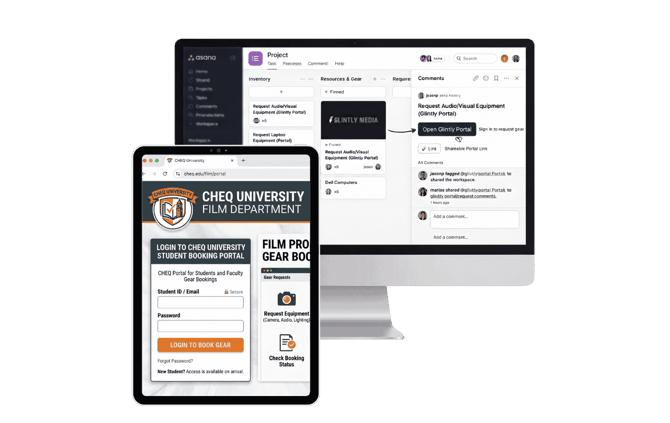
Guidance for Universities
University environments typically involve high user turnover, multiple departments, and a mix of student and staff users. The following approaches work well in this context.
- Integrate with Course Introductions
- Equipment booking is often introduced as part of a lab, studio, or fieldwork induction. Add the Booking Portal URL to any induction slides or handouts and demonstrate the booking process during the session. Students who see it used in context are significantly more likely to adopt it independently.
- Include in Course Syllabi and Handbooks
- Add the portal link to course documentation so students can reference it throughout the term. A simple line in the equipment section — 'Book equipment via [URL]' — is enough.
- Work with Faculty and Department Admins
- Individual lecturers and department administrators are often the most effective channel to reach students. Brief them on how the portal works and give them a short explainer they can share with their groups directly.
- Use the Notice Field for Term-Based Updates
- The Notice field in Booking Portal settings lets you display a message on the portal landing page. Use it to communicate term dates, equipment availability windows, or any temporary restrictions (e.g. 'Equipment bookings for this semester close on [date]').
- Post in Student Communication Platforms
- Many universities use platforms such as Moodle, Canvas, Blackboard, or Microsoft Teams for student communication. Post the portal URL in the relevant spaces and pin it so it is easy to find.
|
QR Codes in Physical Spaces Printing a QR code and posting it on equipment storage units, media loan desks, or studio doors is particularly effective in university settings. Students can scan and access the portal immediately without needing to search for the URL. |
Guidance for Companies
In corporate environments, the goal is usually to reduce informal reservation requests (emails, messages to admins) and centralize bookings in one place. The following approaches help shift behavior effectively.- Replace the Informal Process Explicitly
- If your team currently books equipment via email or Slack messages to an Admin, make it clear that the portal replaces this process. A direct message — 'From [date], all equipment bookings go through [URL]' — is more effective than positioning it as an option alongside existing methods.
- Pin the Link in Slack or Teams
- In most companies, Slack or Teams is where work happens. Pin a message with the portal URL in the relevant channel and ensure it is visible in the channel description. When users ask about booking equipment, redirect them to the portal rather than handling it manually.
- Add to the IT or Operations Intranet Page
- Most companies have an internal page listing key tools and resources. Adding the Booking Portal link here — alongside tools like expense platforms or CRMs — positions it as part of standard operations infrastructure.
- Include in New Employee Onboarding
- Add the Booking Portal to your onboarding checklist or 'tools you'll need' documentation. Employees who know about the portal before they need it will use it naturally rather than defaulting to an admin request.
- Use the Success Message to Reinforce Next Steps
- When users complete a reservation, the success message is the last thing they see. Use it to set expectations: confirm when they can expect a response, or provide a contact for urgent requests. A well-crafted success message reduces follow-up queries to admins.
- Report Back on Adoption
- Cheqroom's reporting gives admins visibility into reservation volume and user activity. Sharing adoption data with team leads or department managers — 'X reservations made this month via the portal' — reinforces the value of the tool and encourages managers to promote it within their teams.
|
Reduce Admin Bypass If users continue to request equipment directly from admins instead of using the portal, admins can respond: 'Please submit your request via [URL] and I'll action it from there.' Consistently redirecting informal requests is the fastest way to build the habit. |