![horizontal-black-3.png]](https://knowledge.cheqroom.com/hs-fs/hubfs/horizontal-black-3.png?width=200&height=37&name=horizontal-black-3.png)
With Booking Restrictions, you can get tighter control over how reservations and check-outs are scheduled in your workspace. Use this feature to:
- Prevent last-minute bookings
- Enforce max loan length
- Limit how many bookings can be made in a single time slot
- Reserve protected time after a booking ends for equipment preparation
Configuration
Booking Restrictions can be configured in the account settings by the account owner or any admin that has permission to do so.
To configure for your workspace:
- Go to Settings
- Click on General
- Under How would you like to schedule bookings?, configure Booking Restrictions
Booking Restriction Options
- Limit how many times one time slot can be booked at the same time: The maximum number of reservations or check-outs that can be created in during a time slot (e.g. 10:00am)
- Min. duration for reservations and check-outs: The minimum time that a user can keep the items/equipment from a reservation or a check-out
- Max. duration for reservations and check-outs: The maximum time that a user can keep the items/equipment from a reservation or a check-out
- Min. time in advance to make reservations: The minimum allowed time between now and when a reservation begins
- Max. time in advance to make reservations: The maximum allowed time between now and when a reservation begins
- Buffer Time: Automatically reserves a protected window after a booking ends, during which the item is unavailable for new bookings. Use this to ensure equipment has adequate time for cleaning, maintenance, inspection, or transit between users. See Using Buffer Time for more information.
For each of these selected options, users will need to define:
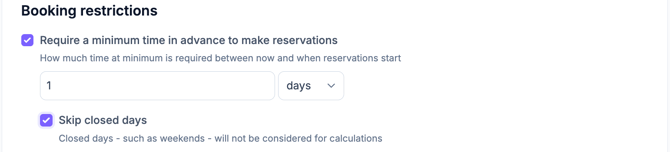
- Duration: The length of time (minute, hours, days, months) the booking restriction is set to
- Tip: Set this duration to follow your workspace's booking time interval. For example, if your bookings are scheduled in 15-minute intervals, use whole hours or days rather than irregular durations (e.g. 37 minutes).
- Skip closed days: Ability to not factor/count in the closed opening days. This feature is most helpful when there are weekends or holidays in the work calendar.
⏰ Buffer Time conflicts: When a booking overlaps with an active buffer window, users will see a soft conflict labeled “Buffer Time” (indicated by a clock icon). This is a warning, not necessarily a hard block. Users who have permission to override booking conflicts can proceed past this warning. Users without that permission will need to choose a later start time.
Location-Based Booking Restrictions
If your workspace has multiple locations, you may have different requirements by location. In addition to the default restrictions configured above, you can set location-based booking restrictions:
- Go to Settings
- Click on Locations
- For the Location you wish to add restrictions to, select Edit from the ‘…’ menu
- Under the Booking Restrictions section, configure the specific restrictions for this location
- Repeat as necessary per additional Location
During Booking
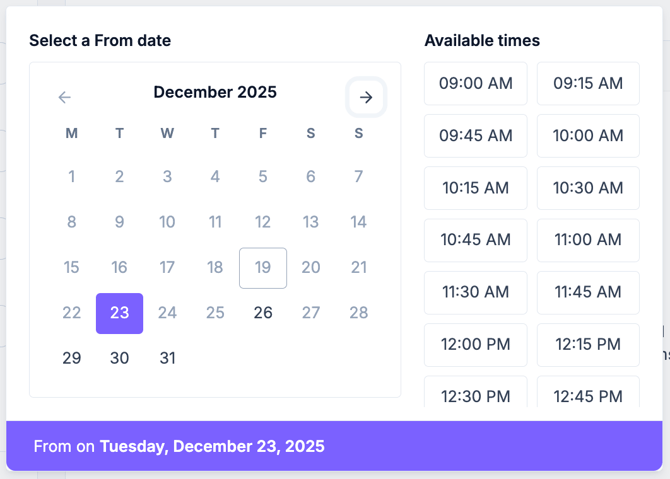
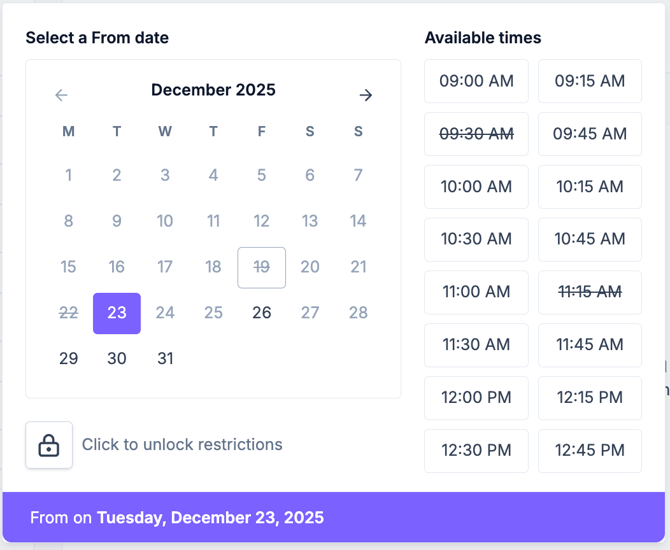
When a booking restriction is in place, users will see it reflected in the date selector. Restricted dates or time slots that don't meet requirements will be unavailable and cannot be selected.
Users who have permission to do so can override these restrictions, but should be mindful that closed days cannot be overridden (see below)