![horizontal-black-3.png]](https://knowledge.cheqroom.com/hs-fs/hubfs/horizontal-black-3.png?width=200&height=37&name=horizontal-black-3.png)
The first method we'll explore is ideal for adding a few Users to your Cheqroom workspace. This step-by-step guide will walk you through inviting individual Users and granting them access to your Cheqroom account.
-
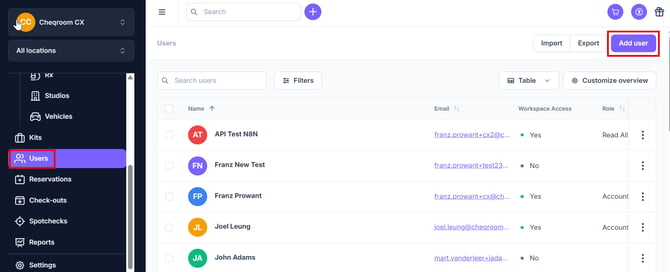
From the left hand menu in your Cheqroom account, Click on Users and then click on Add User on the top-right corner of the screen.
-
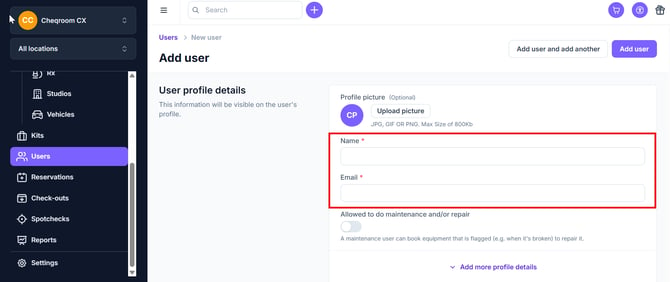
Enter the Name and Email address of the person you want to invite.
-
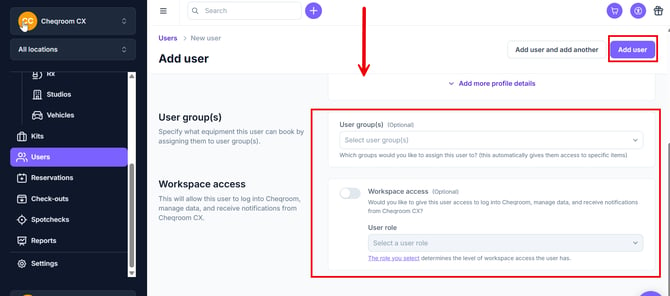
Next scroll down to User groups, select the group you'd like to add them to and if you'd like to give them Workspace access, toggle the button. The new user will receive an email invite when you add them. Additionally, you can select the User role if they are to have access to the back end of your Cheqroom account.
-
Please review our How To: Manage User Roles and Permissions guide that explains more about user roles and permissions.
- Click Add user to add the new user.
TIP: You can add a User without giving them Cheqroom access to have a User to manage bookings and have contacts to receive notifications for those bookings. This can be useful for third-party contractors.
Do you need to add a large group of Users to your Cheqroom workspace? This section covers Cheqroom's user import via CSV files.
-
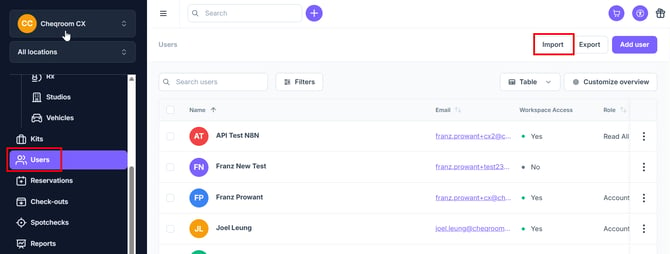
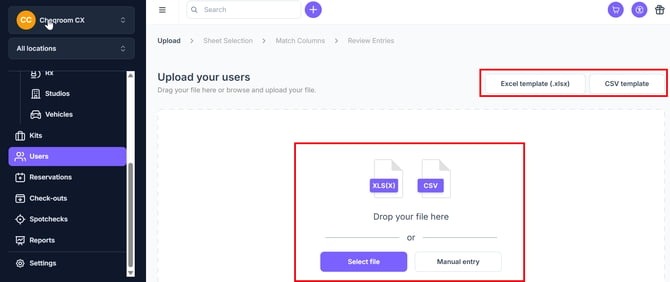
On the Users page, click on Import on the top-right. We provide a User Spreadsheet Template to help you get started. It’s important to follow the same format.
Ensure all the information in your spreadsheet is mapped to the correct fields in Cheqroom.
-
Choose a role for the Users you are uploading (optional). If given one, invite links will be sent to their emails upon successful import.
-
You can download the Excel template or CSV template. Click Select file or drag and drop your file to import all the new Users.
NOTE: You might need to create custom fields in Cheqroom to match your needed fields depending on your Role Permissions. You can read more about that in our How To Manage Custom Fields guide.
Updating Users With a CSV File
After you've added Users into Cheqroom, you can export a CSV file with their details, and use that to bulk update their details!
-
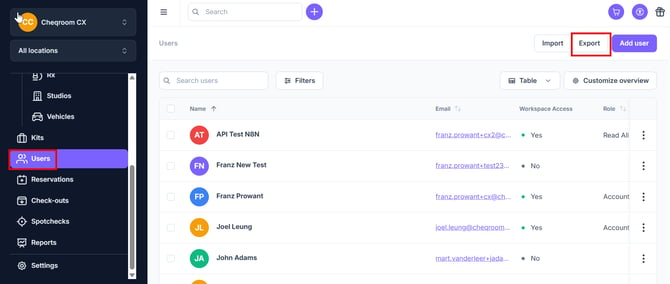
Click on Users on the left-hand menu. Click on Export on the top right.
-
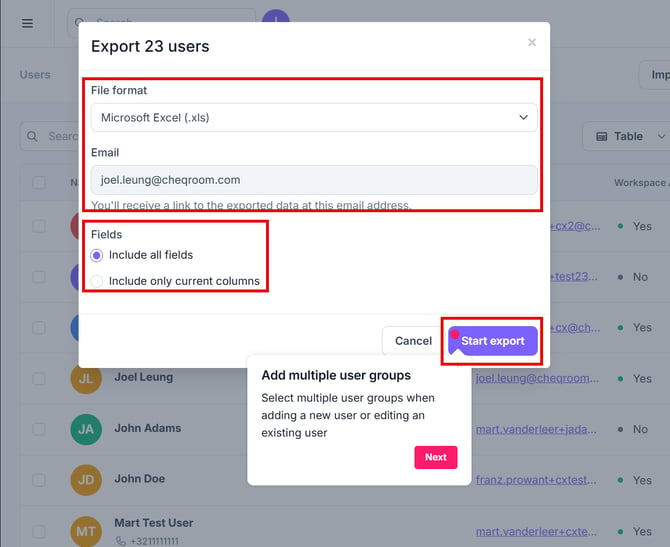
Choose the File format (Excel or CSV) and then choose the Fields you'd like to include (Include all fields or Include only current columns). Then click Start export.
-
When it's ready, click on Import on the top right of the Users Cheqroom page.
-
Follow through with the process as with the Import, but make sure to map the Id field correctly.
-
The Id field is what our system will use to correctly map the Users and their details. If an existing User is Imported without the Id being properly mapped, they will be added as a new User.
-
Encountering issues with user invitations? This section offers solutions to common problems that might prevent successful invitations.
The email address is invalid.
Make sure the email address you're trying to add is correct. Double-check for any typos!
The person was already invited.
If the user has already been invited to your account, perhaps their invite link is still pending or has expired.
If expired, you can re-invite them by following these steps:
-
Click Users on your left-hand menu.
-
Click on the dropdown list next to the search field and choose Expired invites.
-
Hover over the User you want to re-invite and click on the Actions button that appears.
-
Click on Give Workspace Access and select the User role.
-
Confirm by clicking Give Workspace Access again.
You can also check the Inactive or Archived Users if they don't show up under expired or pending invites. By activating or unarchiving them as a User, they can log in again using their old login details.
NOTE: If they forgot their password, you can send them a new one by clicking Reset password.
User Roles:
-
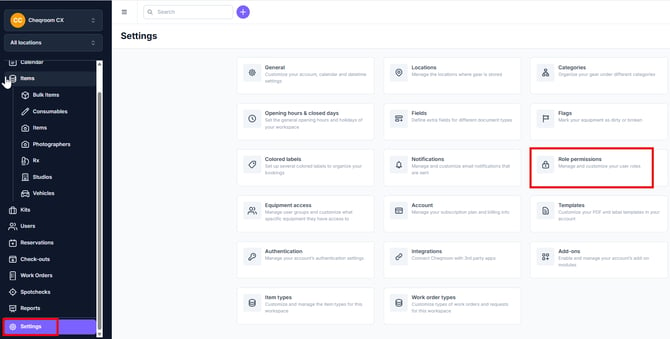
To set up roles, click on Settings, and then Role permissions.
Please review 🎥 User roles & permissions in regard to setting up user roles and permissions.