![horizontal-black-3.png]](https://knowledge.cheqroom.com/hs-fs/hubfs/horizontal-black-3.png?width=200&height=37&name=horizontal-black-3.png)
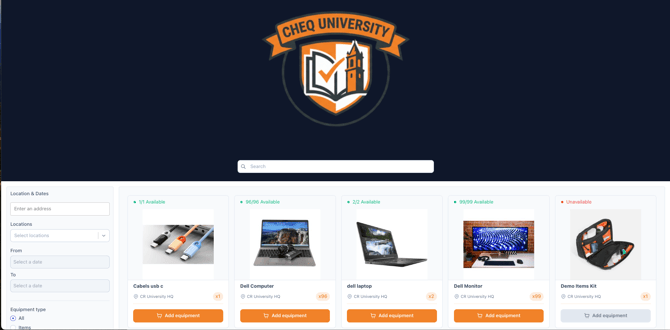
The Booking Portal provides end users with a streamlined way to browse equipment and submit reservation requests without requiring access to the full Cheqroom workspace. This extension of your organization can be fully personalized with your own branding and a custom URL.
This article explains how to enable and configure your portal.
Note: Only Account Owners and Workspace Admins with the appropriate permissions can enable and configure Booking Portal.
1. Enabling the Booking Portal
-
Go to Settings
-
In your Cheqroom workspace, click Settings in the left-hand navigation menu.
-
-
Select Booking Portal
-
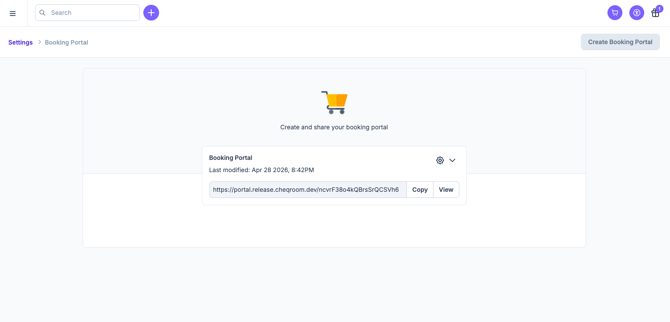
Find Booking Portal in the settings menu and click into it.
-
-
Click 'Add Booking Portal'
-
Toggle the feature on by clicking Add Booking Portal. This generates your unique portal URL and opens the configuration panel.
-
-
Configure and Save
-
Complete the branding and display options (detailed below), then save your settings. Your portal is now live and ready to share.
-
Keep in Mind: If you do not see branding updates right away, please clear your cache.
🔗 Your Booking Portal URL
Once enabled, your Booking Portal is accessible at:
portal.cheqroom.com/[your-workspace-id]
You can find your exact URL in Settings > Booking Portal.
Note: This is the link you share with end users to give them access — bookmark it or distribute it via email, QR code, or Slack.
The Booking Portal URL is tied to your workspace ID and cannot be customized. If you need to find your workspace ID, it is visible in Settings > General.
2. Branding & Display Options
Your Booking Portal acts as a seamless extension to your organization. Admins can configure the following settings to tailor the portal to your preferences.
-
Logo
-
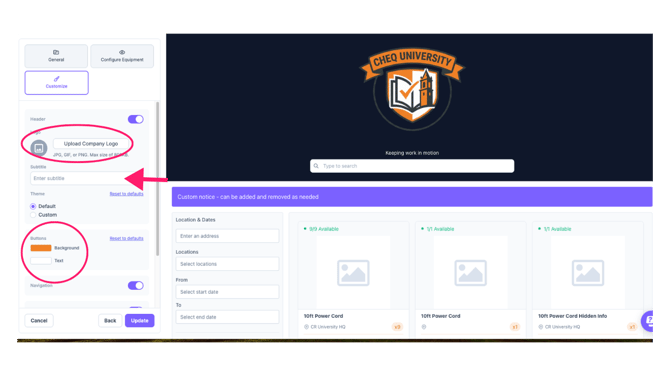
Upload your organization's logo. This appears prominently at the top of the portal and helps users recognise the tool as part of your internal systems.
-
-
Subtitle
-
An optional message that appears directly below your logo — useful for a team name, department, or short welcome line.
-
-
Brand Color
-
Set a primary color that matches your organization's visual identity. This is applied to key UI elements across the portal.
-
-
Button Color
-
Set the color for 'Add equipment' action buttons. You can match this to your brand color or use a contrasting accent. You can also set the text color. Please be mindful of contrast and accessibility when selecting colors.
-
-
Notice
-
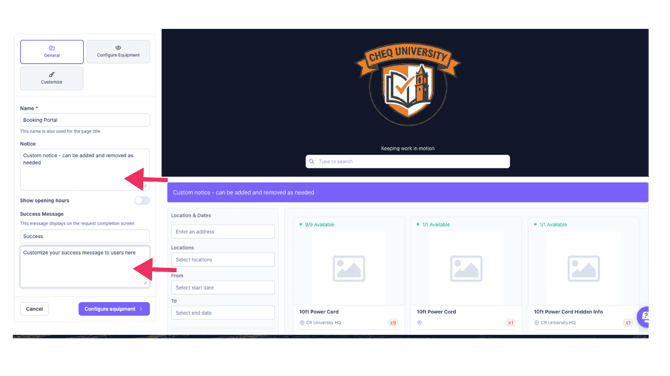
An optional message displayed on the portal landing page below the search bar. Ideal for sharing policies, availability updates, or temporary notices such as an unexpected closure. The notice can be toggled on and off as needed.
-
-
Success Message
-
The message end users see after successfully submitting a reservation. Use this to set expectations — for example, confirming next steps or when they can expect a response from your team.
-
One Booking Portal Per Workspace
Each Cheqroom workspace supports one Booking Portal. If your organization operates multiple workspaces, each workspace will have its own distinct portal with its own URL and configuration.
Tip: If you need separate portals for different teams or catalogues, consider structuring these as separate workspaces in Cheqroom. If you need to segment items for different users, use Equipment Access groups.
Plan Availability
Booking Portal is available on Enterprise and ELA admin-based subscriptions. If you are unsure whether your plan includes Booking Portal, contact your Cheqroom Customer Experience Manager or visit cheqroom.com/pricing for the latest plan comparison.
Related Configuration Resources:
🎥 Please visit the video overview if you want to see more!