![horizontal-black-3.png]](https://knowledge.cheqroom.com/hs-fs/hubfs/horizontal-black-3.png?width=200&height=37&name=horizontal-black-3.png)
By default, every account has one Location for “Headquarters”, but you can add more Locations as needed.*
Note: Some Cheqroom plans only support 1 Location.
On some plans, Cheqroom also supports a Location hierarchy using sublocations. Sublocations are informational only. They help you organize where Items live within a Location (for example, “Headquarters” → “Warehouse” → “Cage”), but bookings still use the parent/root Location.
Adding a new Location
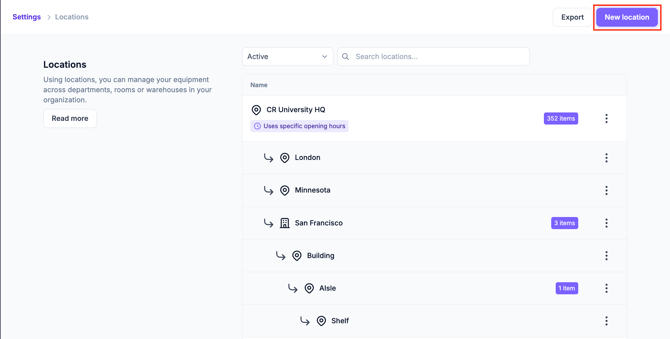
- Click Settings, then click Locations
- Click New location
- Fill in the name and the full address
- Click Add location
Adding a new Sublocation
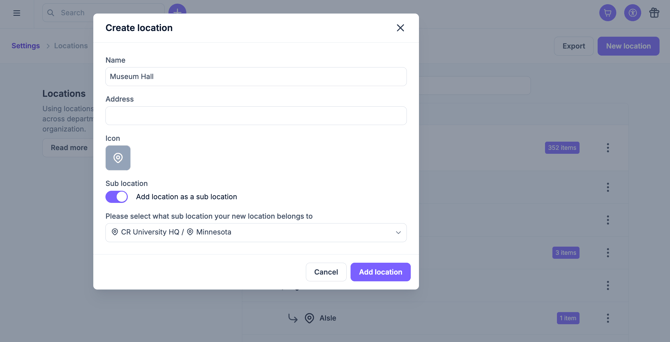
- Click Settings, then click Locations
- Click New location
- Fill in the name and the full address
- Toggle Add location as sublocation
- Select parent location
- Click Add location
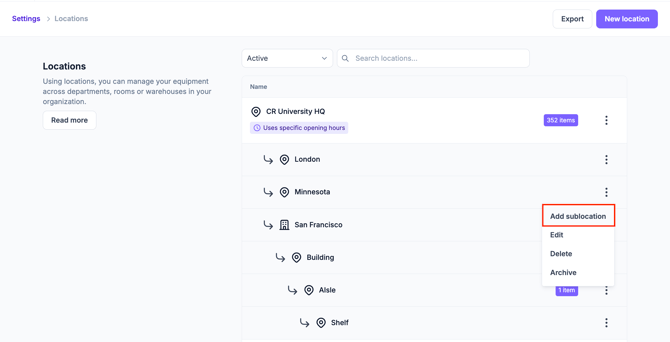
Alternatively:
- Click Settings, then click Locations
- Navigate to the parent Location where you wish to add the sublocation
- From the ‘…’ action menu, select Add sublocation
- Fill in the name and the full address
- Click Add location
Removing a Location that is no longer used
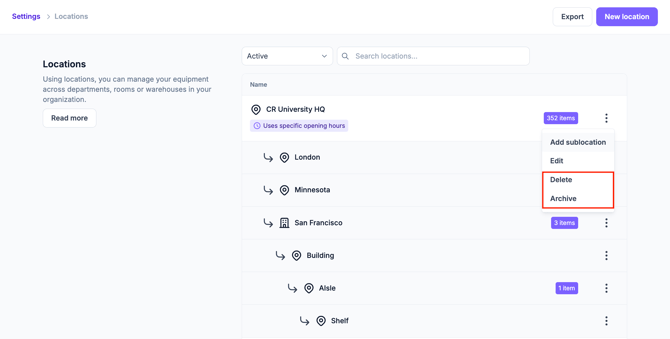
- Click Settings, then click Locations
- Select the Location that is no longer used
- Click Actions
- Click Archive or Delete
Note: You can only remove a Location completely if there are no Items still assigned to it. The number on the right shows how many Items are currently at that Location.
Viewing a Single Location
If you have multiple locations, you can use the location picker (top left) to switch between them.
When you select a location:
- Cheqroom filters all Items, Kits, Reservations, and Check-outs to that location
- Any new Reservations and Check-outs you create will automatically be set to that location
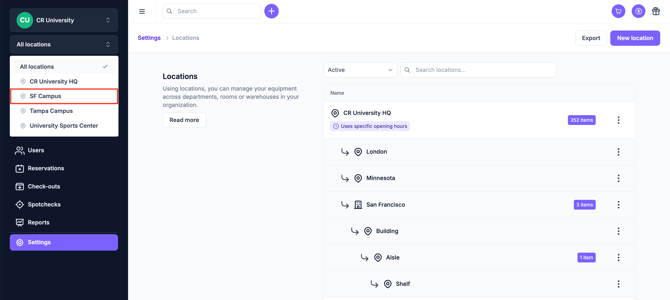
Note on sublocations: Sublocations help you organize and identify where items are stored within a location, but the location picker and filtering work at the parent location level only.
Adding a Location to a Reservation or Check-out
When you create a new reservation or check-out, the location you add to the booking is where the equipment will be picked up from, not where it is going.
Want to add information on where the equipment is going? Add a custom field to your booking and fill in that information when needed. Learn more about custom fields here.
Want to apply certain rules to a specific location’s reservations/check-outs which are different from your general rules? Consider setting up Booking Restrictions by Location! Learn more about booking restrictions here.
Note on sublocations: The location on a reservation or check-out is always the parent location. Sublocations are used to show and manage where the items within that booking are located when you go to pick them up.