![horizontal-black-3.png]](https://knowledge.cheqroom.com/hs-fs/hubfs/horizontal-black-3.png?width=200&height=37&name=horizontal-black-3.png)
The Booking Portal provides end users with a streamlined way to browse equipment and submit reservation requests without requiring access to the full Cheqroom workspace.
This article explains how to make reservations within your portal.
1. Access the Booking Portal
Your Admin will share a Booking Portal link with you (directly or across different channels)
Note: You will need an active Cheqroom account to log in. If you haven't received an invite, ask your admin to add you and send an invitation email.
2. Browse Available Equipment
Once logged in, you will see the equipment catalogue your admin has made available to you. From here you can:
- Search for specific items using the search bar.
- Browse by category or use filters to narrow down results.
- Click on any item to view its details, including photos, specifications, and any custom fields your admin has configured.
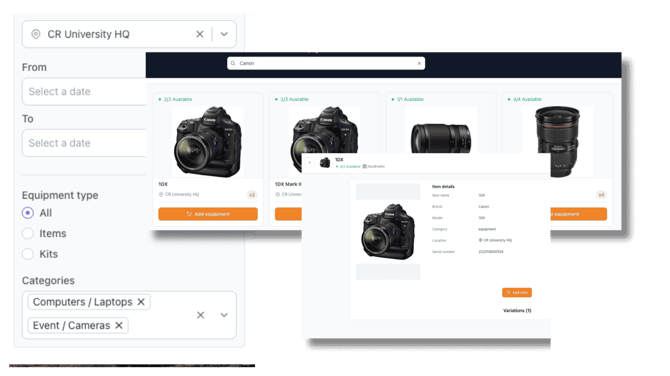
Note: Items that are unavailable, due to being flagged, in maintenance, or fully booked for your selected dates, will not appear in results. Only items you have permission to reserve will be shown.
3. Submitting a Reservation Request
-
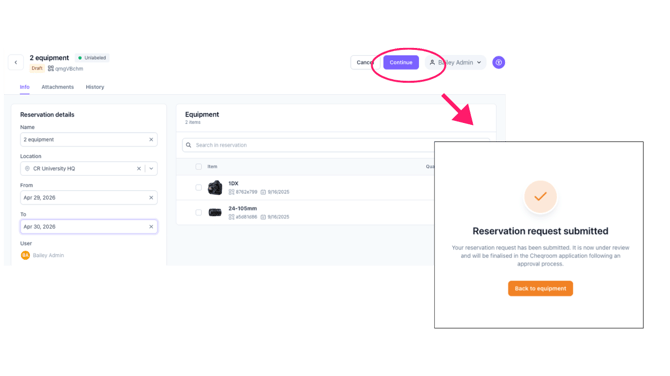
Select your Dates
-
Use the date picker to set your required start and end dates/times. Available equipment for that period will be displayed.
-
-
Add Equipment
-
Review the items in your reservation before submitting. You can remove items from your selection at this stage.
-
-
Review your Request
-
The user can only access Booking Portal. No additional permission customization is needed — Booking Portal -only users have a fixed permission set that allows them to view items and initiate reservations.
-
-
Complete any required fields
-
If your admin has configured custom fields on the reservation form (such as a project name, purpose, or cost centre), fill these in before submitting
-
- Submit
-
Click Submit to send your reservation request. You will see a confirmation message once it has been received, and an email confirmation will be sent to you based on your workspace's notification settings.
-
Warning: Items are in your 'cart' (Draft status) until you click Submit. Drafts do not hold equipment — items are only reserved once submitted.
🔎 Checking the Status of a Reservation
After submitting, you can track your reservation from the Reservations section of the portal. Statuses you may see include:
- Reserved: Your request has been received and the equipment is held.
- Converted to check-out: Your equipment has been checked out
- Cancelled: The reservation has been cancelled (typically by an admin).
Status updates made by your admin in the main workspace are reflected in real time in your Booking Portal view.
.png?width=670&height=377&name=Booking%20Portal%20Customization%20(1).png)
✏️ Editing or Updating a Reservation
You can make changes to a reservation while it is still in your cart (i.e. before you have submitted it). Once submitted, the reservation is locked for editing from the portal.
If you need to make a change after submitting:
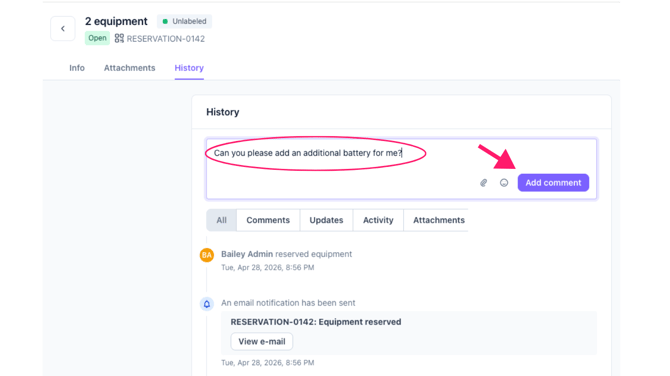
- Go to your reservation in the Reservations section.
- Open the History tab and add a comment to communicate the change to your admin.
- Your admin can make edits on your behalf from the main Cheqroom workspace.
👁️ Viewing Your Reservation History
All reservations you have made through Booking Portal — past, present, and upcoming — are visible in the Reservations section. Use the date and status filters to find what you're looking for quickly.
You can also view attachments and a full activity log for any reservation under the Attachments and History tabs.
Note: You will only see your own reservations in the Booking Portal, not those made by other users.