![horizontal-black-3.png]](https://knowledge.cheqroom.com/hs-fs/hubfs/horizontal-black-3.png?width=200&height=37&name=horizontal-black-3.png)
Adding and Managing Items
Efficiently managing your inventory in Cheqroom starts with adding your items correctly.
Adding Items Manually
-
Log into your Cheqroom account (https://www.cheqroom.com/).
-
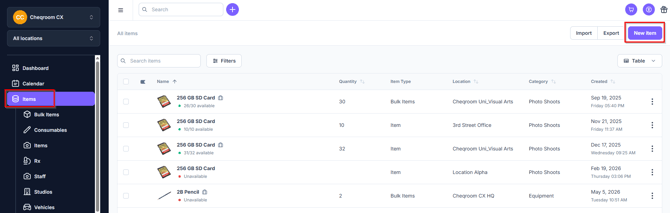
Navigate to Items in the left-hand menu and click New item in the upper right hand corner.
-
Enter the necessary information (Name, Brand, etc.).
-
Click Add to save the item.
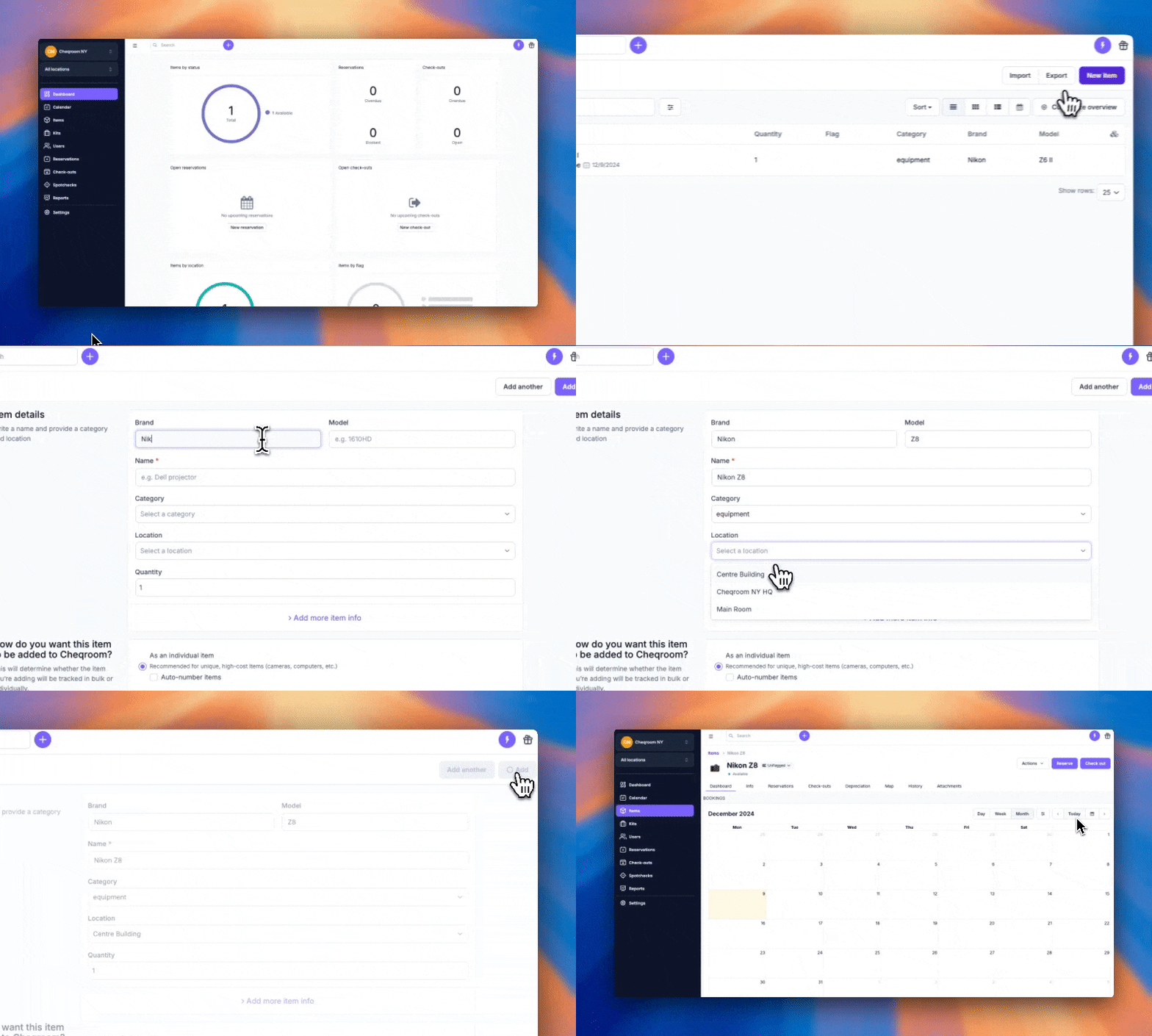
Ideal for small inventories or individual items.
Tip: You can easily expand your inventory manually using the Duplicate feature!
-
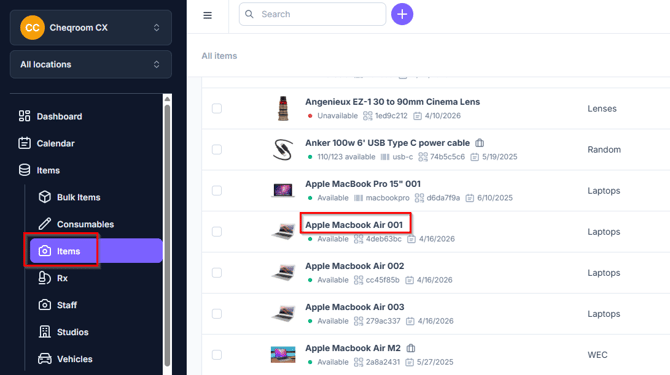
Navigate to Items in the left-hand menu and click the item you'd like to duplicate.
-
Click Actions and then click Duplicate.
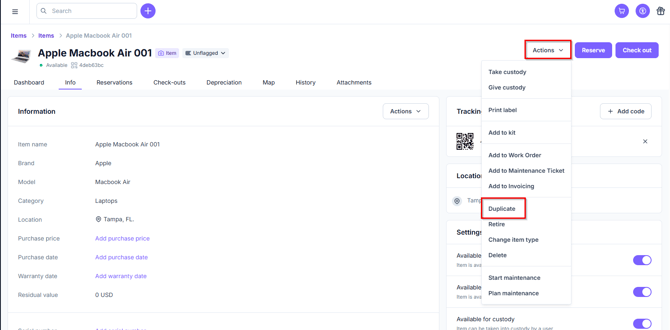
- Select how many times you'd like to duplicate the item, the location of the item(s), if you'd like to Autonumber the items and then click Duplicate item.

Importing Items with a Spreadsheet
Use the provided template or create a .csv file.
-
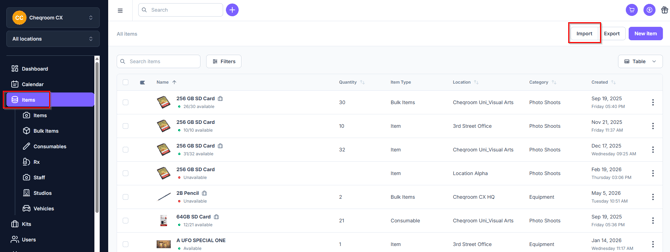
Navigate to Items in the left-hand menu and click on Import in the upper right hand corner.
-
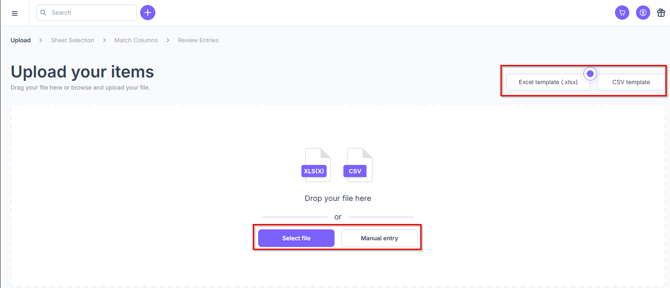
From here you can download the import template in either Excel or CSV and once you've added the items to the template, click Select file to upload the import.
- Additionally, you can also click Manual entry and add items manually directly into your account.
Adding and Managing Users
To manage your Cheqroom workspace effectively, follow these steps to add and manage users.
Adding Individual Users
-
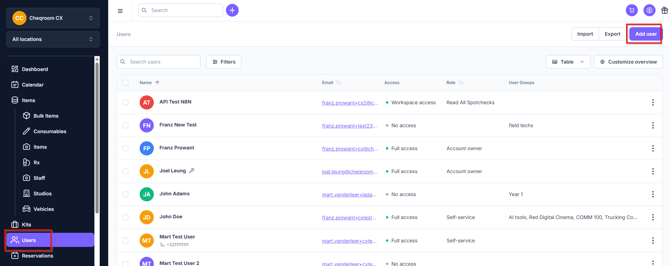
Navigate to Users in the left-hand menu and click Add User in the upper right hand corner.
-
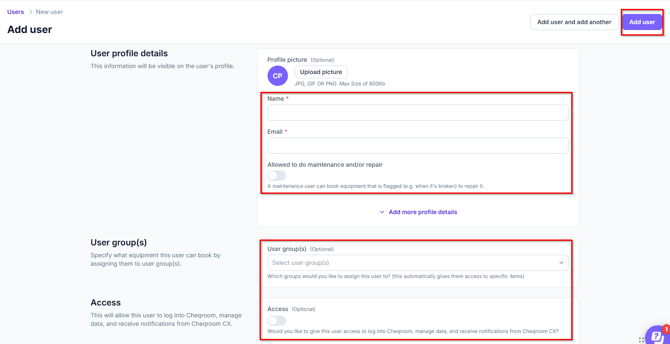
Fill out all the required fields (Name & Email), if you would like to allow this user to perform maintenance and/or repair, what user group(s) they should belong to and if they should have Access to log into the system.
- Once you're done, click Add user.
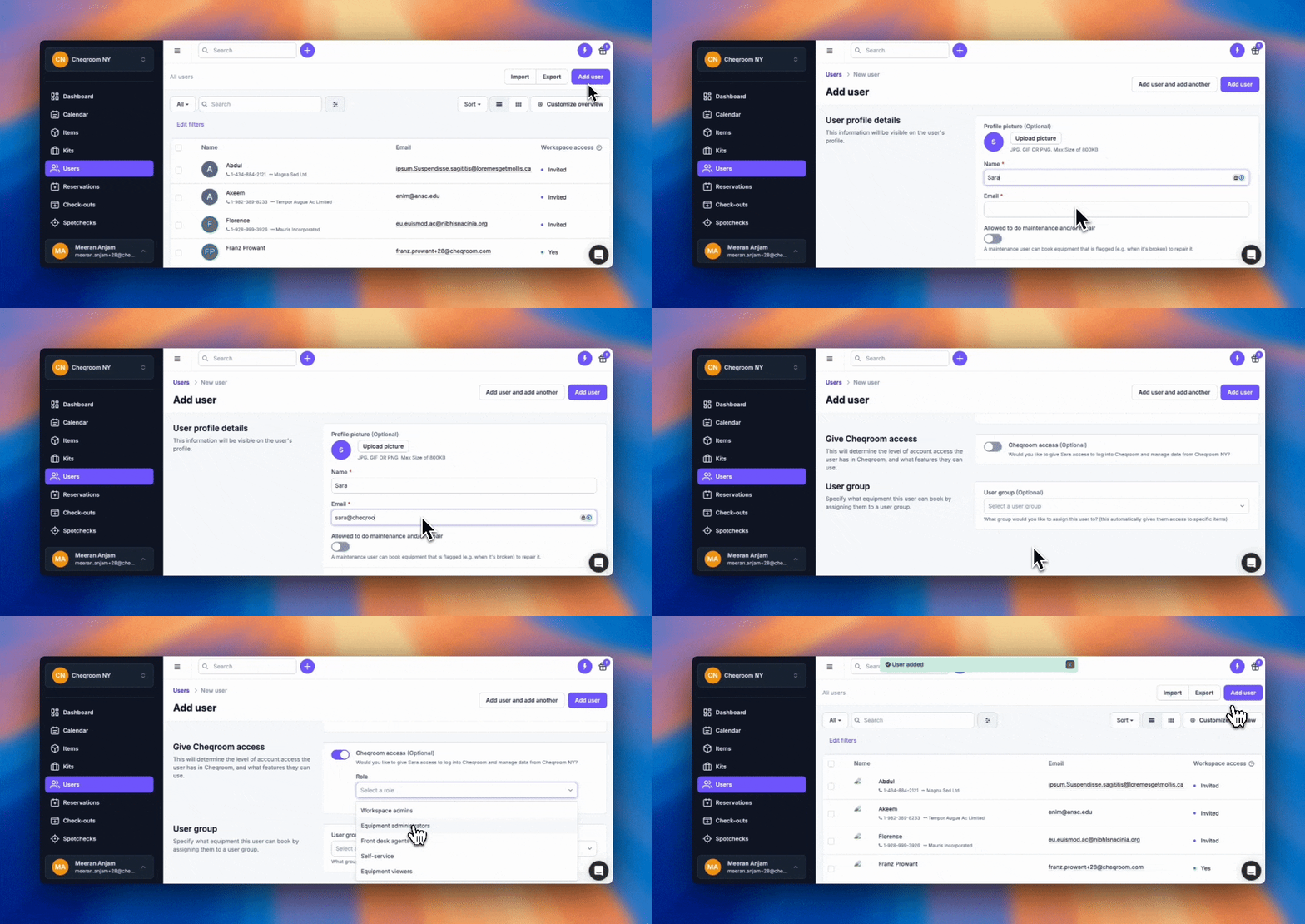
Third-party contractors can be added without granting them workspace access to manage bookings and notifications. Users without workspace access can be assigned items, kits, reservations, or check-outs on a need-to-know basis.
Tip: The Booking Portal feature is a great resources for these types of users!
Importing Users from a CSV File
-
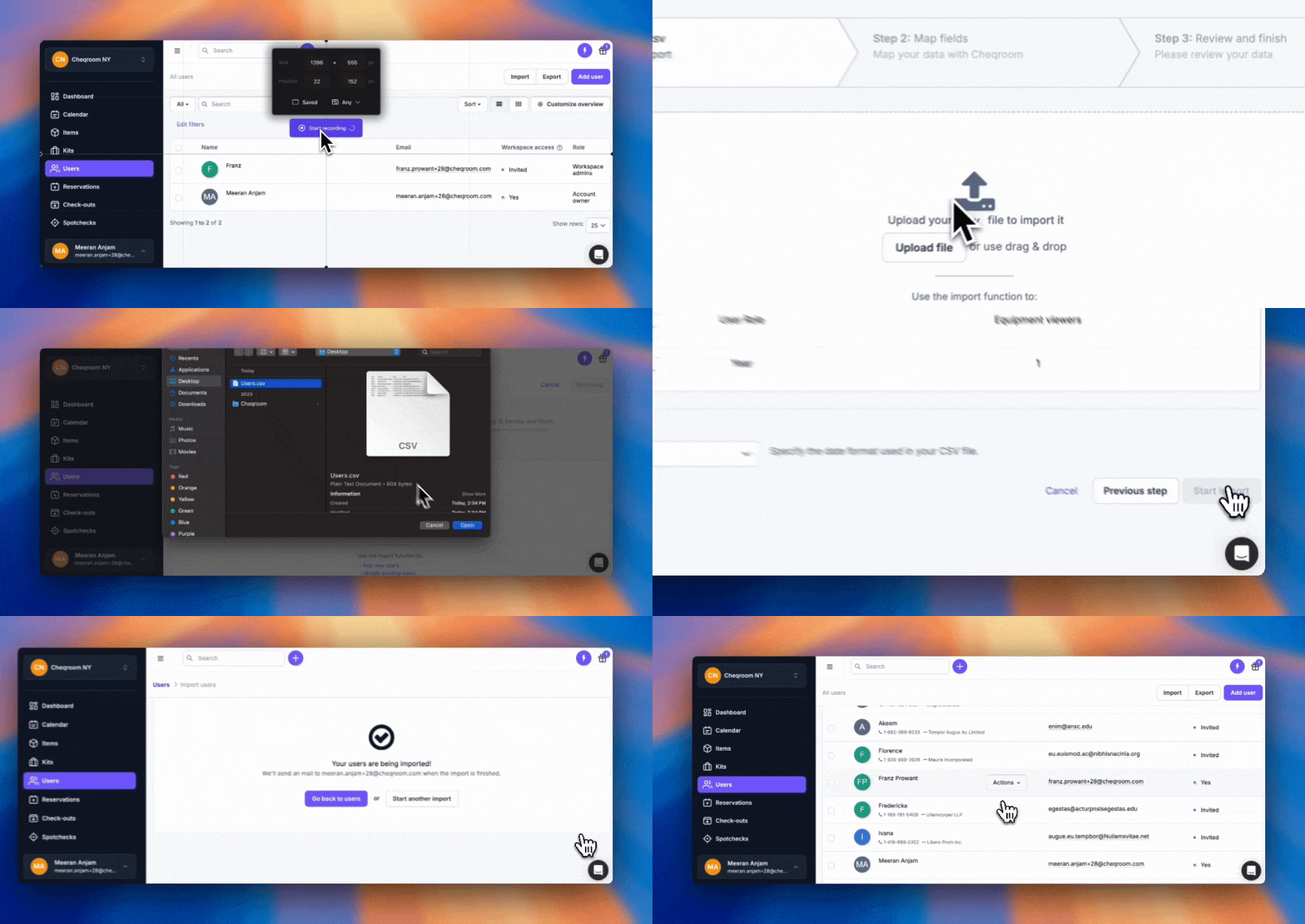
Navigate to Users in the left-hand menu and click Import in the upper right hand corner.

-
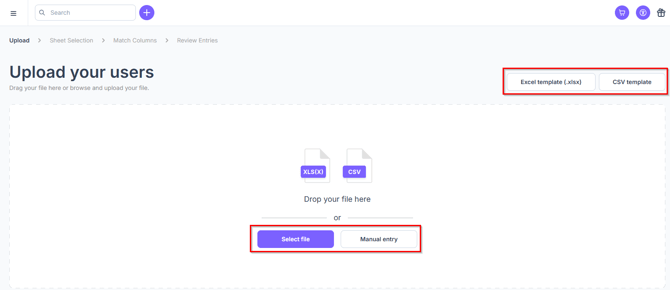
From here you can download the import template in either Excel or CSV and once you've added the users to the template, click Select file to upload the import.
- Additionally, you can also click Manual entry and add users manually directly into your account.
- Ensure all spreadsheet data is correctly mapped to Cheqroom fields, especially paying attention to User role field as an invite will be sent to these users upon import.
Troubleshooting Failed User Invitations
If you encounter issues with user invitations, here are common solutions:
-
Invalid Email: Verify the email address for typos.
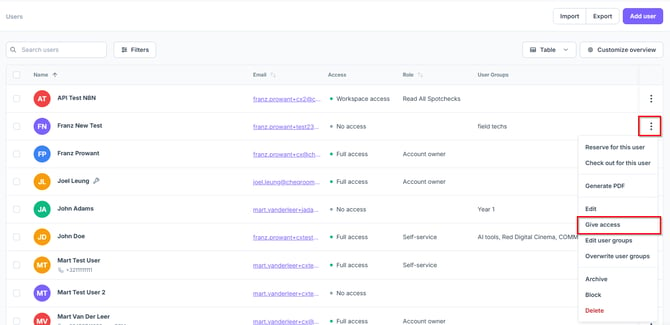
- Go to Users and select Expired invites from the dropdown next to the search field
- Click the 3 dot menu on a users profile and then click Give access. Next, select the User role and click Give workspace access.
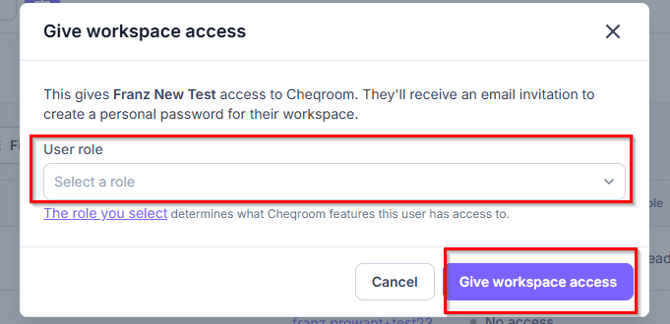
- Already Invited: If the invite link is pending or expired, you can re-invite.
-
Inactive or Archived Users: Reactivate or unarchive users to restore access using their previous log in details. If needed, send a password reset.
Handling Reservations
Effectively manage equipment reservations in Cheqroom with these essential steps.
Creating and Using Reservations
Reserve From an Item:
-
Navigate to Items in the left-hand menu and then use the search bar, or browse categories to find equipment.
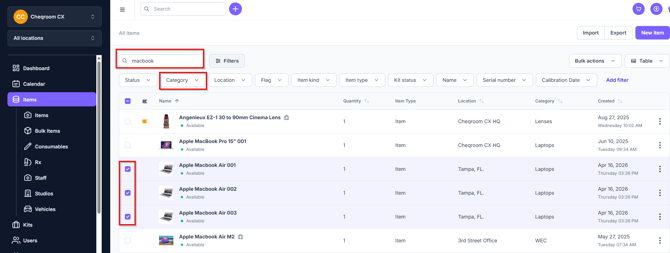
-
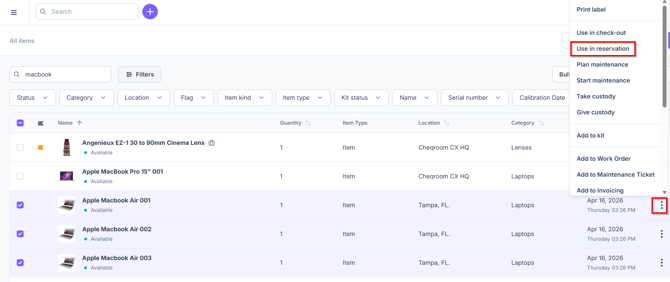
Click on the 3 dot menu for one of the items you'd like to reserve and then click Use in reservation.
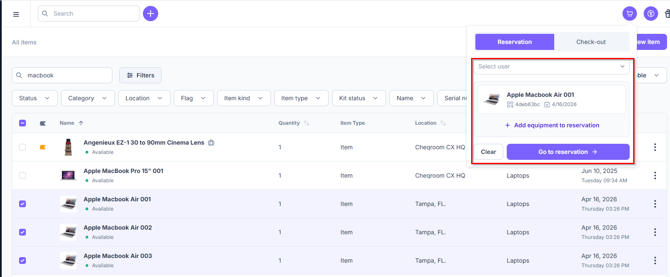
- Next, Select user, add additional equipment to the reservation if you need to, if not, no worries. Then click Go to reservation.
Quick Action Button:
-
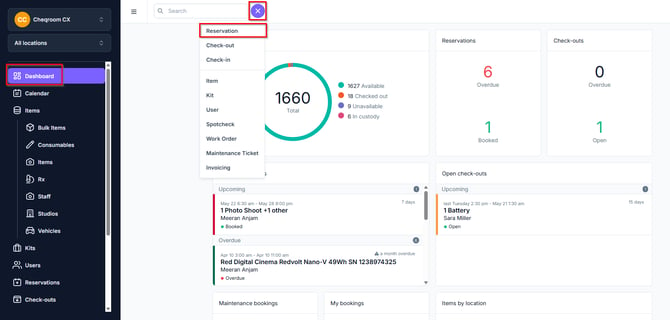
Navigate to the Dashboard in the left-hand menu, click the quick add button and then select Reservation.
Managing Reservations
Viewing and Editing:
-
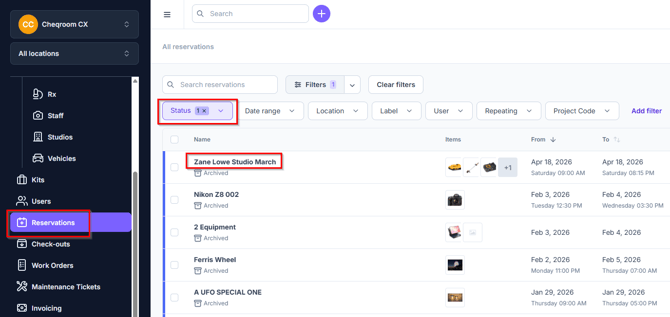
Navigate to Reservations in the left-hand menu, filter by Status, and click on a Reservation to view or edit.
Draft Reservations:
-
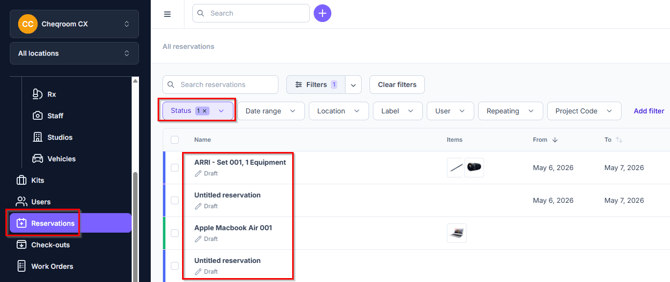
These are saved automatically and found under the Draft Staus in Reservations.
Notifications:
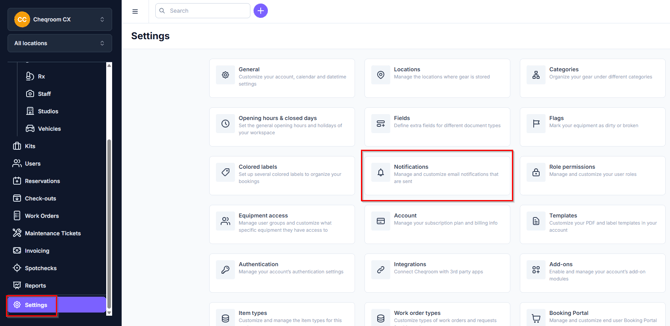
- Navigate to Settings in the left-hand menu, and click on Notifications. From here you can set up updates and reminders.
Auto-cleanup:
-
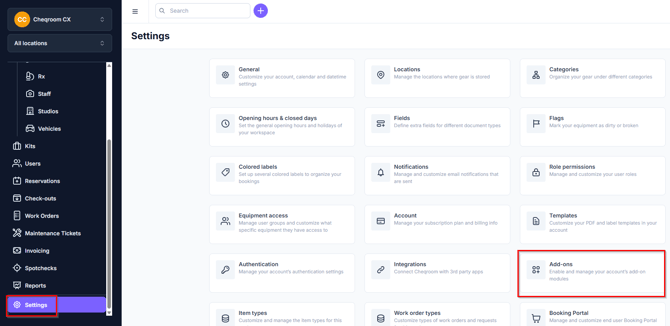
Navigate to Settings in the left-hand menu, click on Add-ons.
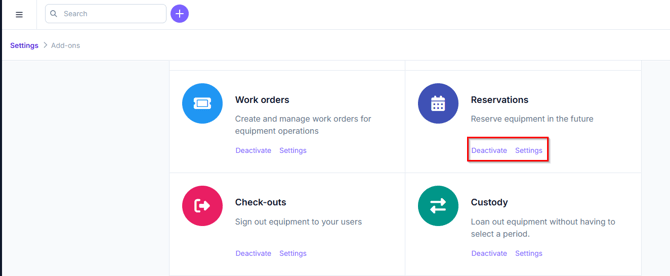
- Make sure Reservations is set to Active and then click Settings to manage auto-cleanup for drafts and reservations.
Ensure a smooth workflow by mastering reservation creation and management in Cheqroom.
Equipment Check-out and Check-in
Efficiently manage equipment check-outs in Cheqroom with these essential steps.
Creating a Check-out
From a Reservation:
-
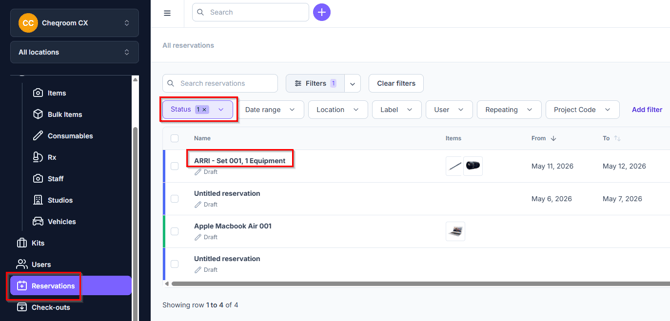
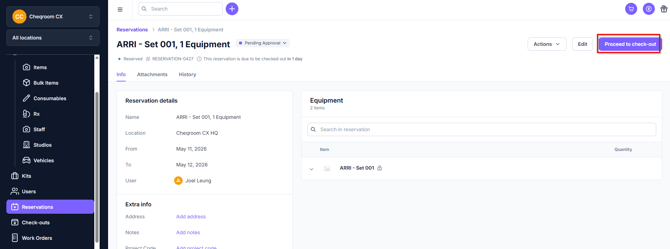
Navigate to Reservations in the left hand menu, filter the Status to Draft and click on the Reservation.
-
Next, click Reserve.
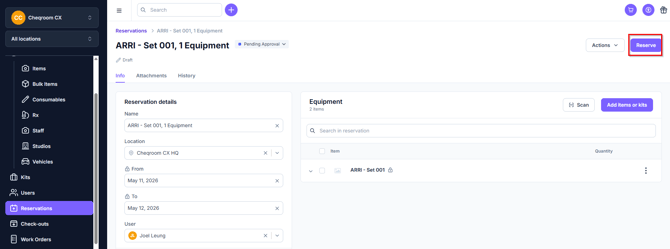
- Next, click Proceed to check-out.
From Check-outs Tab:
-
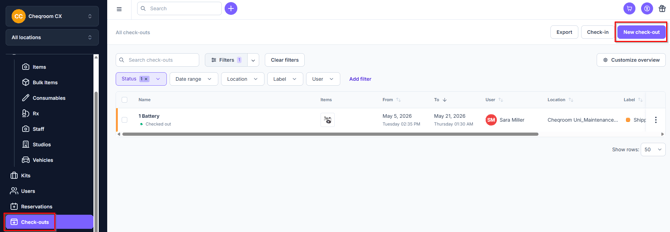
Navigate to Check-outs in the left-hand menu and click New check-out.
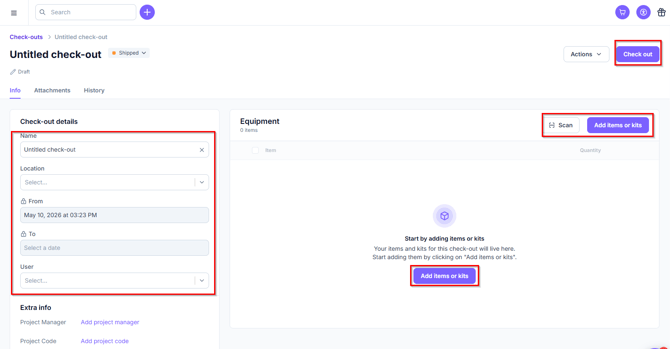
- Fill out the Check-out details, click Scan to scan items to check out or just click Add items or kits. When finished adding items, click Check out.
Using Quick Actions Button:
-
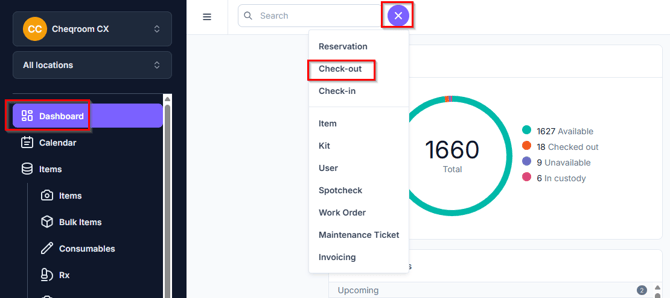
Navigate to the Dashboard in the left-hand menu and click the Quick Action button. Next, select Check-out.
- Fill out the Check-out details, click Scan to scan items to check out or just click Add items or kits. When finished adding items, click Check out.
Closing a Check-out or Making a Check-in
-
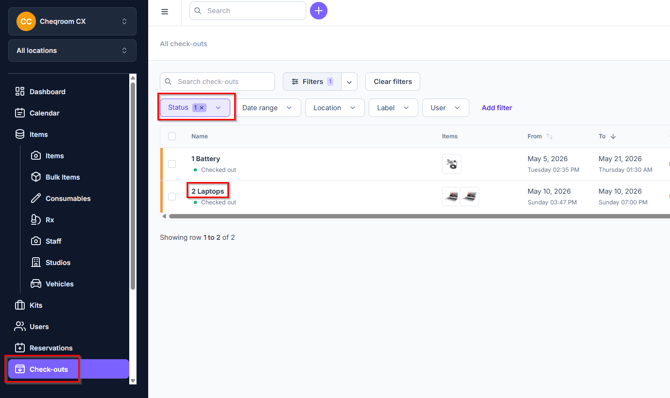
Navigate to Check-outs in the left-hand menu, change the Status to Checked Out and click on the check-out that you'd like to check back in.
-
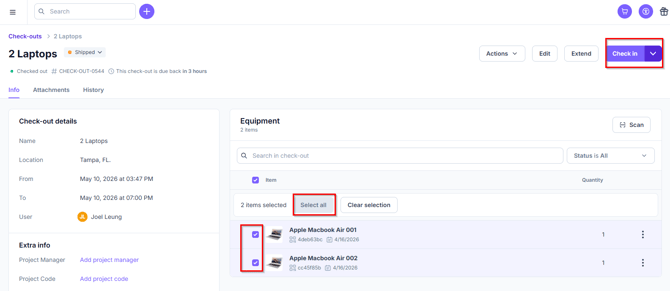
Click Select All or click the check box next to each item and then click Check in.
Managing Check-outs
Updating Check-outs:
-
Navigate to Check-outs in the left hand menu, click on the check out you'd like to make changes to and click Edit. Make the necessary changes and then click Check-out to confirm.
Extending Check-outs:
-
Navigate to Check-outs in the left hand menu, change the Status to Checked out, and click on the check out you'd like to Extend the check out for. Next, click Extend, select a new date/time and then click Extend again.
Archiving Check-outs:
-
Navigate to Check-outs in the left hand menu, change the Status to Closed, select the checkouts you'd like to archive and click Bulk Actions>Archive.
By mastering these steps, you can efficiently manage equipment check-outs in Cheqroom, ensuring smooth borrowing and returning processes within your organization.
Managing Custody in Cheqroom
Cheqroom’s Custody feature simplifies indefinite check-outs, perfect for managing long-term equipment loans with uncertain return dates. Here’s how to effectively use and manage Custody.
Using Custody
You can manage custody efficiently:
-
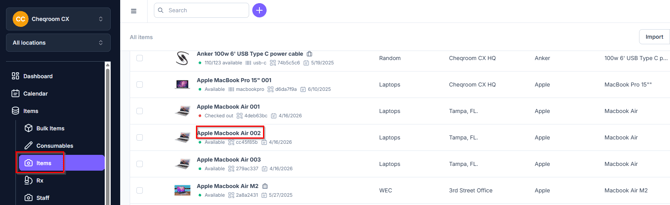
Assigning Custody: Navigate to Items or Kits in the left-hand menu and select an item.
-
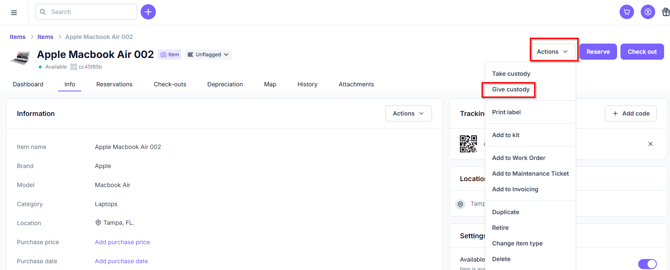
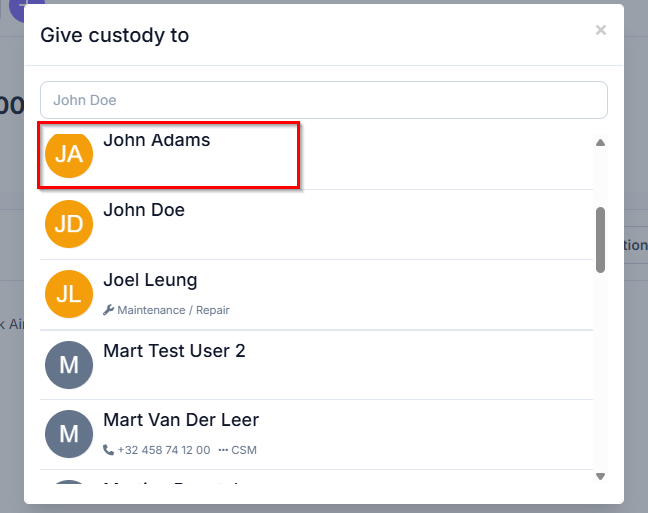
Click Actions and then Give Custody.
-
Select who you would like to give custody of the item and once done, you're all set!
-
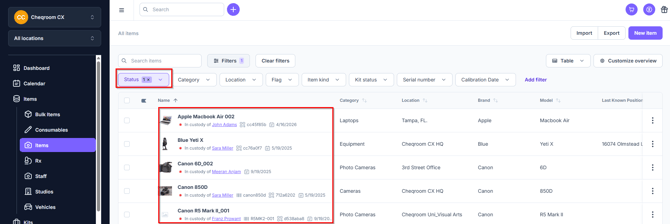
Finding Items in Custody: Use the filter in the Items section to view items marked In custody.
-
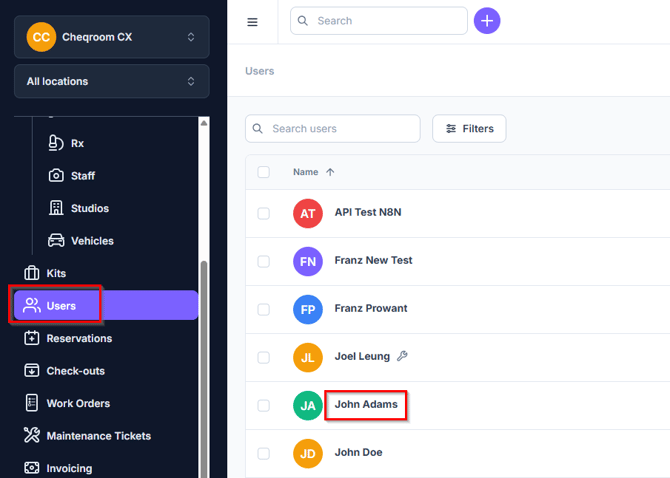
Viewing Custody Details: To check an item in custody, navigate to Users in the left-hand menu, and click on the User you'd like to review.
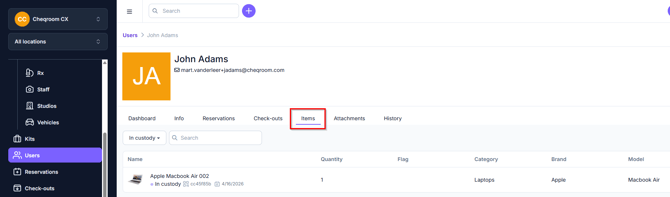
- Next, click Items and from here, you can review which items your user has custody of.
Releasing Custody
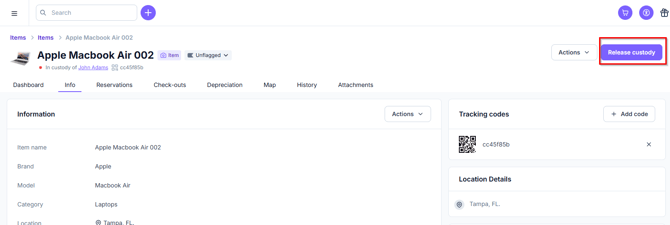
Release custody to make items available:
-
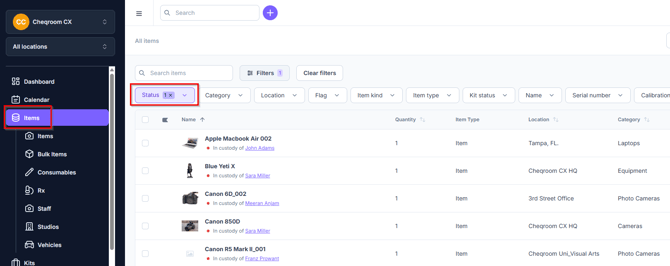
Navigate to Items in the left hand-menu and change the Status to In Custody.
Advanced Options
Customize custody management:
-
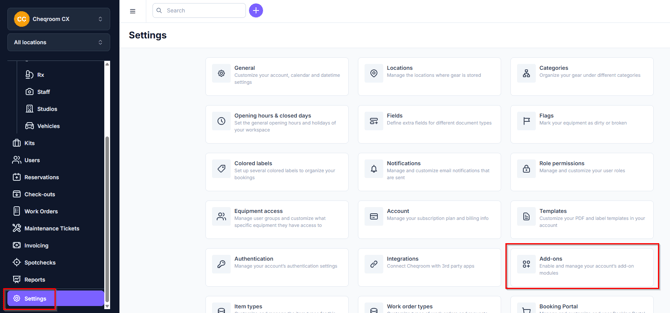
Releasing at Different Locations: Enable this option by navigating to Settings in the left-hand menu, and clicking Add-Ons.
- Navigate to Custody and make sure it is set to Active and then click Settings.
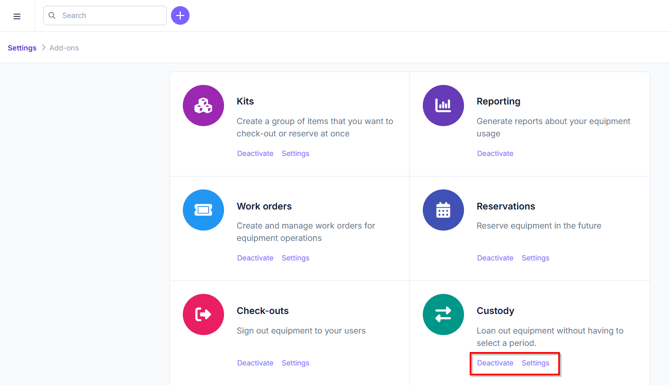
- Toggle on the Release at other location and then click Save.
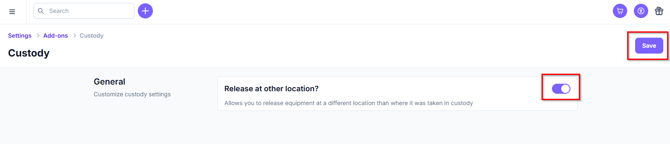
Ensure users have appropriate permissions for Custody management to maintain operational integrity.
Managing User Roles and Permissions
Cheqroom’s User Roles and Permissions feature enables precise control over account access, enhancing security and workflow efficiency.
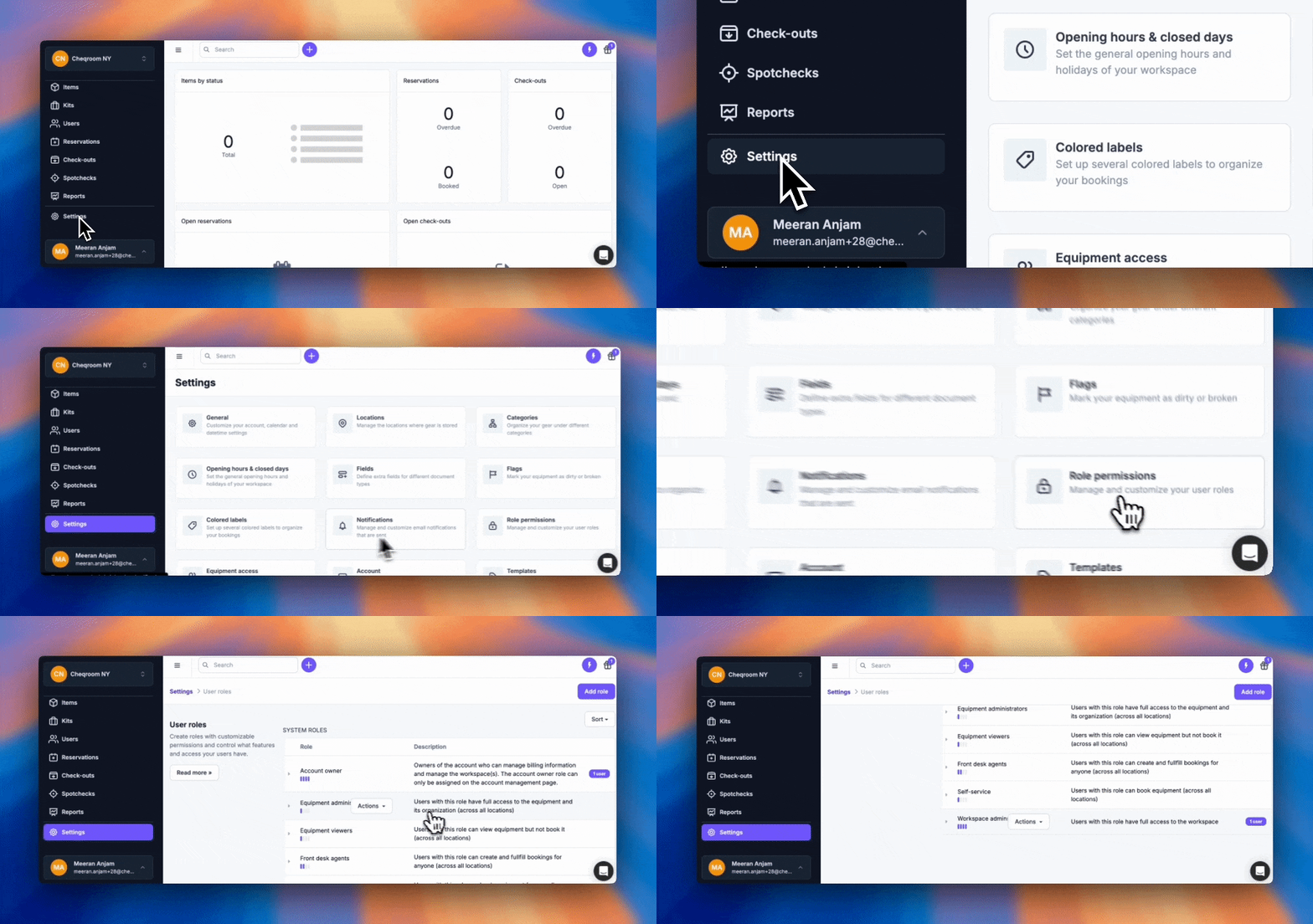
System Roles
-
Account Owner: Full account access, including billing and workspace management.
-
Workspace Admin: Manages equipment, reservations, and user permissions within a workspace.
-
Front Desk Agent: Handles bookings without access to settings or user management.
-
Equipment Admin: Focuses on equipment management, excluding reservations.
-
Self-service User: Can book equipment for personal use.
-
Equipment Viewer: Views equipment without booking or management capabilities.
Creating Custom Roles
-
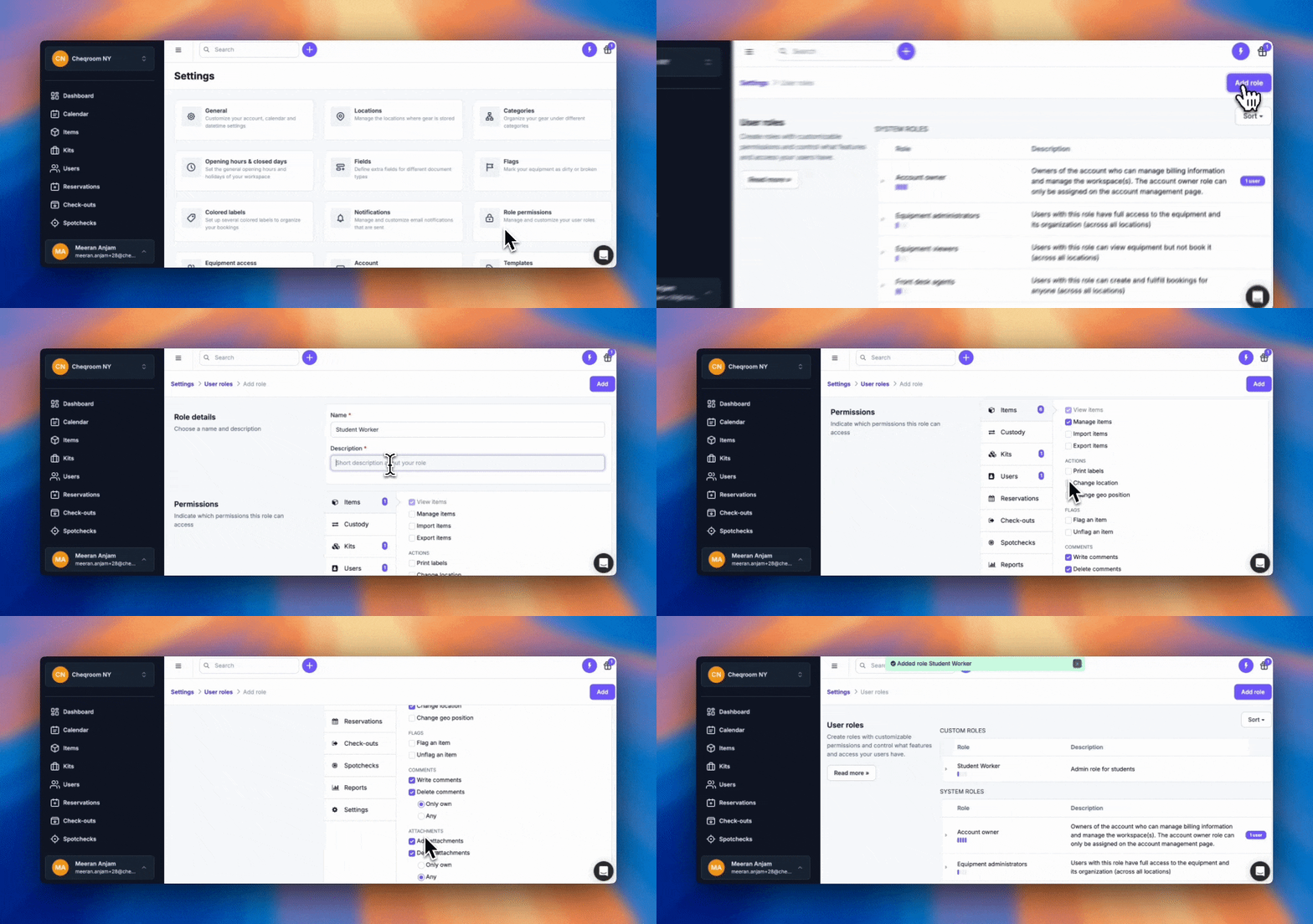
Navigate to Settings, then to Roles & Permissions.
-
Click Add role and define the role’s name, description, and permissions across various categories.
-
Customize permissions for items, custody, kits, contacts, reservations, check-outs, reports, and settings.
-
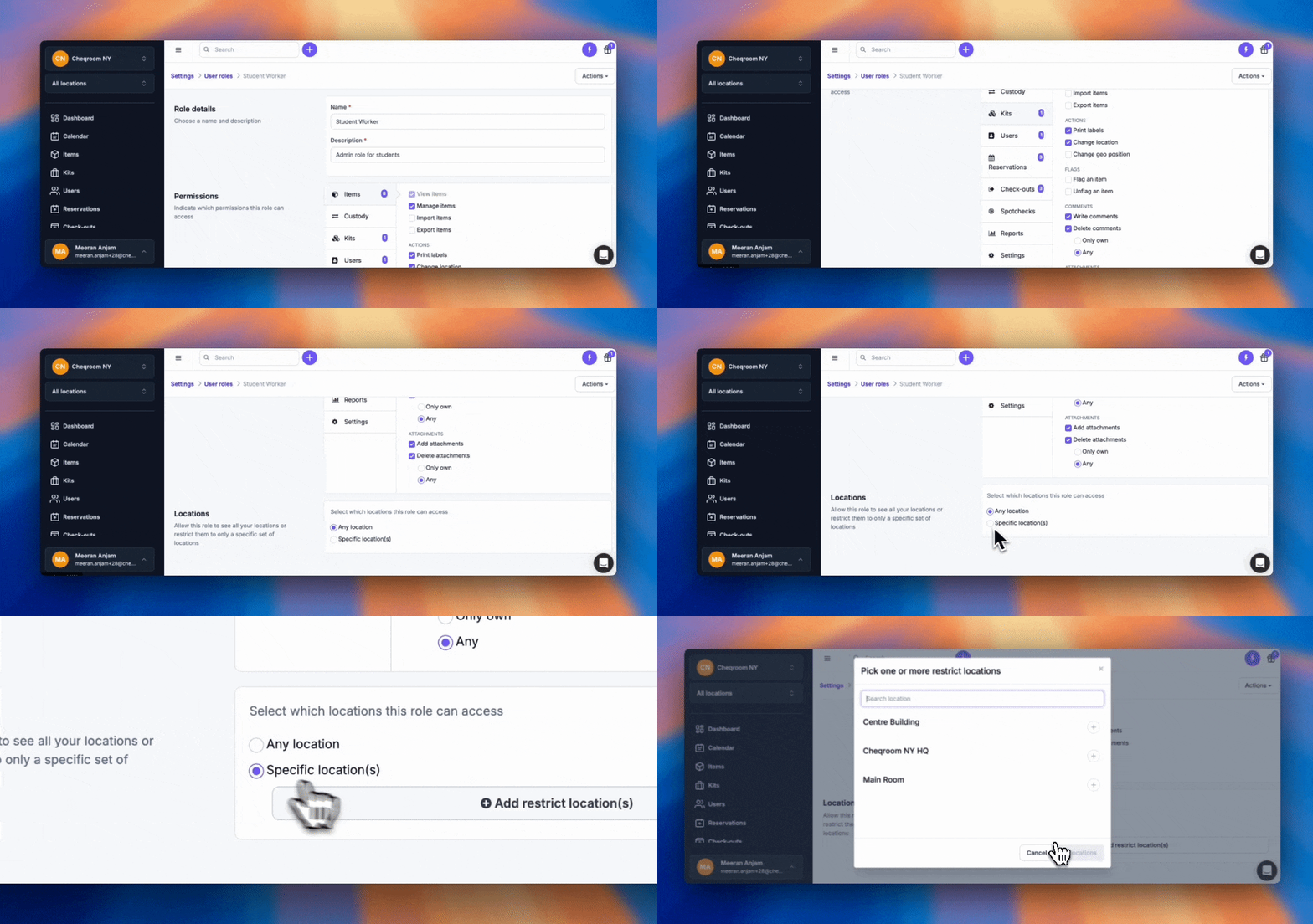
Optionally restrict access to specific locations.
Applying User Roles
-
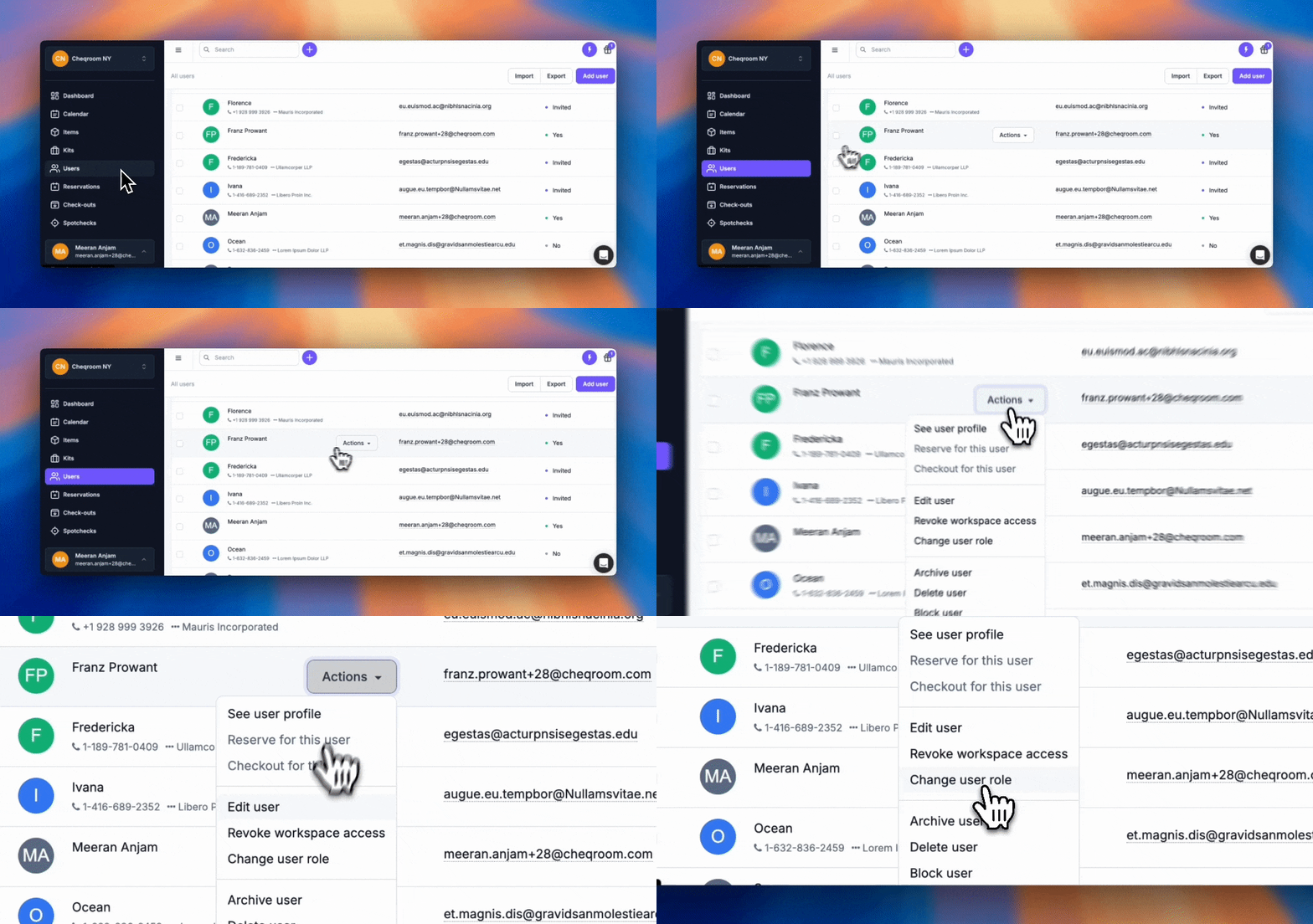
Individual Users: Navigate to Users → Select a User → Modify their role by clicking Actions and then Change user role.
-
Bulk Updates: Select multiple users → Click Bulk actions → Change multiple User roles efficiently.
Conflict Management
Control whether users can ignore booking conflicts:
-
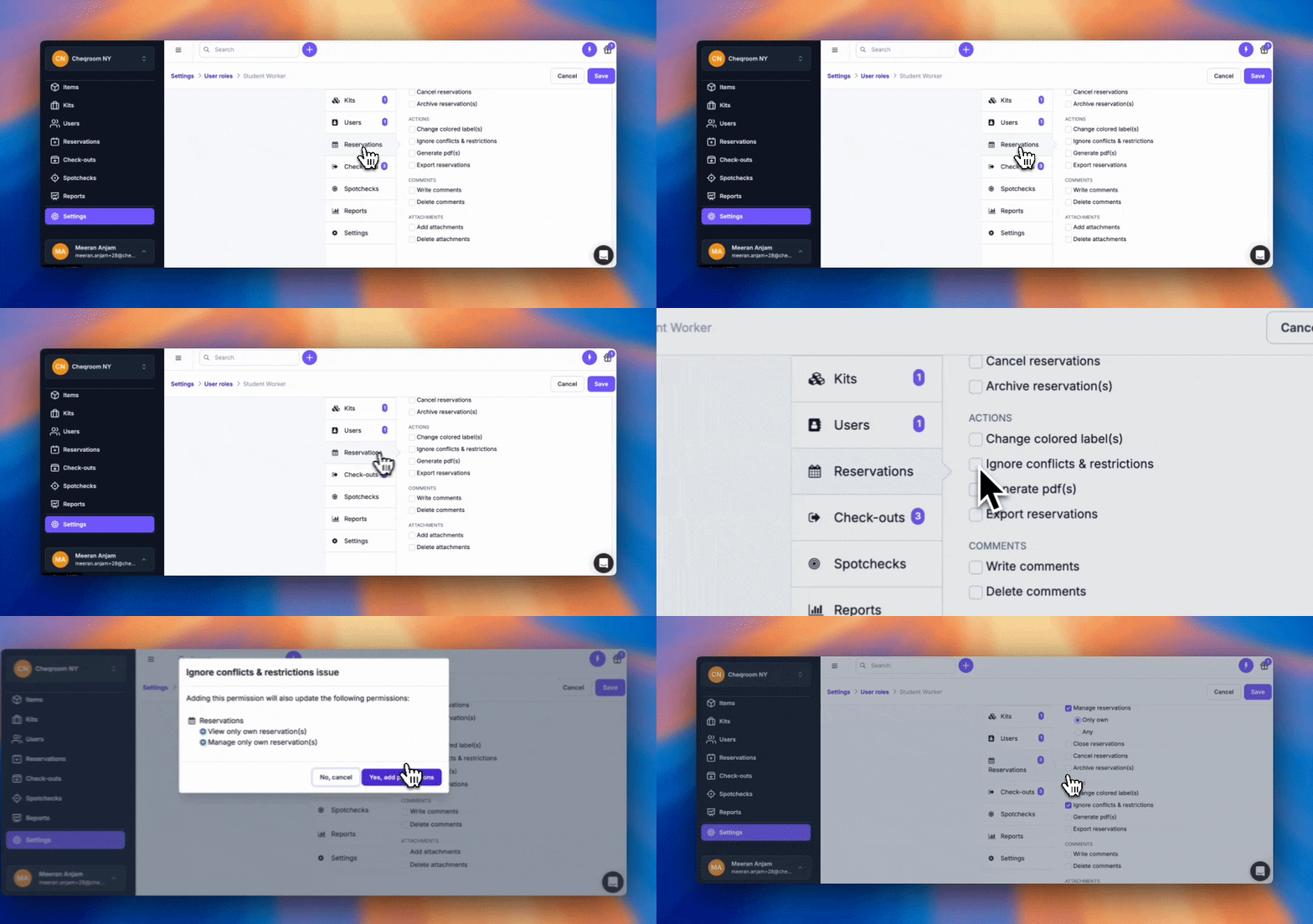
Settings: Navigate to Settings → then to Roles & Permissions → Check or uncheck ‘Ignore conflicts’ for Admins and Account Owners (or Custom Roles) in both Reservations and Check-outs.
Location Restrictions
-
Customize Access: Restrict users to specific locations for enhanced security and management.
By leveraging Cheqroom’s User Roles and Permissions, you ensure efficient equipment management tailored to your organization’s needs.
User Groups and Equipment Access
Managing user groups and equipment access in Cheqroom is crucial for efficient inventory management and asset protection. Follow these steps to set up and manage user groups and equipment access.
Create User and Item Groups
User Groups
-
Click on Settings in the left-hand menu.
-
Click on Equipment Access.
-
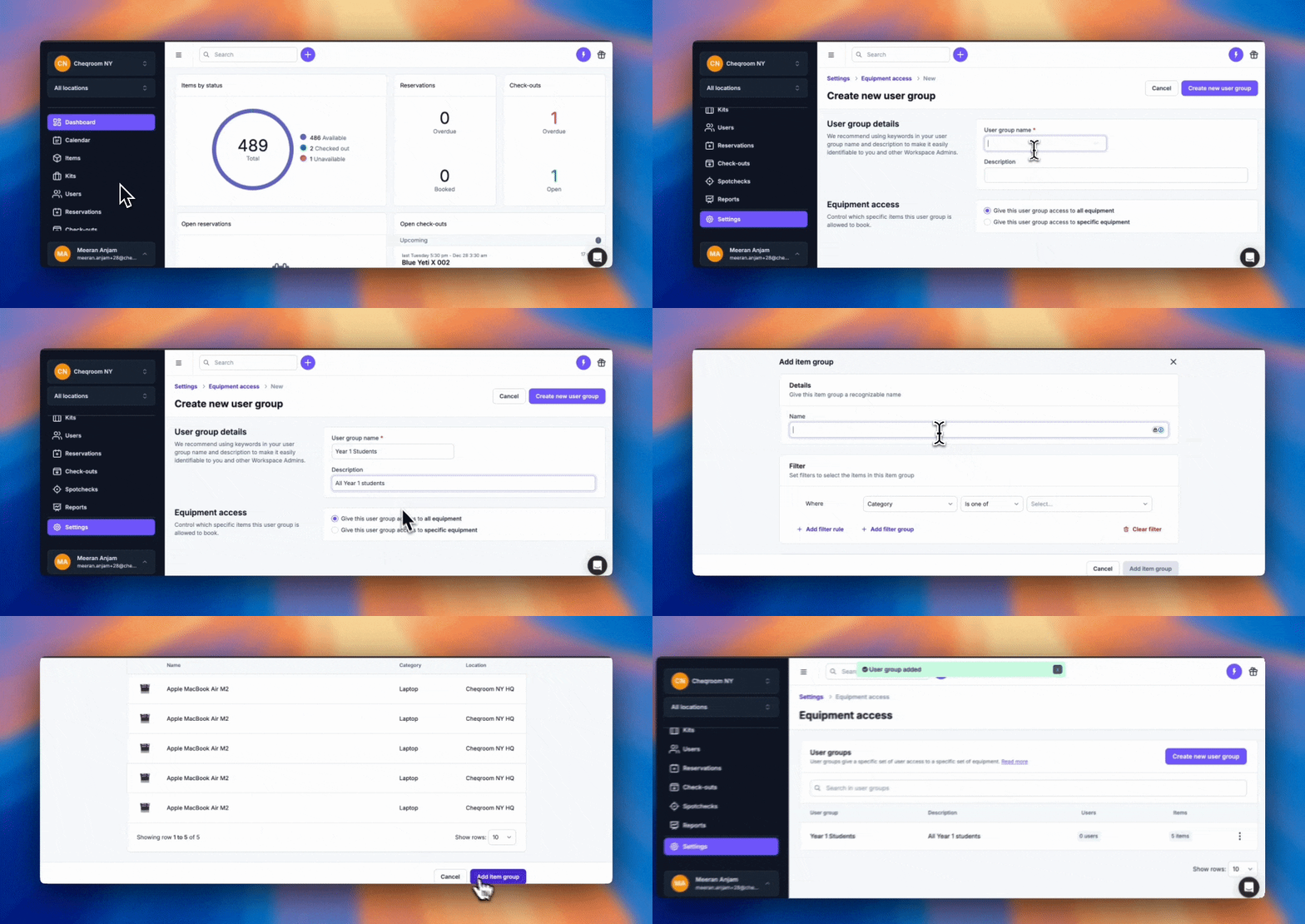
Click Create New User Group.
-
Provide a name and optional description for the user group.
Item Groups
-
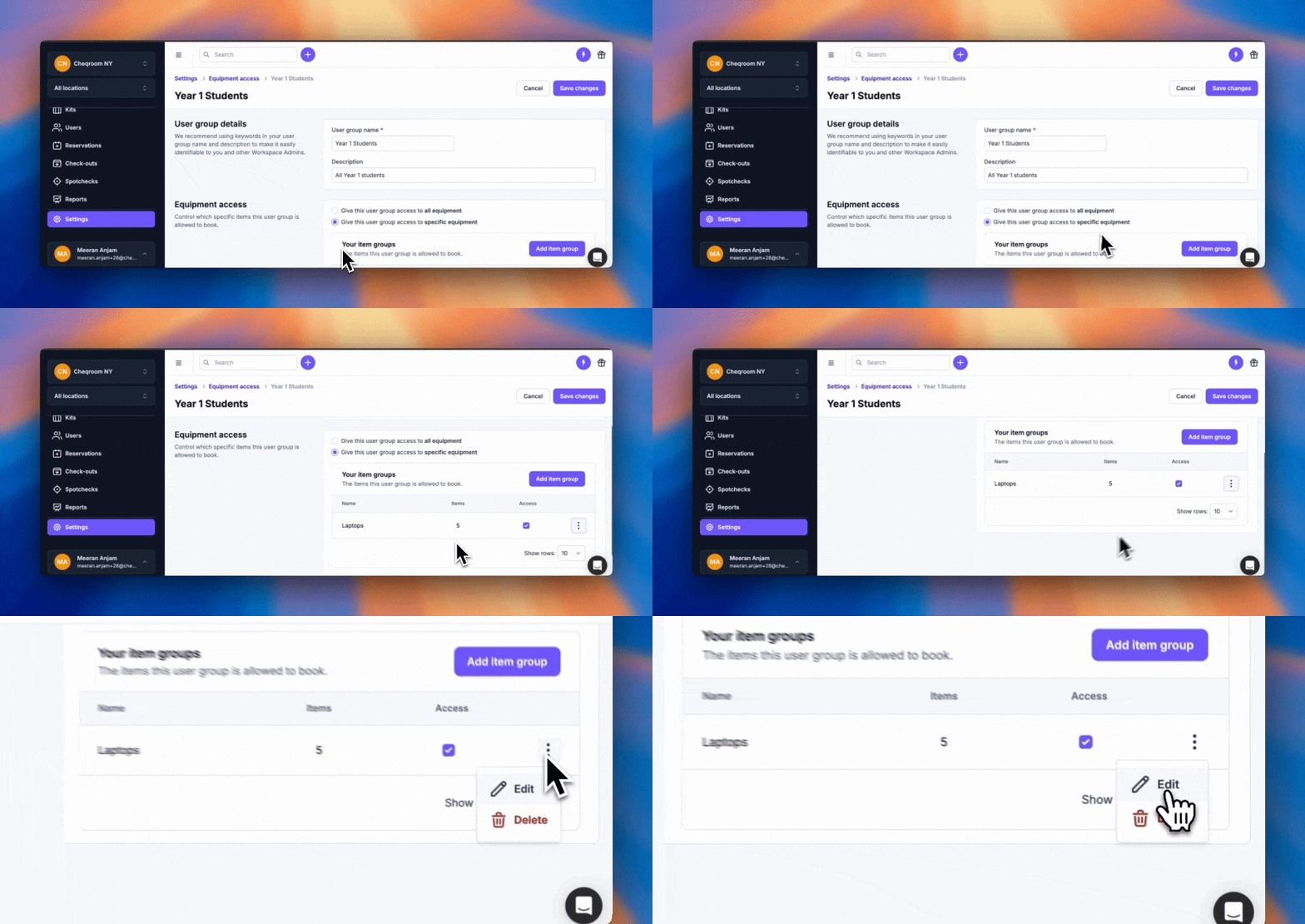
In Equipment access settings, select the three dots next to the group and click Edit.
-
Click Add item group.
-
Name the item group and apply filters based on item attributes.
-
Click Add item group to save.
Managing User Groups
Assign Users to User Groups
-
Click on Users in the left-hand menu.
-
Choose the users you want to assign to a user group.
-
Click Actions, then Assign user group.
Edit User Groups
-
Navigate to Settings and click Equipment Access.
-
Select the group, click the three dots, and choose Edit.
-
Make necessary adjustments and click Save Changes.

Managing Item Groups
Using Filters
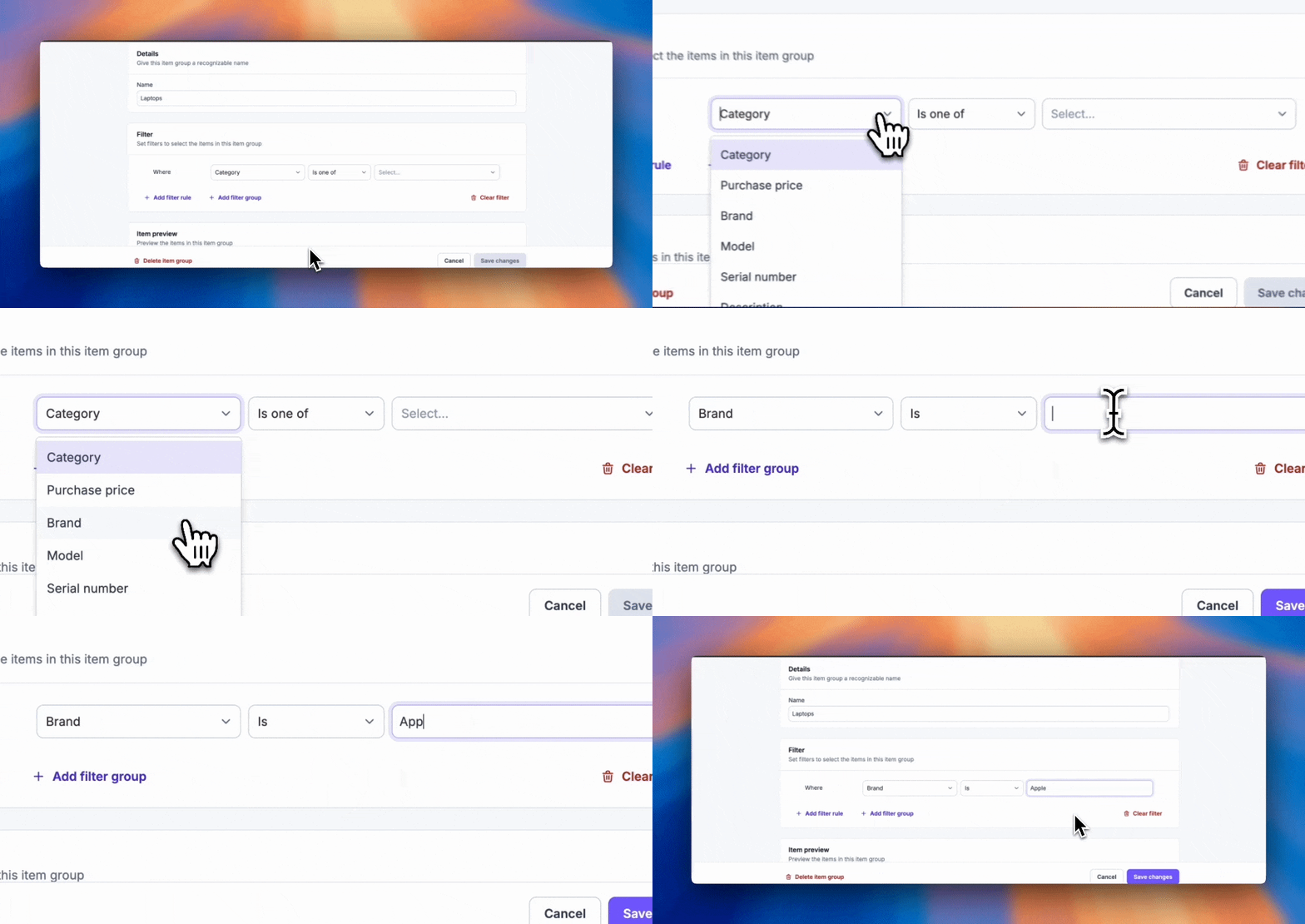
To categorize items in Cheqroom, you can use filters based on various attributes such as category, brand, or custom fields:
-
Filter Rules: Define a filter rule based on a specific attribute value (e.g., "Canon") or a range of values (e.g., "less than $500").
-
Filter Groups: Create a filter group that contains several filter rules. This is useful for managing and navigating complex item groups.
Edit or Delete Item Groups
-
In Equipment Access, select the group, click the three dots, and choose Edit.
-
Update details and save changes. To delete, confirm deletion.
Handling Restricted Items and Equipment Access Conflicts
-
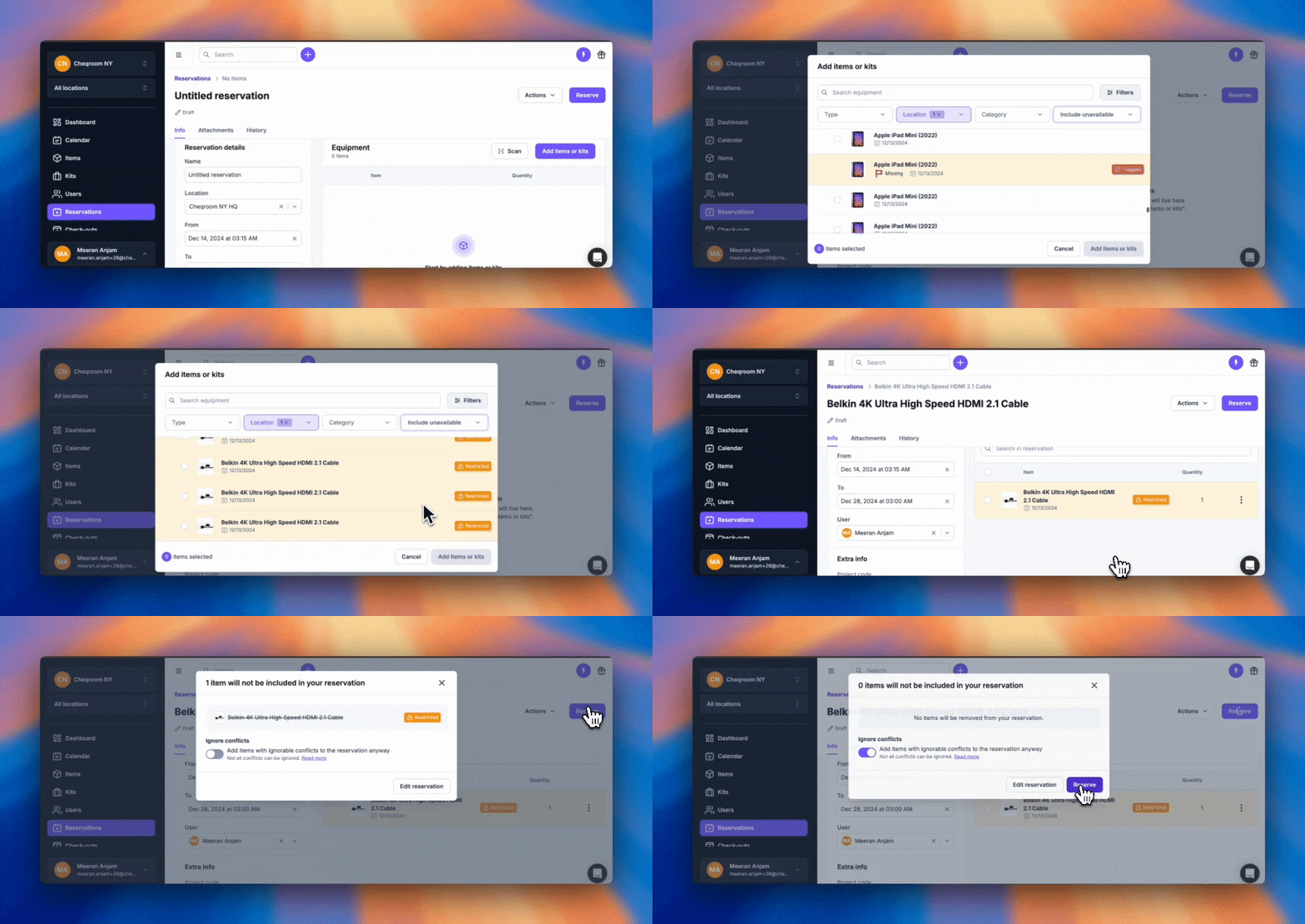
Viewing Restricted Items: Identify restricted items with orange modals in reservations.
-
Adding Restricted Items: Users can add restricted items to drafts, auto-removing if access is restricted.
-
Ignoring Access Conflicts: Admins can override restrictions during reservation creation.
By effectively utilizing Cheqroom's User Groups and Equipment Access features, you can streamline inventory management, protect valuable assets, and enhance operational efficiency.
For more detailed instructions, you can read our full How to Manage User Groups and Equipment Access guide.
Notifications
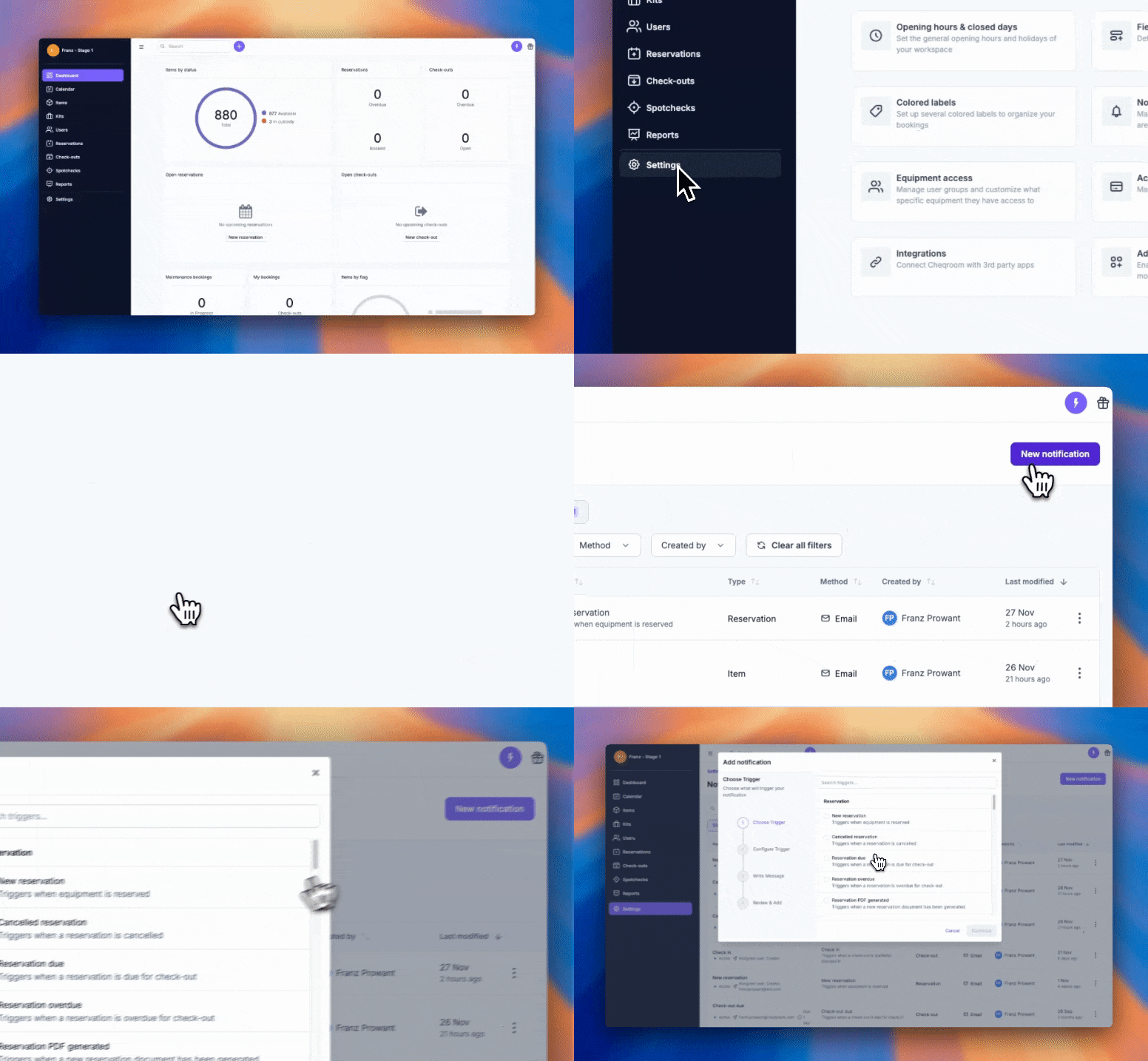
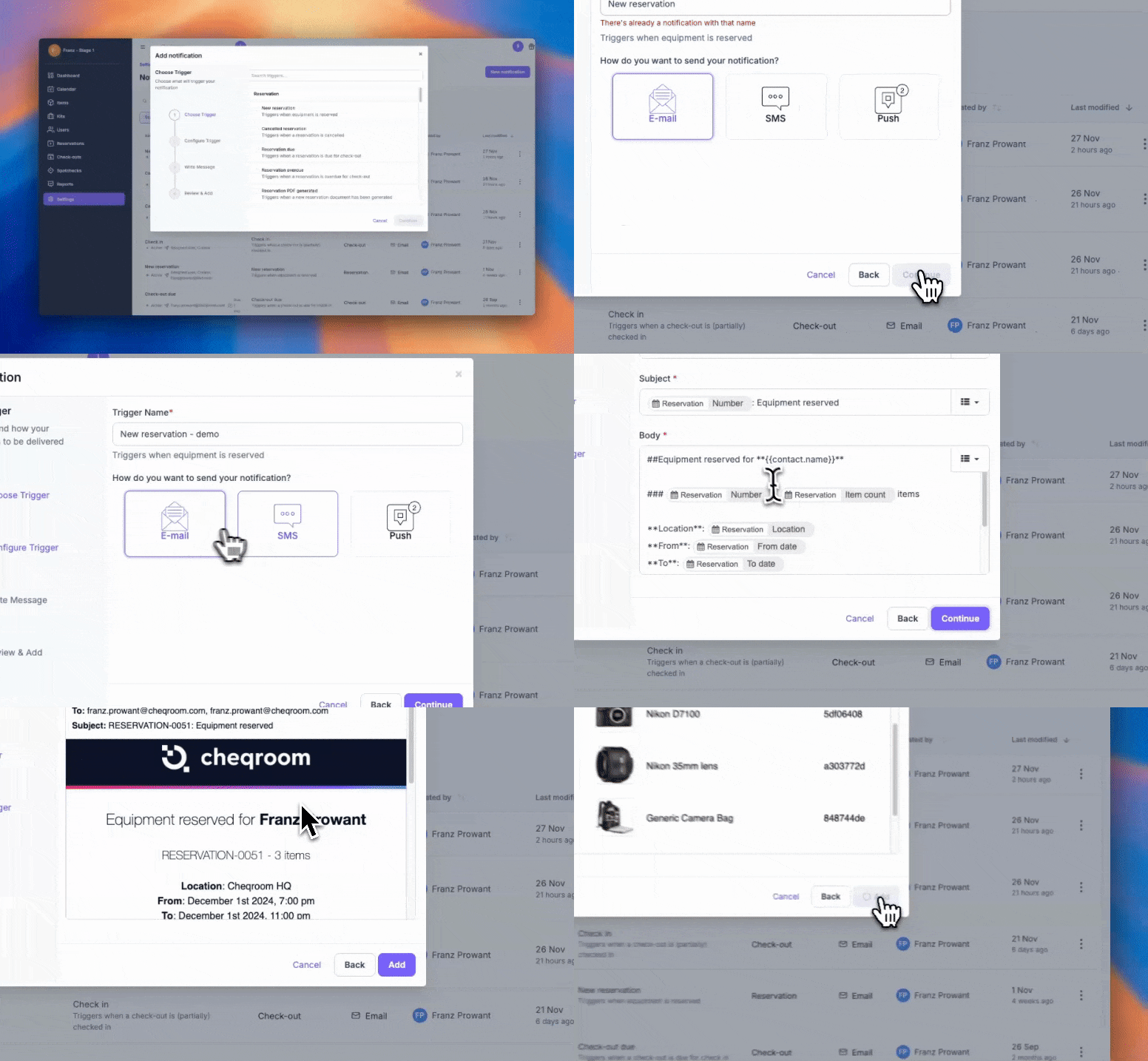
Cheqroom provides robust notification features to inform you about important events and updates regarding your equipment and reservations. Here’s how to set up and manage notifications effectively.
Configuring Notifications
-
Access Settings: Click on Settings in the left-hand menu.
-
Navigate to Notifications: Select Notifications from the settings options.
Types of Notifications
-
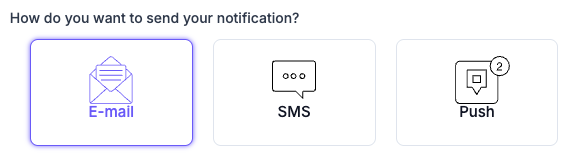
Email Notifications: Receive updates directly to your email for various activities, such as reservation confirmations, due reminders, check-out alerts, and more.
-
In-app Notifications: The Cheqroom app provides real-time alerts for instant updates on reservations, check-outs, and item status changes.
-
Push Notifications: Enable push notifications on your mobile device to stay informed on the go.
Setting Up Notifications
Select Notification Type: Choose from email, in-app, or push notifications based on your preference.
Customize Triggers: Specify which events trigger notifications, such as:
-
New reservations
-
Upcoming reservations
-
Overdue check-outs
-
Returned items
-
Maintenance alerts
Managing Notification Preferences
-
User Preferences: Each user can manage their notification settings by navigating to Profile → Notification settings.
-
Admin Controls: Admins can enforce certain notifications across the workspace to ensure all relevant users receive critical updates.
Examples of Notification Settings
-
Reservation Confirmations: Notify users when a reservation is successfully made.
-
Due Date Reminders: Send reminders to users and administrators when items are due for return.
-
Maintenance Alerts: Inform the maintenance team about items needing attention.
-
Custom Notifications: Set up custom alerts for specific scenarios based on your organization's needs.
Use Cheqroom's notification system to communicate quickly and efficiently manage your equipment and reservations.
Reports
Cheqroom's reporting system offers valuable insights into equipment usage, user activity, and operational efficiency. Follow these steps to effectively use and manage reports.
Accessing Reports
-
Sign in to your Cheqroom account.
-
Click the Reports tab on the left-hand side.
Navigating and Using Reports
-
Reports are categorized into Items, Reservations, and Check-outs. Each category offers specific insights tailored to that area of management.
-
Utilize pre-configured reports covering depreciation, utilization statistics, user activity, and more. Use the search bar or sorting options to find specific reports quickly.
Generating Custom Reports
-
Create Custom Report: Click Create Custom Report on the Reports page.
-
Choose Category: Select Items, Reservations, or Check-outs.
-
Define Parameters: Specify grouping by category, location, or custom fields.
-
Customize: Add filters or adjust the timeframe to tailor the report to your needs.
Saving and Sharing Reports
-
Save Reports: After generating a report, click Save and enter a descriptive name. Choose to make it public for relevant users.
-
Share Reports: Navigate to the report, click Actions, and select Export to save as Excel or CSV for sharing or integration.
Advanced Features
-
Filtering: Use powerful filters to refine reports by criteria such as category, location, or status. Combine filters for detailed insights.
-
Permissions: Manage user access to view, save, or delete reports using Cheqroom's comprehensive permissions system.
By leveraging Cheqroom's reporting capabilities, administrators can gain actionable insights into equipment management practices, optimize workflows, and make informed decisions.
Custom Fields
Custom fields in Cheqroom allow you to capture specialized information such as serial numbers, vendors, or tracking details for items, reservations, and users. This customization enhances organization, improves data tracking, and supports your unique workflows.
Creating and Managing Custom Fields
To enhance your Cheqroom experience with custom fields, follow these steps.
Creating Custom Fields for Items
-
Click on Settings in the bottom left corner.
-
Select Fields.
-
Click on Items and then Add field.
-
Select the field type and enter a name.
-
Optionally, set the field to appear when adding new items, make it required, or add it as a filter option.
-
Click Add field to create your custom item field.
Tip: Rearrange fields by dragging them up or down as needed.
Creating Custom Fields for Users
-
Navigate to Settings and select Fields.
-
Choose Users and click Add field.
-
Define the type of field and provide a name.
-
Customize visibility options for adding new users or filtering on the User page.
-
Click Add field to finalize the custom user field creation.
Making Fields Required
Ensure essential information is captured by setting fields as required:
-
Click on Settings and go to Fields.
-
Choose Reservations or Check-outs for example.
-
Add a new field or edit an existing one.
-
Enable the required option to enforce completion during reservations or check-outs.
For existing fields, hover over the field, click Actions, then Edit to adjust requirements.
By effectively utilizing custom fields in Cheqroom, you can tailor your workspace to suit your specific needs, improving efficiency and data management capabilities.
Spotcheck
Spotcheck in Cheqroom lets you quickly verify equipment across various scenarios like audits and event preparations.
Spotcheck is useful for:
-
Kits, locations, categories, custody, open check-outs, and booked reservations.
Performing a Spotcheck
Web App
-
Navigate to Spotcheck: Click Spotcheck.
-
Start a New Spotcheck: Click New spotcheck.
-
Select Type: Choose and proceed.
-
Scan or Select Items: Use scanners or manual selection.
-
Complete Spotcheck: Click Close and then Finish.
Mobile App
-
Access Spotcheck: Open the app and choose New Spotcheck.
-
Choose Type: Select and proceed.
-
Scan or Select Items: Scan or mark manually.
-
Finish: Click Finish.
Configuring Spotcheck
-
Navigate to Settings: Click Settings > Add-ons.
-
Spotcheck Settings: Scroll to Spotcheck and click Settings.
-
Adjust Configurations: Set preferences and click Save.
PDF Templates and Documents
Cheqroom's PDF templates streamline equipment management and ensure accountability. Here's how to use and customize these templates.
Using PDF Templates
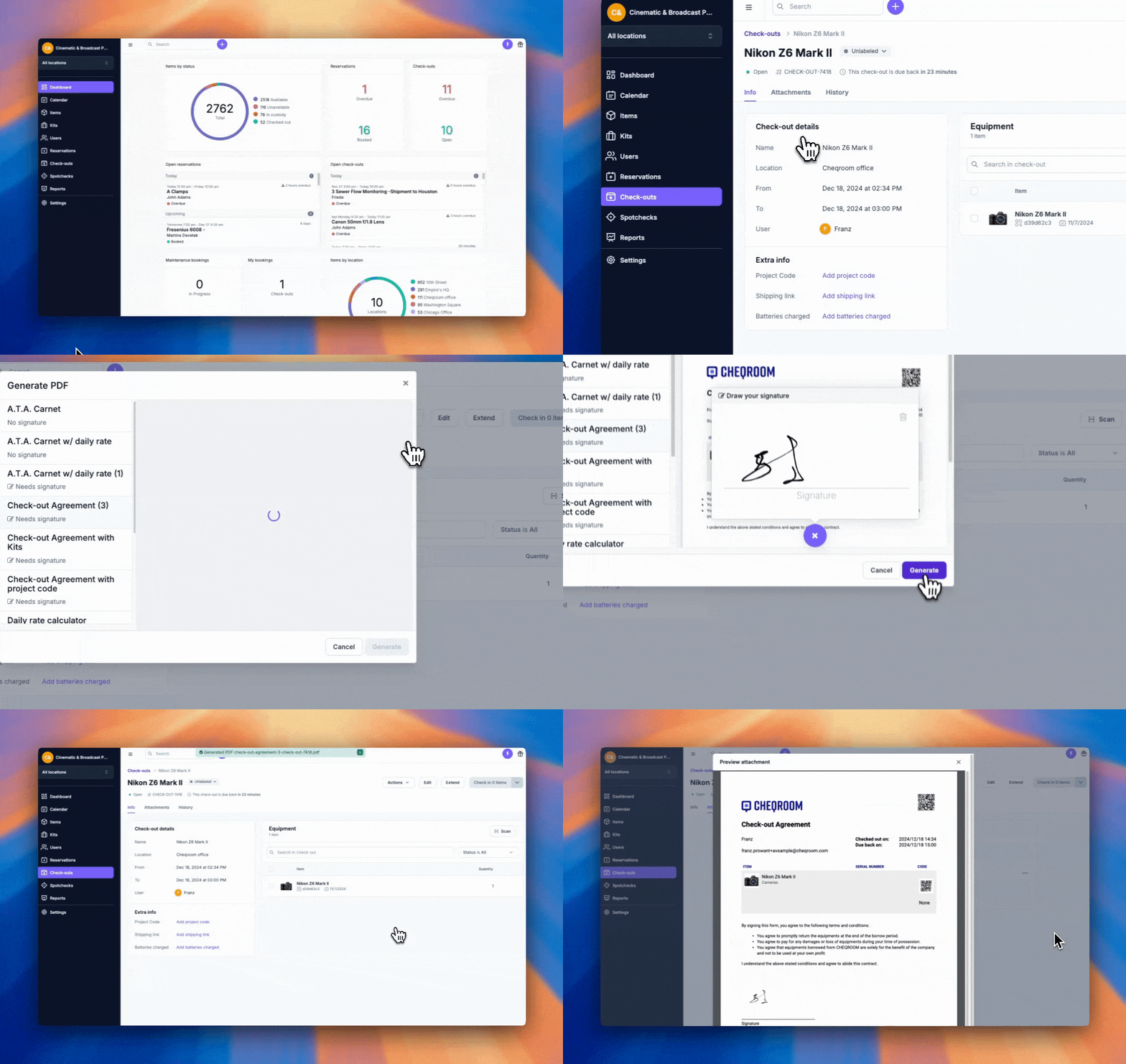
Cheqroom offers pre-designed PDF templates for reservations, check-outs, and contacts. To generate a PDF:
-
Log in: Access your Cheqroom account.
-
Navigate: Click on Reservations, Check-outs, or Users in the left-hand menu.
-
Generate PDF:
-
Hover over the item and click Actions > Generate PDF.
-
Select the desired template if multiple are available.
-
Click Generate to create the PDF.
-
The PDF is automatically attached to the corresponding item.
-
Creating Custom PDF Templates
-
Click on Settings → and then on Templates.
-
Click New Template and select the type.
-
Use the editor to add fields, tables, and images.
-
Assign a name, preview, and save the template.
-
Toggle the activation button.
Customizing Existing Templates
-
In Settings, click on Templates → Hover over a system template → click Actions, and then Clone.
-
Make any changes you want to make using the WYSIWYG (What You See Is What You Get) editor, then save and activate the template.
Adding Extra Information
-
Company Logo: Drag and drop your logo onto the template.
-
Custom Fields: Integrate custom fields into your templates.
Advanced Customization
For detailed control, use the "Source" mode to edit HTML directly. This allows you to:
-
Modify HTML elements for layout and content.
-
Use HTML and CSS for specific formatting.
-
Insert data dynamically using placeholders (e.g.,
${placeholder}).
SSO Integration in Cheqroom
Implementing Single Sign-On (SSO) in Cheqroom enhances security and simplifies user access by allowing users to log in with their existing credentials from their Identity Provider (IdP). This guide outlines the general steps to enable and configure SSO in Cheqroom, supporting various Identity Providers (IdPs) such as OneLogin, Azure AD, ADFS, Okta, Google, and any SAML 2.0 compliant IdP.
Prerequisites
Before configuring SSO for Cheqroom, ensure you have:
-
Administrative access to Cheqroom.
-
Administrative access to your chosen Identity Provider (IdP).
-
IdP support for SAML 2.0 or OpenID Connect protocols.
Enabling SSO in Cheqroom
-
Log into your Cheqroom workspace.
-
Click on Settings in the left-hand menu, then on Integrations.
-
Click Configure under your desired IdP (Google Workspace, Azure AD, etc.).
Configuring Cheqroom Settings
-
Select a default User Role and, optionally, a default User Group.
-
Specify whether User Roles (and Groups) are sourced from your IdP or Cheqroom.
-
Via Identity Provider: User Roles and Groups are dynamically updated with every login.
-
In Cheqroom: New users must initially authenticate via SSO. Post-login, manage Roles and Groups within Cheqroom.
-
-
Enter email domains for authentication.
-
Toggle Require SSO to enforce SSO as the sole login method for non-Admin users.
-
Proceed by clicking Next to configure the IdP setup.
Configuring Identity Providers
For detailed steps on setting up and configuring each IdP, refer to the specific guides linked below:
Testing SSO
-
Log out and close all Cheqroom sessions.
-
Go to the Cheqroom login page.
-
Enter your email address and click Log in with SSO.
-
You should be redirected to your IdP login page.
-
Enter your IdP credentials. After authentication, you should be logged in to Cheqroom.
By following these steps, you can successfully implement SSO in Cheqroom with any supported Identity Provider, ensuring a secure and streamlined login process for your users.
Cheqroom provides robust features for efficient equipment management. Master user roles, reservations, checkouts, and custody functions to optimize your workflow. Use PDF templates, reports, custom fields, and Spotcheck to enhance management practices. Integrate SSO for improved user access. Fully utilizing these features ensures that Cheqroom meets all your equipment management needs
💡 Need a hand getting set up the right way? Cheqroom's Consulting Services can run a Health-Check of your configuration or guide you through a 1-hour best-practice session, so you launch with confidence, not guesswork.
Explore Consulting Services →