![horizontal-black-3.png]](https://knowledge.cheqroom.com/hs-fs/hubfs/horizontal-black-3.png?width=200&height=37&name=horizontal-black-3.png)
To ensure the availability of necessary Items when you need it, it is highly recommended to reserve it in advance. This can prevent potential disappointments or delays due to Item unavailability at the last minute.
Tip: Check availability first. Many users prefer starting their workflow from the Items tab.
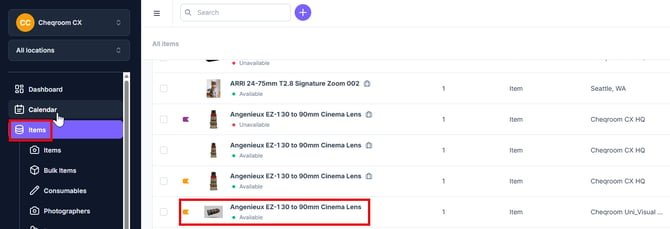
- From the left hand menu, click on Items and then click on the item (or kits) you would like to reserve.
-
Next, click Reserve in the upper right hand corner.
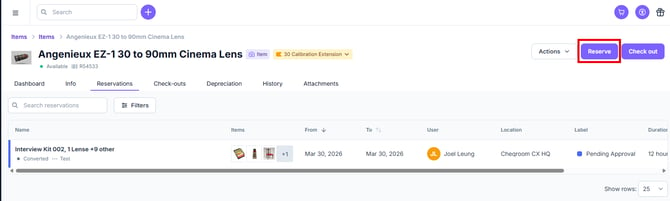
- From here, you can either Add equipment to the reservation or click Go to Reservation.
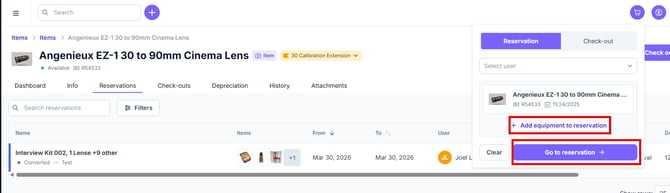
💡 Once you click on Go to reservation, you'll be presented with the reservation screen to add items or kits and/or Reserve the item(s) you've selected.
💡 Make sure to create a Name for your reservation, select the Location, choose the dates, the User and the Destination.
Making a Reservation
-
From the left hand menu in your Cheqroom account, click Reservations and then New reservation.
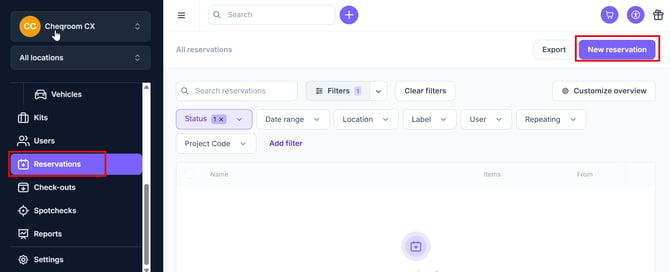
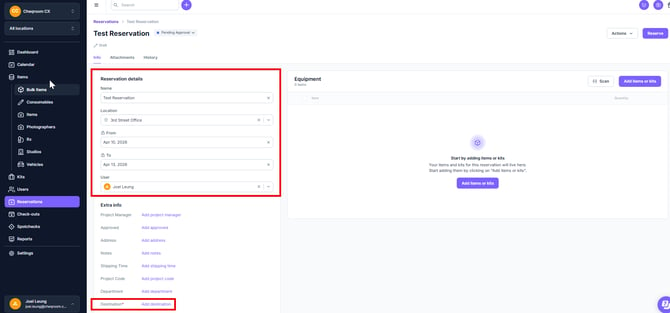
- Next, make sure to create a Name for your reservation, select the Location, choose the dates, the User and the Destination. When starting from the Reservations tab, most users find it more efficient to select their date and time prior to adding items or kits. By setting the timeframe upfront, the item selector automatically filters for real-time availability, ensuring you only see equipment that is actually ready for use during your window.
-
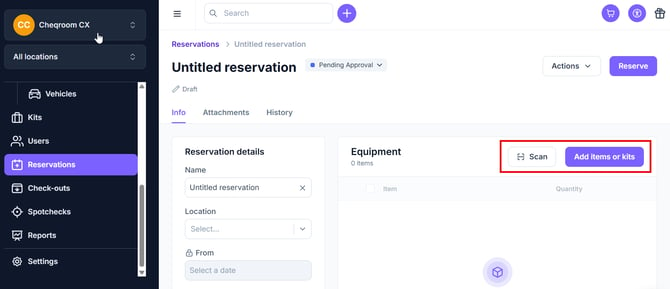
Click Scan if you would like to scan the items included in the reservation or click Add items or kits to choose the Item(s) you need.
-
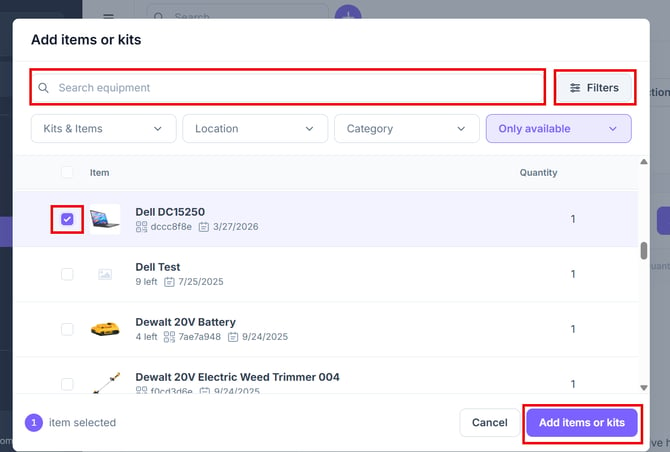
On the Add items or kits page you can either search for equipment suing the search bar, scroll through the items by checking marking the ones to add to the reservation or filtering for specific equipment/availability.
- Once you've selected the item(s) that you'd like to reserve, make sure you click Add items or kits as this will add the items/kits to your reservation.
-
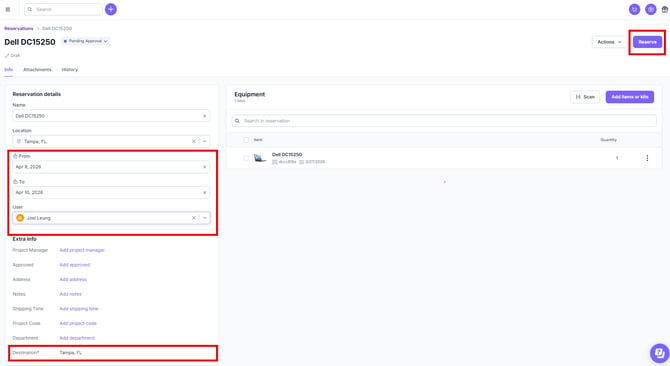
Now that you're back on the Reservation page, make sure to fill out the Reservation details to include the from/to dates, User and the Destination.
-
Once you're done, click Reserve.
Reservation Statuses
-
Draft: You're creating the reservation but haven't finalized it yet.
- Reserved: Items scheduled for a specific user to be checked out on a future date
-
Booked: The Item is reserved for your chosen dates.
-
Overdue: The reservation should have become a checkout by now.
- Converted: The reservation became a checkout (Item is borrowed).
-
Closed: You canceled the reservation without checking out the Item.
-
Cancelled: The reservation is no longer valid.
- Archived: Reservations that are preserved for historical record keeping.
You can read more on our How To Create and Manage Reservations guide.
Check-outs
Need gear for your project? Cheqroom's Check-out system lets you borrow Item quickly and easily. Choose between converting an existing Reservation, creating a new Check-out, or using the handy Quick Actions button.
1 - Convert a Reservation
If you previously reserved Item, you can convert it into a Check-out!
-
Click on Reservations on the left hand menu. Find the reservation in question an and click the 3 dot menu. Next, click Proceed to pick-up.
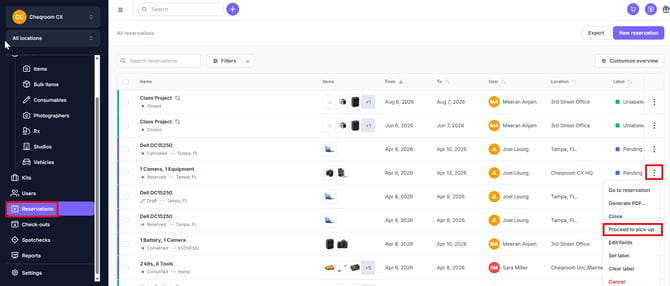
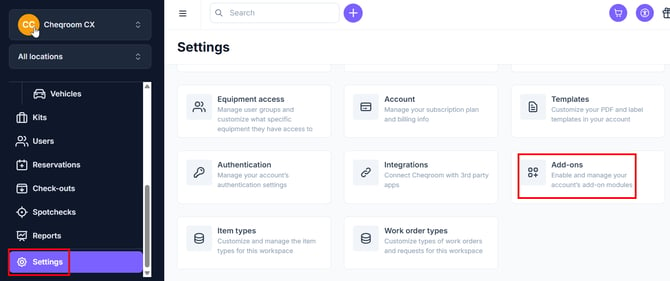
- Equipment picking is an optional step that can be toggled on/off by navigating to Settings and then clicking Add-ons.
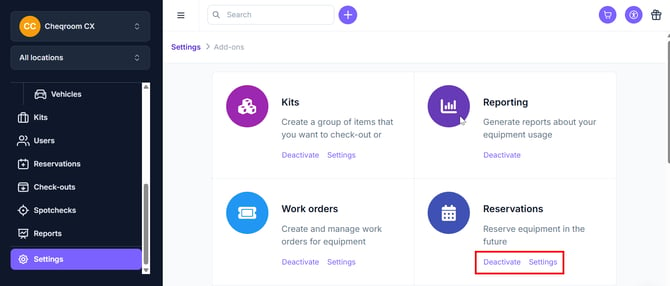
- To Enable equipment picking, make sure Reservations is set to Active and then click Settings.
-
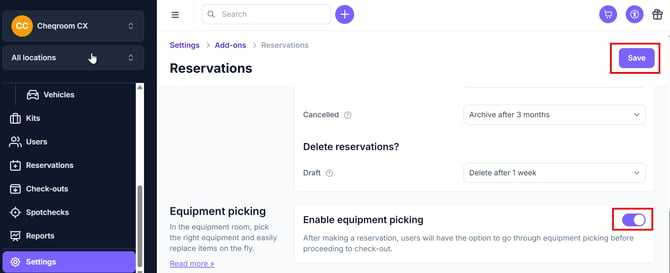
Scroll down to Enable equipment picking and turn it on. Next, click Save.
-
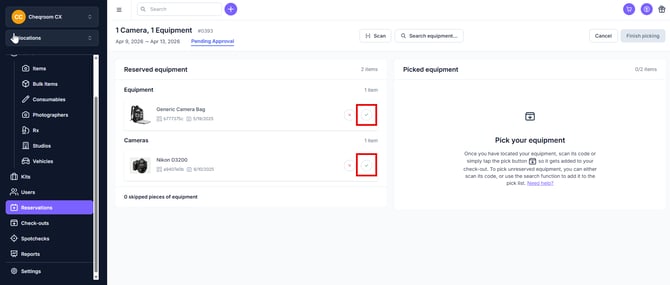
Click the check boxes next to the items that you'd like to pack.
-
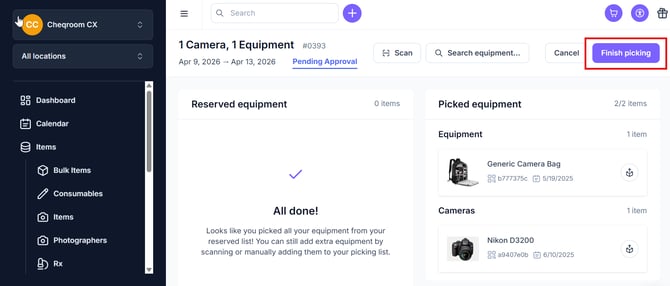
Once you've picked the items, you can go ahead and click Finish picking.
-
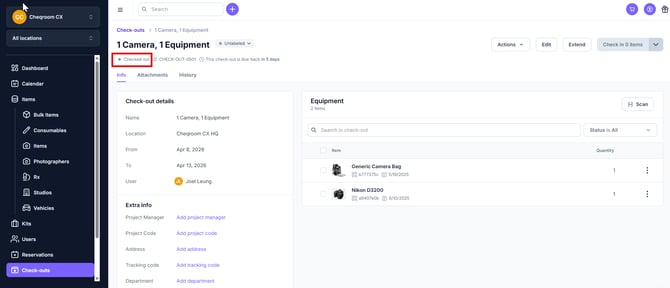
Once the Finish picking button is clicked, you'll see that the equipment has transitioned into being checked out.
2 - Create a New Check-Out
-
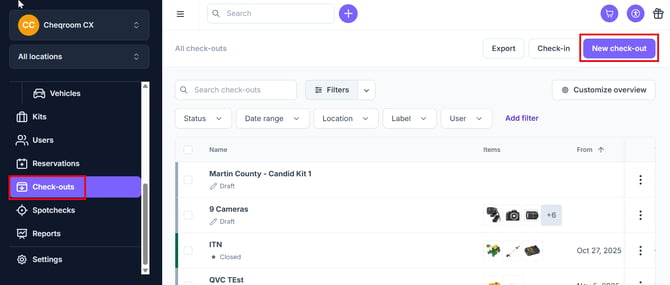
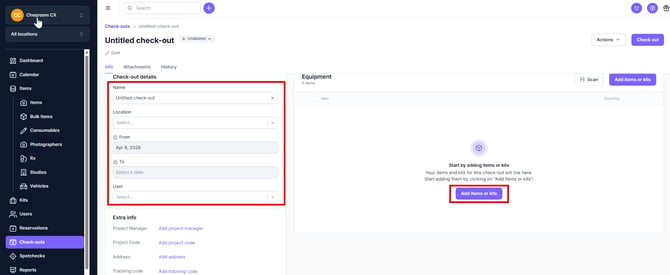
To create a new check out, click Check-outs on the left hand menu and then click New check-out on the top-right.
-
Provide details like Name, Location, start and return date, User and add items or kits to the checkout.
3 - Check-Out from Calendar
-
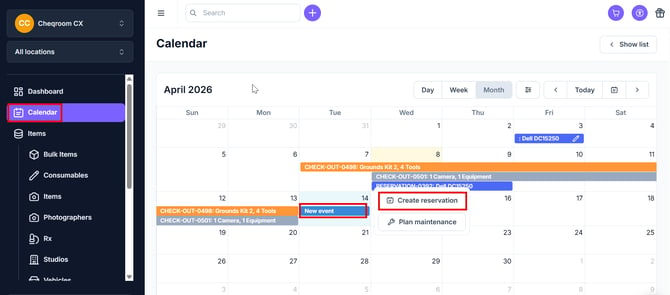
Click on Calendar on the left-hand menu, find the date you'd like to create the reservation for, click it so it shows New event and click Create reservation. In this example we've used April 14th.
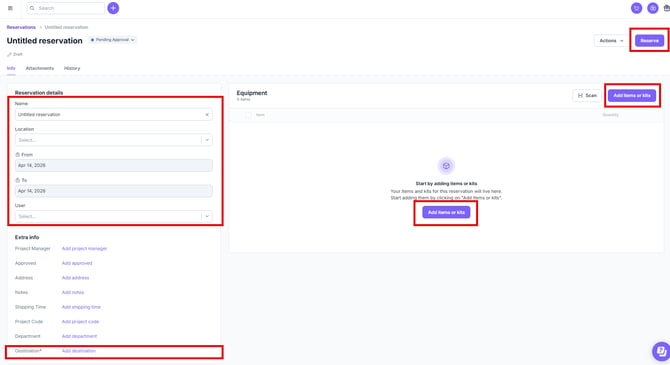
- From here you can fill out the Reservation details, add the Designation, add items or kits and then click Reserve.
4 - Check-out from Quick-action button
-
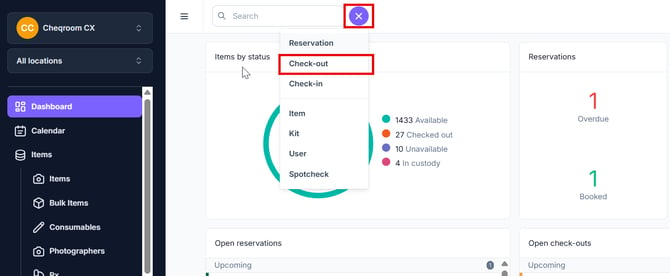
From your dashboard, Click on the Quick-action button (plus ‘+’ sign) next to the upmost search bar and click Check-out.
-
This will take you to the Check-out details where you can add additional details: Name, Location, from date/to date date, User and then add Items or kits.

-
Once you've filled out the Check-out details, and added the items or kits, you can click Check out to check out the items.
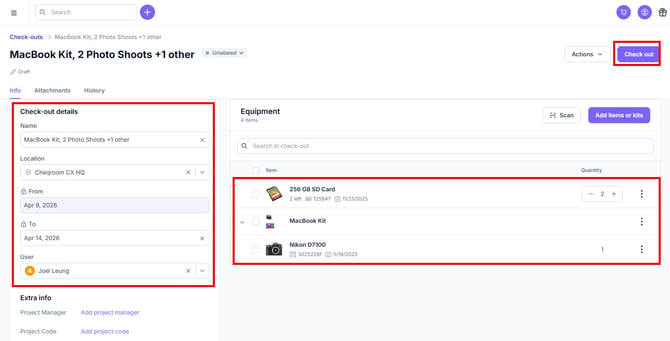
Note: Draft Check-outs reserve Item but haven't been finalized. Clear them out regularly to avoid blocking availability for others.
Having covered how to Check-out Item, let's now dive into the process of returning it or 'Checking-in'.
Processing a Check-in: Returning assets to active inventory
Done with your equipment? Returning items promptly ensures they are ready and available for both you and your team the next time they’re needed.
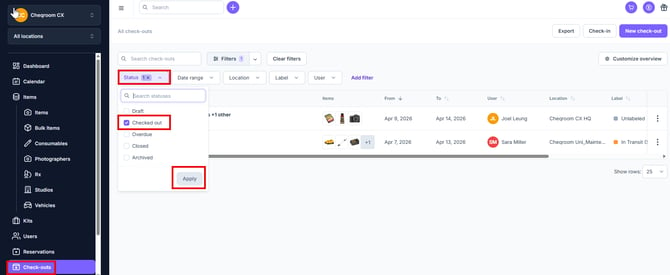
- To check in your equipment, simply navigate to Check-outs, filter by Checked out and click Apply.
-
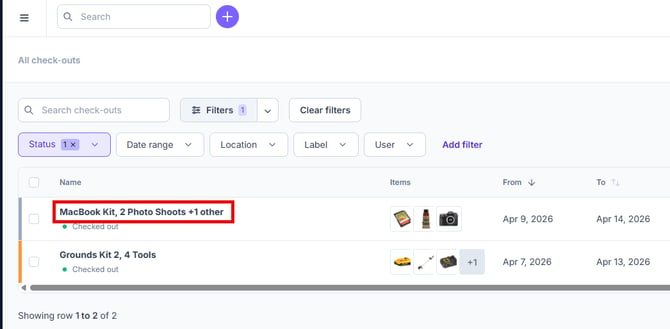
Next, click on the items you'd like to check in.
-
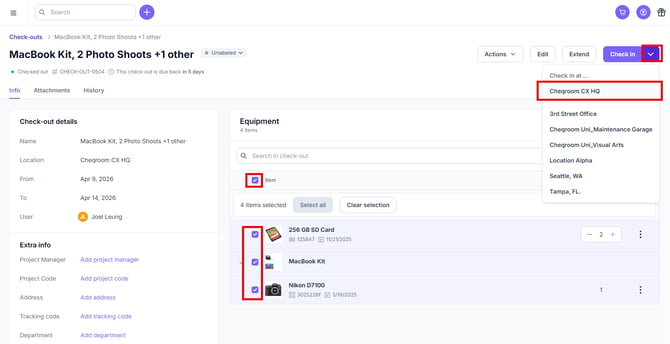
Select the Item you're returning by choosing the select all or each item individually. Next. click the drop down carrot and choose where you're checking the equipment back in.
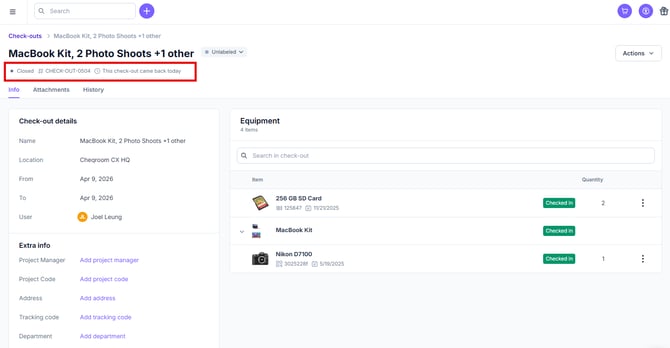
- Once you've checked in the items, you'll see the status on the check-outs screen is set to Closed.
You can read more on our How To Create and Manage Check-outs and Check-ins guide.
Custody
To effectively manage the Custody of your Item, Cheqroom offers a seamless process to ensure everything is accounted for and in the right hands.
Custody transfers are used when Item changes responsibility from one person to another. This not only keeps track of who has what but also helps maintain accountability and reduces the chances of lost or misplaced Items.
You can read more on our How to Use and Manage Custody guide.
Maintain Peak Performance with Spotchecks
Spotchecks are a proactive way to safeguard the quality and functionality of your inventory. By performing regular inspections, you can identify potential issues early—ensuring every item remains in optimal condition for the next user.
Beyond maintenance, consistent Spotchecks improve your inventory accuracy and help prevent unexpected downtime caused by faulty or damaged gear.
Performing a Spotcheck
-
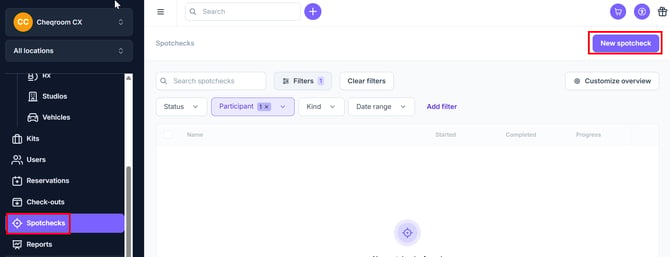
Navigate to Spotcheck in the left hand menu and click New spotcheck in the top right hand corner.
-
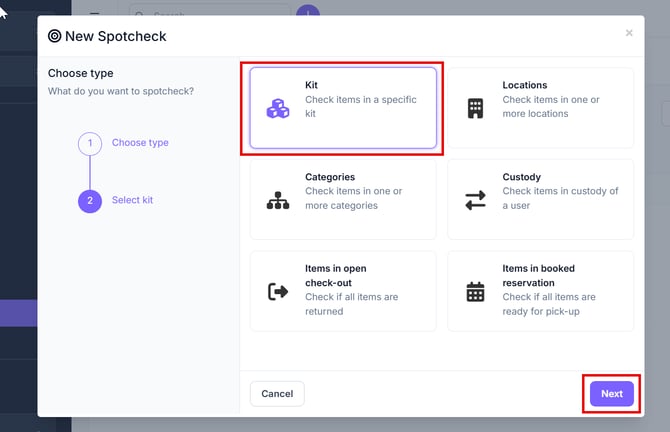
Select the type of New Spotcheck you'd like to perform (Kit, Categories, Items in open check-out, Locations, Custody or Items in booked reservation) and then click Next.
-
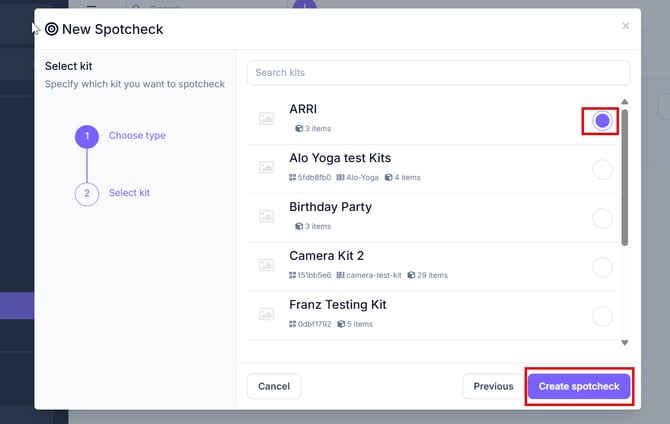
For this example, we are selecting the ARRI kit and then click Create spotcheck.
-
Update the Item as necessary (you can leave comments and attachments), and then click Finish.
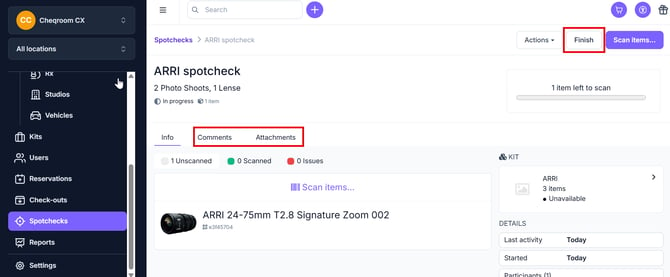
You can read more on our How to Use and Manage Spotcheck guide.
Cheqroom allows you to create detailed PDF templates for various purposes such as Check-out agreements, Reservations, Custody, and Spotchecks. These templates are useful for audits, record-keeping, and sharing information with other team members.
Generating a PDF document
-
Navigate to the section for which you need a PDF document (Reservations, Check-outs, Custody, Spotcheck).
-
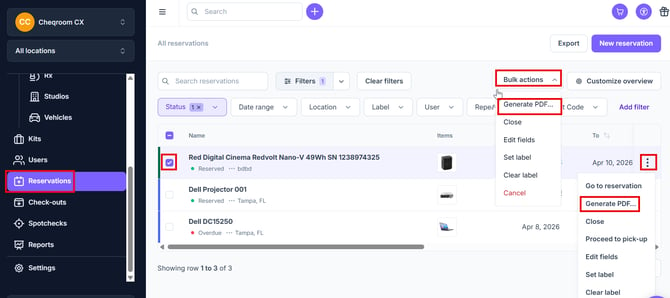
Select the Reservations, Check-out etc., click Bulk Actions and then click Generate PDF. Additionally, you can also click the 3 dot menu on the item and then click Generate PDF if you are looking to generate the PDF for just one line item.
-
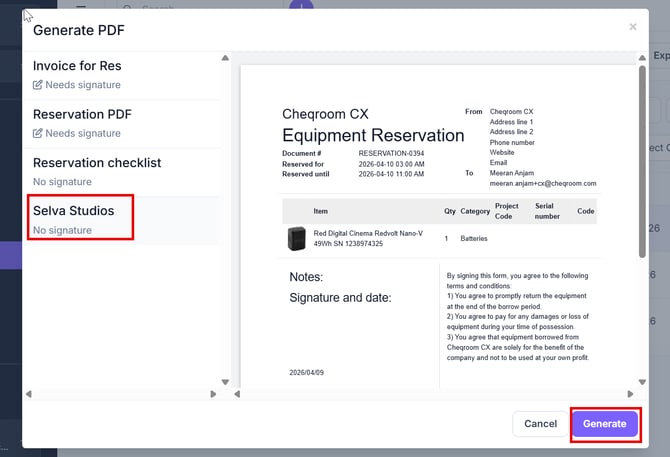
Select the existing template you want to use and click Generate.
You can read more on our How to Use, Create and Customize PDF Templates guide.
Following this Quick Start User Guide, you can efficiently manage your Items with Cheqroom. By mastering Reservations, Check-outs, Spotchecks, and Custody you'll optimize Item availability and operational efficiency.